
جميع الأدلةالإدارة
Import and export
Import spreadsheets and setup data, export records and download files from transfer history.
Open Import & Export in the workspace to upload spreadsheets, generate files and reports, and review transfers. This standard module requires the relevant permissions for each data type, including separate access to employee private details and pay.
Start all imports and exports here. Set the scope in this module before requesting a file; filters on Employees, Leave Management or another page are not carried over.
Choose the right transfer
| Data | Import purpose | Export purpose |
|---|---|---|
| Departments, designations, locations, shifts and leave types | Create setup records | Export setup, optionally by status |
| Module categories and types | Create asset, expense and policy categories, document types and warning types | Export setup for enabled modules |
| Employees | Create new employees from a spreadsheet | Download employee records with the filters and permitted columns you select |
| Holidays | Create holidays for existing locations | Export by year, location and status |
| Leave balances | Set initial leave entitlements for the chosen year | Download initial entitlements for the chosen year |
| Assets | Create asset records when Asset Management is enabled | Export the register by category and status |
| Policies manual | — | Generate a PDF of current published policy content; drafts and expired policies are excluded |
| Attendance, leave and expense reports | — | Generate a report for a month or date range; expense reports require Expenses |
| Job postings, applicants and tasks | Create draft postings, new applicants and new tasks through their normal creation rules | Export their operational registers | | Other operational registers | — | Export recruitment, employee lifecycle, loans, tasks, documents, assets, policies, disciplinary records, compensatory offs, actionable approvals and audit metadata |
Read the relevant data guide before preparing a file. Importing leave entitlements preserves usage and adjustment history; it does not directly replace available balances.
Use Importing setup data for dependencies and field decisions, Choosing export data and scope for coverage and permissions, Importing a spreadsheet for validation and confirmation, Generating reports for report options, and Transfer history and downloads for results, cancellation and recovery.
Access and privacy
History contains your own transfers. Required module access and data permissions are checked again at execution and download. A permission change or disabled source module can therefore prevent a previously available transfer.
Downloads contain a snapshot of data at generation time. Later edits do not update a file you already downloaded. Store and share employee, leave and expense files only with people entitled to see their contents. Files are retained for at most seven days after the transfer request; successful or cancelled imports release their source file earlier. History remains available after files expire.
Letters, individual policy attachments and other files already attached to a record remain available from that record.
Importing a spreadsheet
Use an import when you have many supported records to create or initial leave entitlements to set. You need permission for the selected operation and access to its source module. Preparing or validating a file does not change business records; confirmation starts the import.
Prepare and validate
- Open Import & Export, choose an import data type, and download its current template.
- Fill the template with your data, replacing example rows if provided. Keep the template headings, use one record per row, and create any required departments, locations, leave types or asset categories first.
- Select a CSV, XLS or XLSX file and any required options, such as the leave entitlement year. Check the limits for that source. The overall limits are 10 MB and 1,000 records per file; a source can have a lower limit. Assets allow at most 170 records per file.
- Validate the file. Review the preview and row errors before continuing. Validation errors block confirmation for the whole file; they do not cause the other rows to be applied.
- Correct errors in the original spreadsheet, upload the corrected file and validate it again. Download the error report when you need to work through several problems.
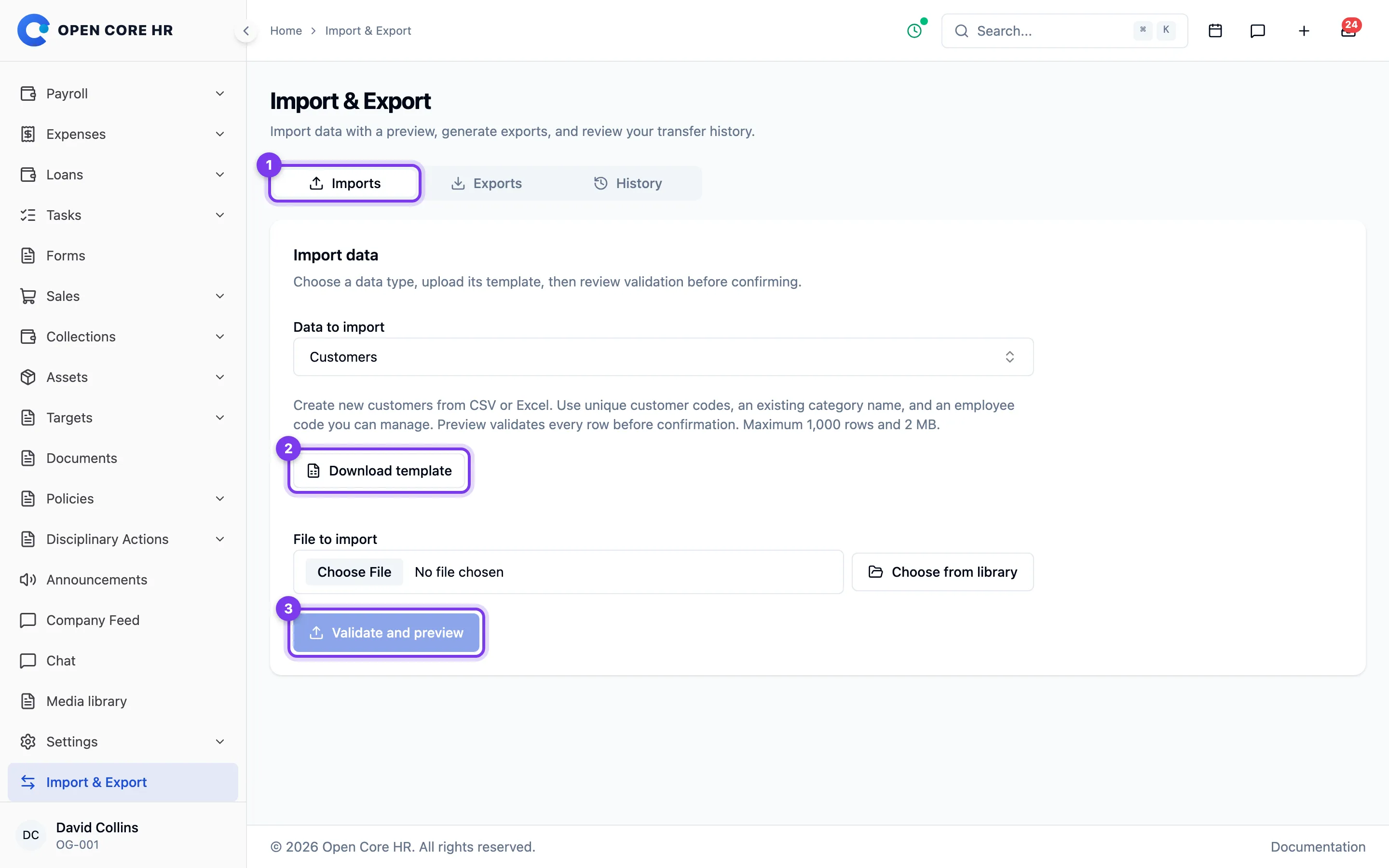
The preview helps check the proposed operation and a sample of its data. It is not evidence that the records have been saved. Read the total row count and validation result as well as the sample.
Confirm and check the result
Confirm only after the file, operation and options are correct. The import is queued, and you can follow it in History. Rows are applied together; an invalid row prevents the file from being applied. Wait for completion and review the result before starting another upload of the same data.
Validation runs against current records. A change after preview, such as another person creating the same employee or changing a required category, can make the confirmed import fail. Review the error, refresh any changed reference data, then upload and validate a corrected file.
Imports are not automatically retried. If a job fails or its outcome is unclear, check its history and the destination records before submitting again. A slow worker or missing invitation email does not mean an employee was not created. See Transfer history and downloads for pending, failed and expired transfers.
You may cancel an import while it is awaiting confirmation or queued. Once processing starts, cancellation is unavailable. Completed imports have no automatic undo; correct records through the relevant management pages.
Creating job postings, applicants and tasks
These imports create the starting record for a workflow; they cannot import approvals, completion, hiring or other later states. Use the current template, the same 10 MB/1,000-row file limits, and the validation/confirmation steps above. Unknown columns are rejected. Existing records are never updated by these imports.
Draft job postings
With Employee Lifecycle enabled and manage job postings permission, import a title and description for each new vacancy. Optional department, designation and location references use existing codes. Create that setup data before validating the file.
Openings default to 1. Optional salary minimum/maximum values require a pay period: hourly, daily, weekly, monthly or yearly. A blank currency uses the deployment currency when salary is supplied. Closing and expected-joining dates, when supplied, use YYYY-MM-DD and must be today or later.
Every imported posting starts as Draft with its own generated URL identifier. Review it in recruitment and publish it through the normal workflow. Importing does not publish vacancies automatically, and uploading the same title again can create another draft; check history before repeating a completed upload.
New applicants
With Employee Lifecycle enabled and conduct interviews permission, provide the applicant's name and email. Use an existing job_posting_slug to associate a vacancy, or leave it blank for a general application. Optional fields are phone, current location, cover letter and source. Source defaults to manual; other accepted values are referral, agency and other.
Applicants start as New. An active application with the same email and vacancy, including a repeated row in the file, is rejected. Emails are normalized to lowercase. The import does not upload CVs, send candidate messages or set interview/hiring outcomes. Keep CV files and later recruitment actions in their normal workflows.
New tasks
With Task enabled, the normal task-creation policy applies. Provide a task name, another active employee's assigned_to_code and a due date of today or later. Dates use YYYY-MM-DD; optional due time uses HH:MM. Priority defaults to medium, attachment requirement to 0, and recurrence to never.
For recurring tasks choose daily, weekly or monthly, and provide a recurrence end date after the first due date. In addition to the row limit, the whole file may generate at most 1,000 recurring instances. Shorten the recurrence period or split the tasks into smaller files when validation reports this limit.
Tasks start as New and create their normal recurring instances. Voice recordings and file attachments are not imported. Importing the same task details again can create another task, so check completion before repeating an upload. Mark completion and record task updates through the Task workflow.
Data-specific guidance
- Setup data: departments, designations, locations, shifts, leave types and module categories/types.
- Employees: required fields, role assignments, private details and compensation.
- Holidays: location references and holiday dates.
- Leave entitlements: year, employee identity and initial balance rules.
- Assets: categories, statuses, duplicates and the row limit.
Importing setup data
Use setup imports to create departments, designations, locations, shifts, leave types and the categories used by enabled modules. They create new records only. To change an existing record, use its management page; uploading its code again produces an error rather than an update.
Prepare dependencies first
- Import parent departments before their children. A parent in another row of the same file does not yet exist during validation. Import designations after their referenced departments.
- Create locations and shifts before importing employees, and locations before holidays.
- Create leave types before importing entitlements. If a leave type deducts from another type, create the referenced type first.
- Enable the relevant module before importing its setup data. Create asset categories before assets. Any approval workflow referenced by a category must already exist; create workflows through Approval Workflows.
Download the current template from Import & Export for each data type. Some templates contain headings only. Keep those headings and one record per row; remove helper columns, internal IDs, totals and extra worksheets. Unknown columns are rejected for setup imports. Files accept CSV, XLS or XLSX, up to 10 MB and 1,000 data rows.
Use 1 and 0 for boolean fields, and active or inactive for status. Preserve identifiers as text so spreadsheet software does not remove leading zeroes. Use codes rather than database IDs for department and leave-type references.
Field decisions
| Data | Required decisions and reference rules |
|---|---|
| Departments | Provide a unique code and name. Optional parent_department_code must already exist. |
| Designations | Provide a unique code and name. Optional department_code must already exist. |
| Locations | Provide a unique code and name; address and notes are optional. |
| Shifts | Provide a unique code, name, different start/end times and all seven weekday flags. At least one day must be enabled. Use HH:MM or HH:MM:SS. Overnight shifts can end earlier than they start. Imports cannot change the default shift; keep is_default at 0, then select the default on Shifts. |
| Leave types | Provide a unique code and name. auto_deduct_from, when supplied, must name an existing leave-type code. Blank monthly/yearly limits mean no limit; 0 remains an explicit zero limit. |
| Asset categories — Asset module | Provide a unique name. A blank slug is derived from the name. A supplied approval_workflow_code must exist. has_accessories controls accessory handling, not an accessory inventory import. |
| Expense categories | Provide a name. Supply a unique code or leave it blank for allocation. max_amount is an optional positive amount with at most two decimal places; blank means no category maximum. |
| Document types — Documents module | Provide a name. Supply a unique code or leave it blank for allocation. is_required and is_legal set the submission rules. PDF templates are attached through Document Types after creation. |
| Policy categories — Policies module | Provide a unique name. The URL identifier is derived from it; names that produce an existing identifier are rejected. Color, icon, description and sort order are optional. |
| Warning types — Disciplinary Actions module | Provide a unique name. Severity is low, medium, high or critical; appeal deadline is 0–365 days. Review acknowledgment and appeal settings before confirmation. |
Blank status defaults to active. For shifts, attendance is enabled and multiple check-ins are disabled by default. For leave types, deductible defaults to 1; proof, compensatory-off, short-leave and advance-notice flags default to 0.
For module setup data, blank booleans default as follows: asset accessories 0, expense proof 0, document required/legal 0, and active flags 1. Policy sort order and expense display order default to 0. Warning severity defaults to low, appeal deadline to 0, and acknowledgment requirement to 1. Enter explicit values where these defaults do not match your policy.
Validate before applying
Follow Importing a spreadsheet to validate and confirm. The entire file must pass; there are no silently skipped or partially applied rows. A preview does not allocate codes or create records. Confirmation rechecks permissions and current references before applying the rows together.
If a duplicate is reported, check whether the record already exists or another row repeats its identifier. A deleted record may still reserve its code or slug. Do not change an identifier merely to force the same record through again. Correct the original data, or edit the existing record through its management page.
An export is useful for checking existing setup and preparing a different installation. It is not an update file or a full backup. Keep dependency order, remove records already present at the destination, and validate against that destination's current template.
Choosing export data and scope
Choose a data source under Import & Export, set its scope and format, then request the file. Download it from your transfer history when processing finishes. All tabular sources support XLSX and CSV; leave entitlements also support PDF, and the policy manual is PDF only.
The available sources depend on enabled modules and your existing permissions. Exports preserve the visibility rules of the underlying data, including team, employee and legal-document restrictions. A broad report permission does not grant access to another domain.
Setup and employee data
| Source | Available scope |
|---|---|
| Departments, designations, locations, shifts, leave types | Active/inactive status |
| Asset, expense and policy categories; document and warning types | Active/inactive status; requires the corresponding module |
| Employees | Department, designation, location, account status, employment status and permitted columns |
| Holidays | Year, location and active/inactive status |
| Leave balances | Entitlement year; these are initial entitlements, not remaining available leave |
| Assets | Category and status; this register does not include assignment history |
Setup, holiday and asset register exports also allow at most 10,000 records. Select a status, year, location or category where available to reduce the result. A request over the limit fails rather than omitting rows; if the available filters cannot reduce it enough, use another supported reporting scope or contact your administrator.
Setup exports use their template fields. The asset register, employee export and operational registers are reporting files; do not assume they can be uploaded unchanged as import templates.
Operational registers
These sources export existing workflow records. Job postings, applicants and tasks also support creation imports, starting as Draft or New. Other operational registers are export-only. Approve, issue, acknowledge, hire, settle or complete records through their normal workflows; spreadsheet imports cannot set those outcomes.
Operational registers accept inclusive from/through dates and, where offered, status. The date meaning differs by source. They allow at most 10,000 matching records; a larger request fails with guidance to narrow the scope instead of returning a truncated file.
| Source | Date scope and important limits |
|---|---|
| Compensatory offs | Worked date; permitted employee scope |
| Approval inbox | Creation date; only currently actionable pending approval steps available to you |
| Audit log | Creation date; actor, record identity and event metadata only, without changed values, URLs or user agents |
| Employee document register — Documents | Submission creation date and status; no document numbers, review notes or file contents |
| Policy register — Policies | Creation date; version/publication metadata, without policy text or attachments |
| Policy acknowledgments — Policies | Assignment date and status; assigned versions, deadlines and acknowledgments |
| Asset assignments — Asset | Assignment date; includes assignment and return details |
| Asset return requests — Asset | Request creation date; request/completion information |
| Asset maintenance — Asset | Performed date; maintenance work, costs and next due dates |
| Warnings — Disciplinary Actions | Issue date and status; no evidence files or private statements |
| Warning appeals — Disciplinary Actions | Submission date and status; no evidence or appeal statements |
| Job postings — Employee Lifecycle | Creation date and status |
| Applicants — Employee Lifecycle | Application date and status |
| Interviews — Employee Lifecycle | Scheduled date and interview outcome |
| Offer and appointment registers — Employee Lifecycle | Creation date and status; no letter contents or compensation details |
| Onboarding and probations — Employee Lifecycle | Creation date and status |
| Employment changes — Employee Lifecycle | Effective date; no compensation details |
| Separations and final settlements — Employee Lifecycle | Creation date and status; settlement data requires settlement access |
| Loans — Loan | Creation date and status; permitted employee scope |
| Loan repayments — Loan | Repayment date and status; permitted loan scope |
| Tasks — Task | Due date and status; permitted task scope |
| Recurring task instances — Task | Scheduled date and status; permitted parent-task scope |
For attendance, leave and expense reporting, use the report sources with a month or date range of at most 93 inclusive days. The policy manual exports current published policy content; use the separate policy register when you need version metadata instead of the manual.
Permissions and sharing
Setup imports require the corresponding create/manage permission; exports require the corresponding view/manage permission. Employee imports and exports have separate capabilities. Leave-type exports require create or edit leave types; leave-entitlement transfers require manage leave balances. Warning-type transfers require manage warning types.
Asset assignments and return requests require both view assets and view all asset assignments. The asset register and maintenance require view assets. Policy exports require view policies; category exports also allow manage policy categories. Document types require view document types; the employee document register requires view employees or verify legal documents and still respects legal-document visibility.
Expense categories allow manage expense types, view expenses or view team expenses. Operational exports use their existing view permissions, except job postings and onboarding, which require their manage permissions. Job-posting imports require manage job postings, applicant imports require conduct interviews, and task imports follow the normal active-user task-creation policy. Export permission alone does not authorize applicant imports. Reports require view reports plus access to the corresponding attendance, leave or expense data. Employee private details and compensation retain separate checks.
Transfers grant no new roles or permissions. A revoked permission can stop a queued transfer or prevent a later download. Review file recipients and storage, particularly for applicant, employee, financial or disciplinary records. See Transfer history and downloads for expiry and recovery.
What these files do not replace
Use normal record pages for attachments, issued letters and binary document templates. Chat, mail, feed and other communication content, security/role configuration, API credentials, integrations, application configuration and technical backing logs are outside spreadsheet transfer coverage. Use the documented backup procedure when you need a complete recoverable installation.
Transfer history and downloads
Open Import & Export → History to follow your imports and exports. History belongs to the person who requested the transfer. You must still have the required data permissions and source module access to inspect or download its contents.
Understand a transfer's status
| Status | What to do |
|---|---|
| Ready for review | The import passed validation but has not been applied. Review it and confirm when ready. |
| Needs correction | Validation found problems. Download the errors, correct the spreadsheet and validate a new upload. |
| Queued | The transfer is waiting for a worker. Avoid submitting the same import again. |
| Processing | Work has started. Wait for a final result; cancellation is unavailable. |
| Completed | Review the import result, or download the generated export. |
| Failed | Read the error and resolve its cause before making a new request. Check destination records before repeating an import. |
| Cancelled | Work was stopped before processing. Create a new request if it is still needed. |
| Expired | The file is no longer available. Request a new export, or re-upload and validate an unconfirmed import. |
You may cancel transfers that are ready for review, need correction or are queued. Cancellation does not reverse completed changes. Refresh history to obtain the latest state before deciding whether a transfer needs attention.
Download and retain files
Download a completed export before its expiry shown in History, seven days after the request. Uploaded source files and error downloads have the same maximum retention; a successful or cancelled import releases its source file earlier. History remains after files expire. Expiry does not undo an import or change the records from which an export was generated.
If a download is denied, ask an administrator to check your current permissions and whether the source module remains enabled. Do not use another person's download link: the file is restricted to its requester.
Recover from a failed or delayed transfer
For validation problems, correct the indicated rows and submit a fresh upload. For an export error, correct its filters or ask an administrator to investigate, then request it again. Imports do not retry automatically.
If transfers remain pending, ask the server administrator to check the queue worker. If an import stops during processing, review the destination records before repeating it. Do not assume refreshing the page or closing the browser cancels server work.