
جميع الأدلةالبدء
Changing your password
Change your Open Core HR sign-in password from the account menu or your profile.
You can change your sign-in password from your profile page at any time.
Steps
- Open Change Password from the account menu at the bottom of the sidebar. (You can also open My Profile and click Change Password in the Security card.)
- In the Change Password window, enter your Current Password.
- Enter your New Password.
- Enter the same new password again in Confirm New Password.
- Click Change Password.
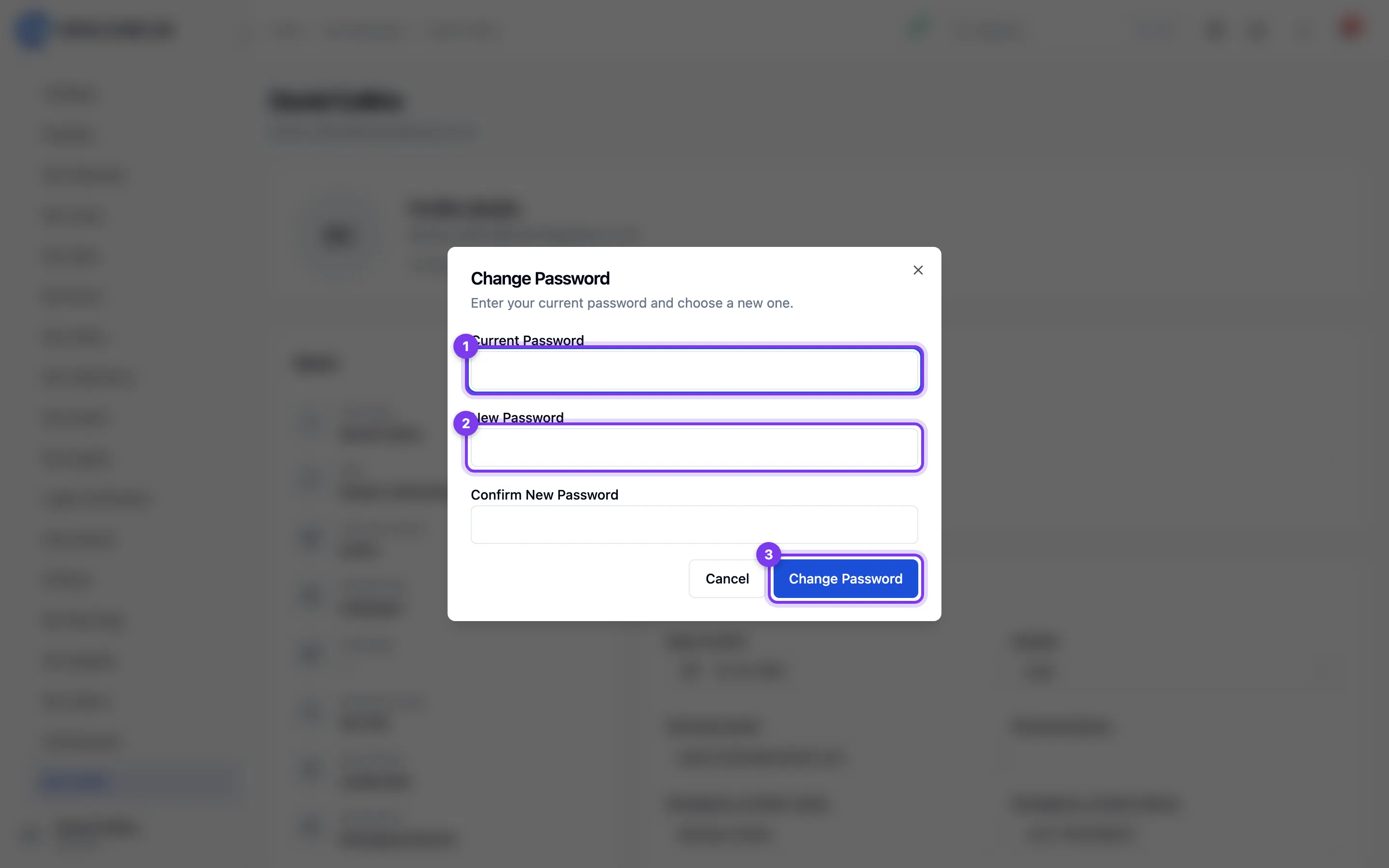
Use the new password the next time you sign in.
Tips
- Your new password must be at least 6 characters long.
- If you have a Microsoft 365 account through Open Core HR, your new password is applied there too.
Troubleshooting
- "Current password is incorrect" — re-enter your existing password and try again.
- The new password and confirmation don't match — make sure both boxes contain exactly the same password.