
جميع الأدلةالوحدات الإضافية
Chat and calls
Message colleagues in conversations and groups, share files and make audio or video calls.
Chat is the built-in messaging area in Open Core HR. You can send direct messages to a colleague, create group chats, share files and images, and react to messages.
Availability: This area may not be turned on for your company yet. If you don't see it in your menu, it isn't enabled — check with your HR or IT team.
Finding a conversation
Use Search chats... to find an existing conversation, or New Chat to start one. Open a conversation to read and send messages.
Steps
- Open Chat from your menu.
- In the conversation list on the left, select a chat to open it, or use Search chats... to find one.
- Type in the message box at the bottom and press Enter to send.
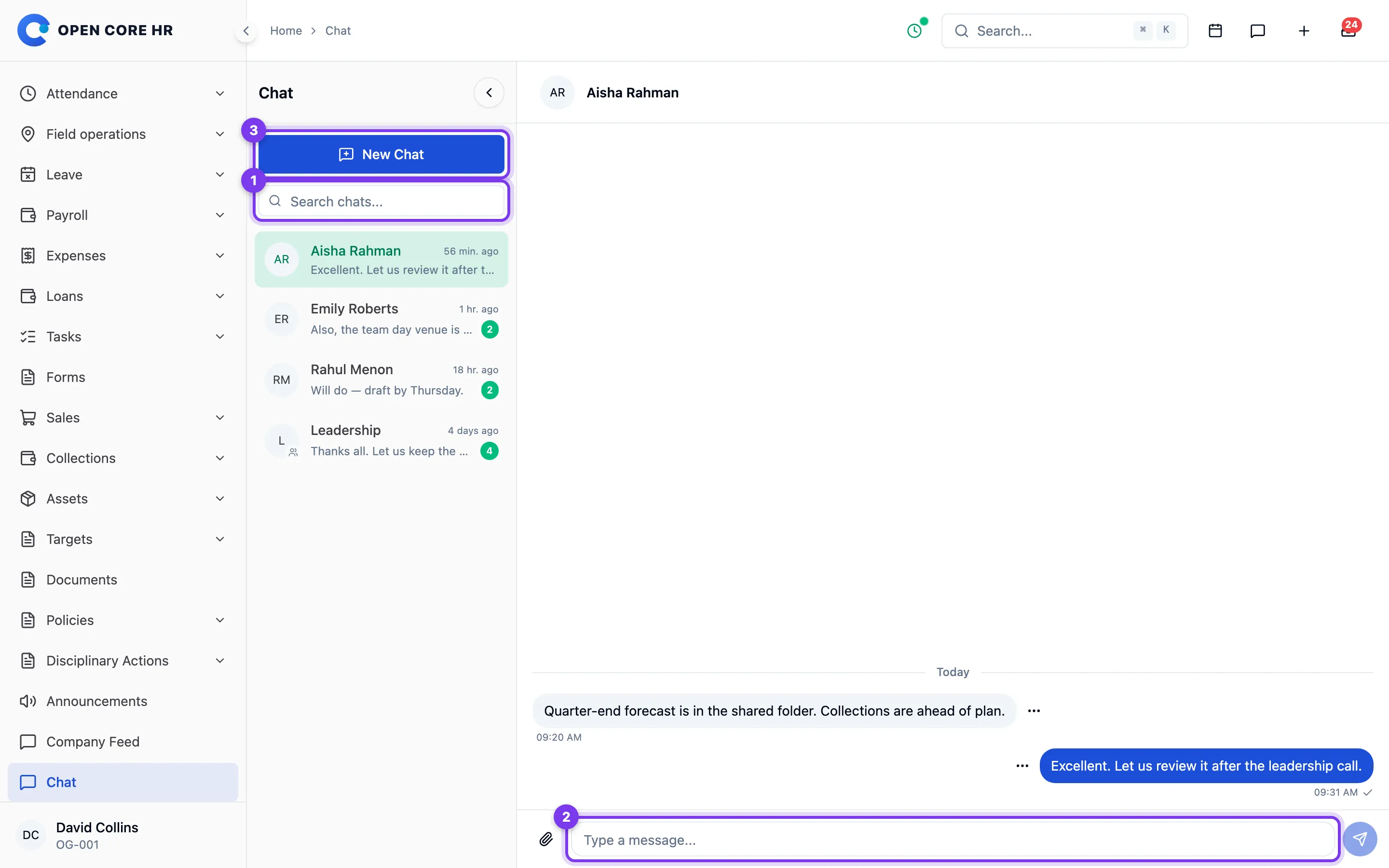
To start a new conversation or a group, see Conversations and groups.
Conversations and groups
Start a one-to-one chat with a colleague, or create a group chat for a team or project. You can add more people to a group later from the group info panel.
Starting a one-to-one chat
- In Chat, select New Chat.
- On the Direct Message tab, type a name in Search employees... and pick the person.
- In the Message box, type your first message.
- Select Send Message. The conversation opens.
Creating a group
- In Chat, select New Chat.
- Switch to the Group Chat tab.
- In Group Name, type a name for the group.
- Use Search employees to add... to find people, and select each one to add them. Selected members appear as chips above the search box — select the small x on a chip to remove someone.
- Select Create Group. The button shows how many members you've added.
Adding people to a group
- Open the group chat.
- Select the Info button at the top of the conversation to open the group info panel. It shows the group name and the list of members.
- Select Add, search for the person in Search employees..., and select them. They're added to the group.
Messages, reactions and files
Send text messages, react with an emoji, share files and images, and forward a message to another chat.
Sending a message
- Open the conversation.
- Type in the message box at the bottom ("Type a message...").
- Press Enter to send. To start a new line instead of sending, press Shift+Enter.
A tick appears next to your sent message; it changes once the other person has read it. You'll also see a "is typing" indicator when someone in the chat is typing.
Reacting to a message
- Hover over the message.
- Select the menu button (the three dots) that appears next to it.
- Pick an emoji from the row at the top of the menu. Your reaction appears under the message; pick a different emoji to change it.
Sharing a file or image
- Select the paperclip button to the left of the message box.
- Choose Image, Video, or File, then pick the file from your device.
- The file uploads and is sent to the chat. You can also drag a file onto the message area, or paste an image you've copied.
To view an image someone sent, select it — it opens full size, with a button to download it. Press Escape or select the x to close it. Other file types show as a card you can select to download.
Forwarding a message
- Hover over the message and select its menu button (the three dots).
- Choose Forward.
- In Search chats..., find the chat you want to send it to and select it. The message is forwarded.
Other actions
- Copy — on a text message, the menu has a Copy option to copy its text.
- Delete — on your own messages, the menu has Delete. You're asked to confirm; deletion can't be undone.
Calls
Audio, video and group calls between colleagues happen in the mobile app. The web version of Open Core HR Chat has no call buttons — use Chat on the web for messaging, files, and reactions.
Setting up calling (administrators)
Calls carry their audio and video through Agora. Until Agora is set up, the mobile app tells anyone who tries to call that calling is not set up yet. Call history and missed-call notifications are kept by Open Core HR, not by Agora.
- In the Agora Console, create a project with Secured mode: APP ID + Token authentication.
- Copy the project's App ID and Primary Certificate.
- In Open Core HR, go to Settings → Calls.
- Enter the Agora App ID and Agora App Certificate, then select Save. The status changes to Calling is configured.
You need the Manage settings permission to see this tab. Nothing needs to be added to the server's .env file, and the mobile app does not need rebuilding — it collects the App ID from the server before each call.
| Setting | What it does |
|---|---|
| Agora App ID | Identifies your Agora project. Phones receive this value. |
| Agora App Certificate | Signs each call's access token on the server. It is stored encrypted and is never shown again or sent to phones. Leave the field blank to keep the stored certificate; use Remove the stored certificate to turn calling off. |
| Call token lifetime | How long a call's access token is valid. The app renews it automatically during long calls. Default 60 minutes. |
| Mark unanswered calls as missed after | Calls that ring this long without an answer — for example because the caller lost signal — are recorded as missed. Default 10 minutes. |