
جميع الأدلةالتثبيت
Backups and updates
Back up an installation, update Core from the product or the command line, roll back, and recover access when reCAPTCHA blocks login.
Backups
Open Settings → Backups as the super administrator.
- Back up now saves the database plus the application files: uploads,
.env, your modules and settings. Dependencies (vendor) and compiled assets are left out because a release restores them. - Back up database only saves just the database.
- Download a backup to keep a copy off the server. Backups contain your encryption key (
.env) and employee data: store them encrypted and restrict access.
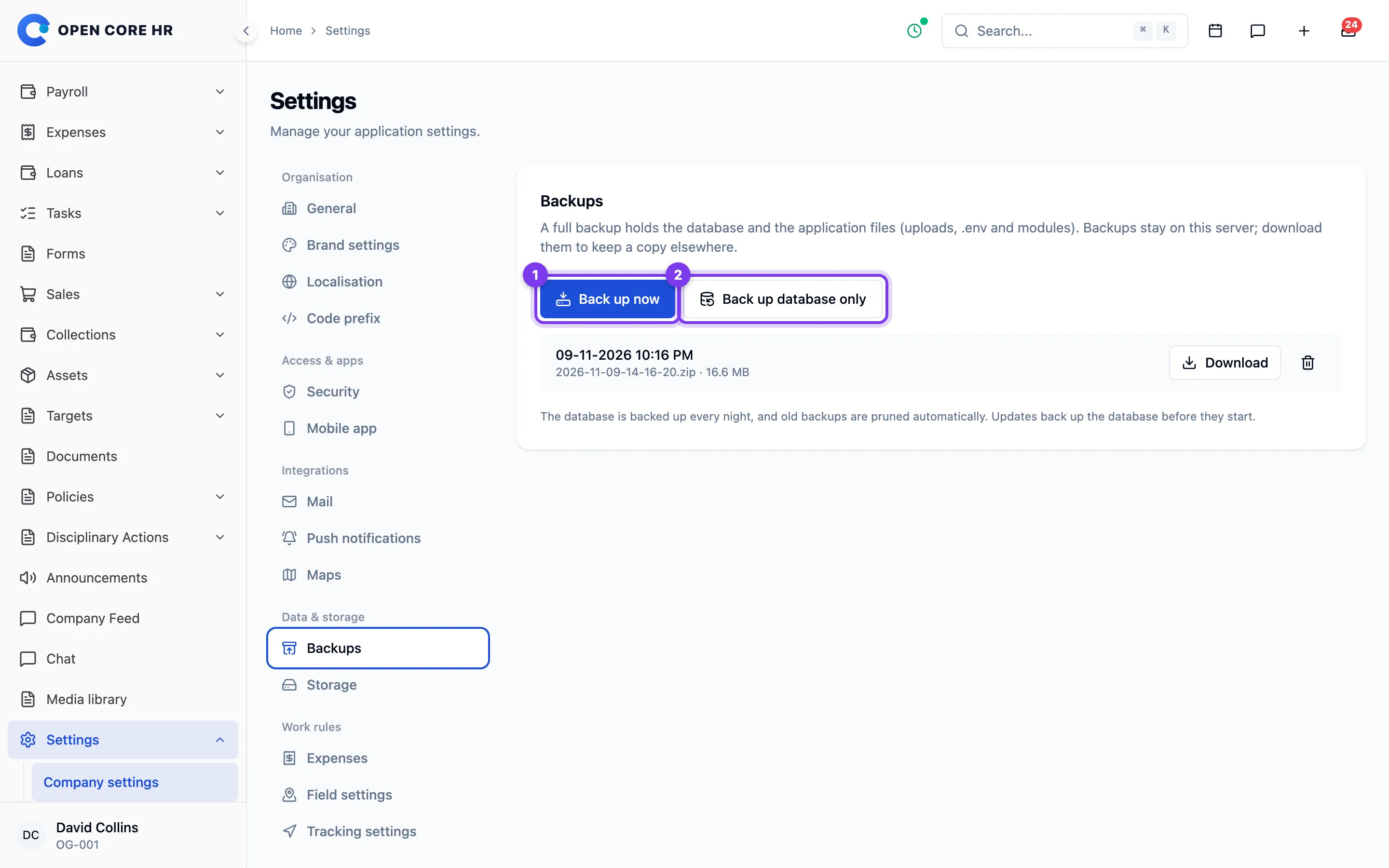
The database is also backed up every night at 02:15 (server time) and old backups are pruned automatically, as long as the scheduler runs (* * * * * php artisan schedule:run). Backups are kept in storage/app/private/backups.
Database backups use your database's command-line client (mysqldump for MySQL). If a backup reports that mysqldump cannot be found, install the MySQL client package, or set the folder that contains it in .env:
DB_MYSQL_DUMP_PATH=/usr/bin
Test a restore on a separate copy at least once. Do not send production backups to support.
Update Core from the product
Activated installations show Open Core HR x.y.z is available on Settings → Modules when an update is released and your updates are current. Read the notes, then choose Update now → Start update. Keep the window open while it:
- checks the server (PHP version and extensions, free space, write access), downloads the release and checks it against CZ App Studio's signature;
- backs up the database;
- shows a maintenance page for a few moments while the Core folders are replaced;
- applies database changes and brings the site back online.
Your .env, storage, Modules folder, add-on switches, files you added to public/ and the public/storage link are never replaced. The previous Core files are kept until the update finishes.
If the database backup cannot be made, the update stops. Fix the backup, or tick I have my own recent database backup to continue without one.
An update is not offered, with the reason shown, when:
- an enabled add-on does not support the new Core version: update that add-on first;
- the installation is a git checkout: update it with git instead (see below);
- demo mode is on.
If an update fails
If replacing files fails, the previous version is kept automatically. If the last step fails, the site stays in maintenance mode and the page shows the error with Put the previous version back. That restores the previous Core files; database changes that already ran are not reversed, so restore the database backup if the old version misbehaves.
Update from the command line
From the backend folder:
php artisan core:update --check     # show whether an update is available
php artisan core:update             # check, download, back up, update
php artisan core:update --rollback  # put the previous Core files back
Use --without-database-backup only when you have your own backup, and --force to skip the confirmation (for scripts).
Git checkouts and custom deployments
If you deploy from your own git repository, update from your repository instead of the product. Merge the new release into your copy, then on the server:
php artisan down
composer install --no-dev --prefer-dist --optimize-autoloader
php artisan migrate --force
php artisan optimize
php artisan queue:restart
php artisan up
Never run migrate:fresh, migrate:refresh, db:wipe or the demo seeders on a live installation: they delete data. Production installations refuse these commands.
Recover access when reCAPTCHA blocks login
If a signed-in administrator still has access, disable reCAPTCHA under Settings → Security and save. Otherwise, a server administrator can run this from backend/:
php artisan recaptcha:disable --no-interaction
This disables enforcement in the same settings store and keeps the saved keys. It does not reset accounts, passwords or application data. Sign in, correct the Google configuration, and complete a new configuration test before enabling protection again.