
جميع الأدلةالخدمة الذاتية
Your expenses
Create, submit, track and cancel expense and travel claims.
Open My Expenses to see your drafts and submitted claims. This feature is included in core HR and requires expense permissions.
Use New Expense to create a claim. A claim can contain several receipts, categories, and expense dates.
Find a claim
Search the list, select a status, or filter by expense dates. Date filters match individual items; amounts shown are totals for the complete claim.
- Draft — saved and editable; not sent for approval.
- Submitted — awaiting one or more approval decisions; editing is locked.
- Approved — the claim has completed approval.
- Rejected — review the comments and copy it into a new draft if needed.
- Cancelled — the draft was cancelled or the submitted claim was withdrawn.
An approved claim shows Reimbursed once payment has been recorded. Approval alone does not mean payment has been made.
Open a claim to view its items, receipts, approval history, and reimbursement details. See Viewing an expense.
Creating and submitting an expense
Use My Expenses → New Expense to request reimbursement. This feature is included in core HR and requires expense permissions.
Create a claim
- Optionally enter a title and notes for the claim.
- For each expense, select a category and enter its date and amount.
- Optionally add an item description.
- Attach receipts if required by the category, or optionally add them as evidence. An item can have up to five receipts.
- Choose Add another expense for additional items. Each item can have a different date and category.
- Review the total.
- Choose Save Draft to continue later, or Submit to send the claim for approval.
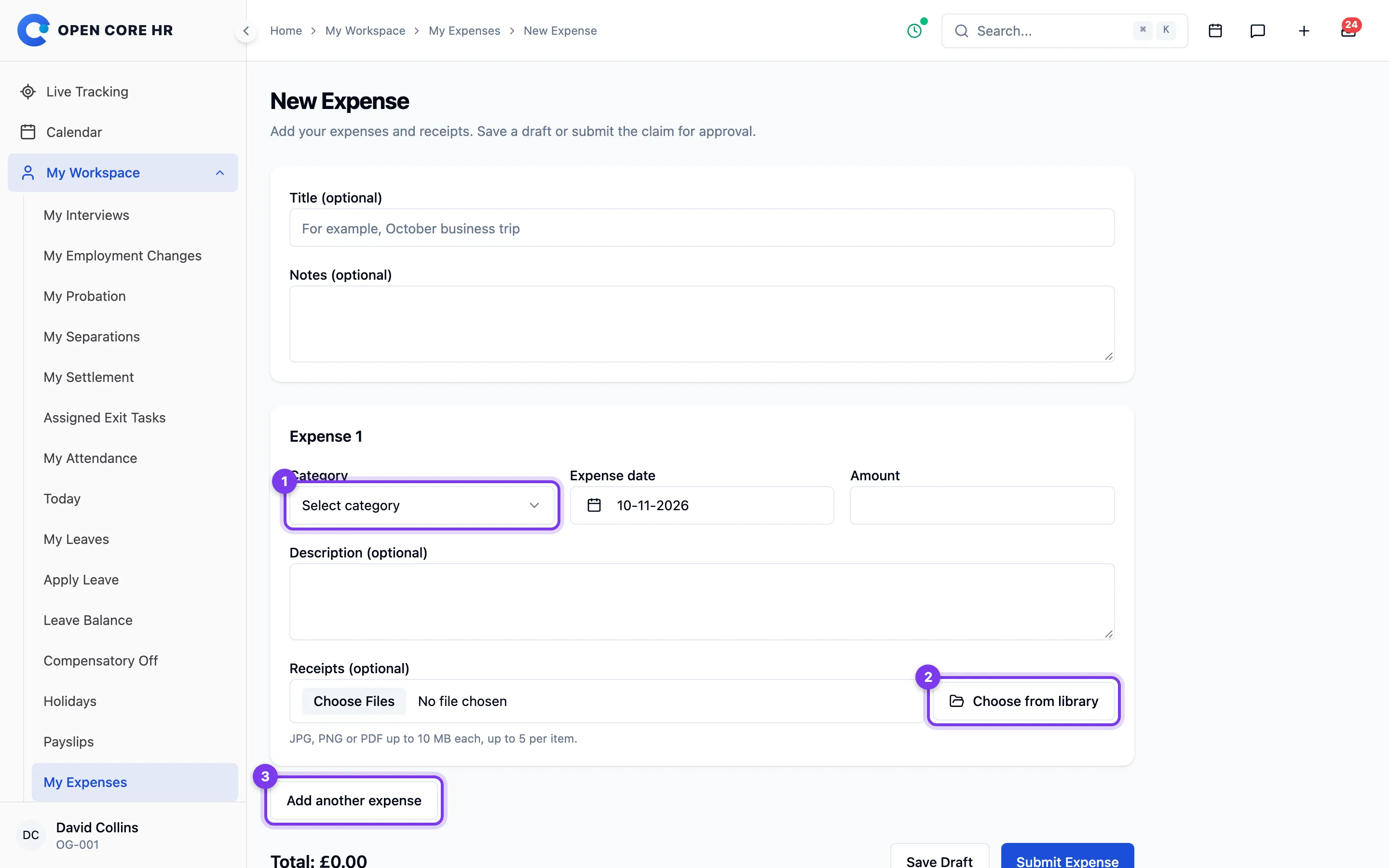
Expense dates must be today or earlier and amounts must be positive. Category limits, when configured, apply per item. The form uses your organization's currency. Your organization may also set a maximum expense age: when it does, the form shows the limit and an item dated earlier than that cannot be submitted. The claim is still saved as a draft, so you can remove or correct the item.
Drafts can be edited. Submitted claims are locked while they are reviewed. See Cancelling or withdrawing a claim if a submitted claim needs correction.
If your connection drops while you save or submit, try again from the same screen. A repeated request is recognized, so it does not create a second claim or submit the claim twice.
Correct a returned claim
An approver can return a claim for correction instead of rejecting it. The claim shows Returned for correction with the approver's reason.
- Open the claim and choose Correct claim.
- Make the requested changes. You can edit items and add or remove receipts.
- Choose Submit on the form, or Resubmit claim from the claim.
The resubmitted claim goes through the approval workflow again from the first step. The approval history keeps the earlier review, numbered by review round. You can also withdraw a returned claim instead of resubmitting it.
If a claim is rejected, open it and choose Copy to Draft. Correct the new draft and submit it. The original rejected claim and its reviewer notes remain available.
Receipts
Attach JPG, PNG or PDF files of up to 10 MB each, with up to five receipts per item. Receipts are stored privately and can be read only by people authorized to view the claim. Receipts can be added or removed while a claim is a draft or has been returned for correction; existing receipts stay attached unless you remove them. A category that requires receipts needs at least one on each of its items when you submit.
With the Receipt scanning add-on, attaching a photo or scan of a receipt fills in the date, amount, category and description for you to check, on the web and in the mobile app. Only empty fields are filled, and you still save or submit the claim yourself.
Claiming travel expenses
Claim travel costs using My Expenses → New Expense, just like any other expense. This feature is included in core HR and requires expense permissions.
- Select the appropriate category, such as Travel, Meals, or Accommodation.
- Enter the date, amount, and a description of the cost.
- Attach the receipt, following the category's receipt requirement.
- Add other costs from the trip as separate items. Different dates can be included in the same claim.
- Save a draft or submit the claim for approval.
For mileage reimbursement, enter the amount agreed under your organization's arrangements and describe the journey and calculation in the item description. Open Core HR does not automatically calculate mileage or per diem allowances in this version.
All travel claims appear in the same expense list. You do not need to classify a claim as local or outstation.
Viewing an expense
Open a claim from My Expenses. This feature is included in core HR and requires expense permissions.
The detail shows the title, notes, total, status, and receipt items. Each item includes a date, category, amount, description, and links to its receipts. The approval history shows reviewer decisions and notes for each review round. Approved claims also show whether reimbursement has been recorded, the payment method and reference, and any reimbursement that finance reversed.
Available actions depend on the claim's state:
- Draft: edit, submit, or cancel.
- Submitted: withdraw before a final approval decision.
- Returned for correction: read the approver's reason, correct the claim and resubmit it, or withdraw it. See Correct a returned claim.
- Rejected: copy into a new draft to correct and resubmit.
- Approved or cancelled: view the retained record.
You cannot change a submitted or finalized claim. A copied claim is a new draft with its own future approval history.
Cancelling or withdrawing an expense
You can cancel your draft, withdraw your submitted claim before a final approval decision, or withdraw a claim returned for correction. This feature is included in core HR and requires expense permissions.
- Open the claim in My Expenses.
- Choose Cancel Draft or Withdraw, depending on its state.
- Confirm the action.
The claim becomes Cancelled and remains in your history. Withdrawing a submitted claim also cancels its active approval request, so it cannot be approved afterward.
Approved, rejected, and already-cancelled claims cannot be cancelled. If approval completes while you are viewing a claim, reload it to see its current state.