
جميع الأدلةالوحدات الإضافية
Documents
Define document types, keep employee documents and upload your own documents.
Document types
Document types define the documents your organisation collects, such as identity documents, qualifications, or signed contracts. Configure them under Settings → Master Data → Document Types before requesting files from employees.
Decide which documents are required
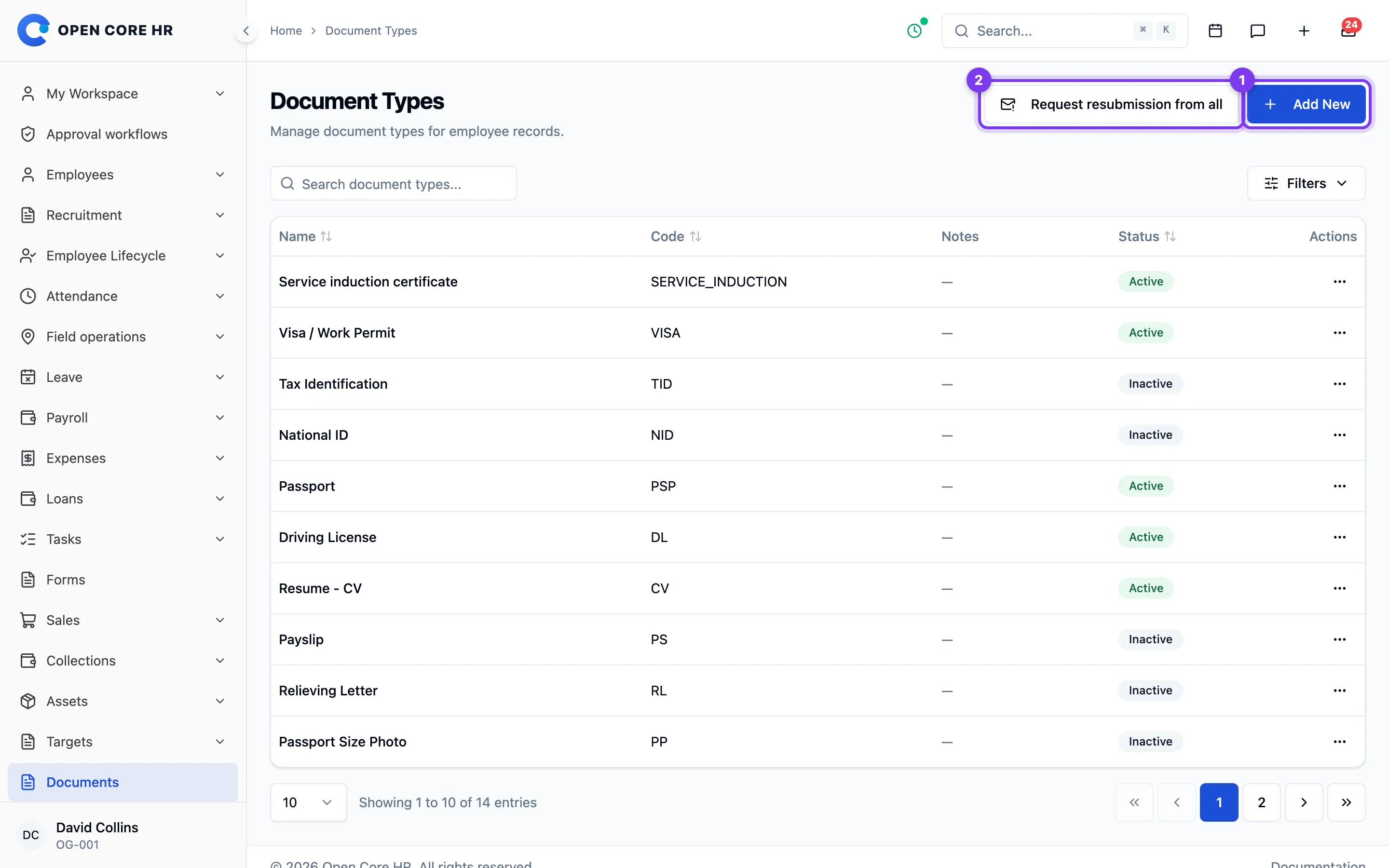
Enable Required only for documents that every joining employee must provide. An active, required document must be approved before onboarding can be completed. Active optional types can still be requested individually when they apply to a particular employee; they do not block onboarding by default.
To add a type, choose Add New, enter its name, and set Required and Active to match your process. Add notes when HR needs guidance about acceptable evidence. Leave Code blank to generate it, or supply a unique code of up to 50 characters. The code cannot be changed after creation.
Retire or change a document requirement
Edit the type when its name, notes, or requirement changes. Turning off Active stops the type from being required for new onboarding while keeping previously submitted records. Use this when you stop collecting a document.
Delete a type only when it is no longer needed. Deletion cannot be undone; retiring it is preferable when existing records still refer to it.
Employee documents
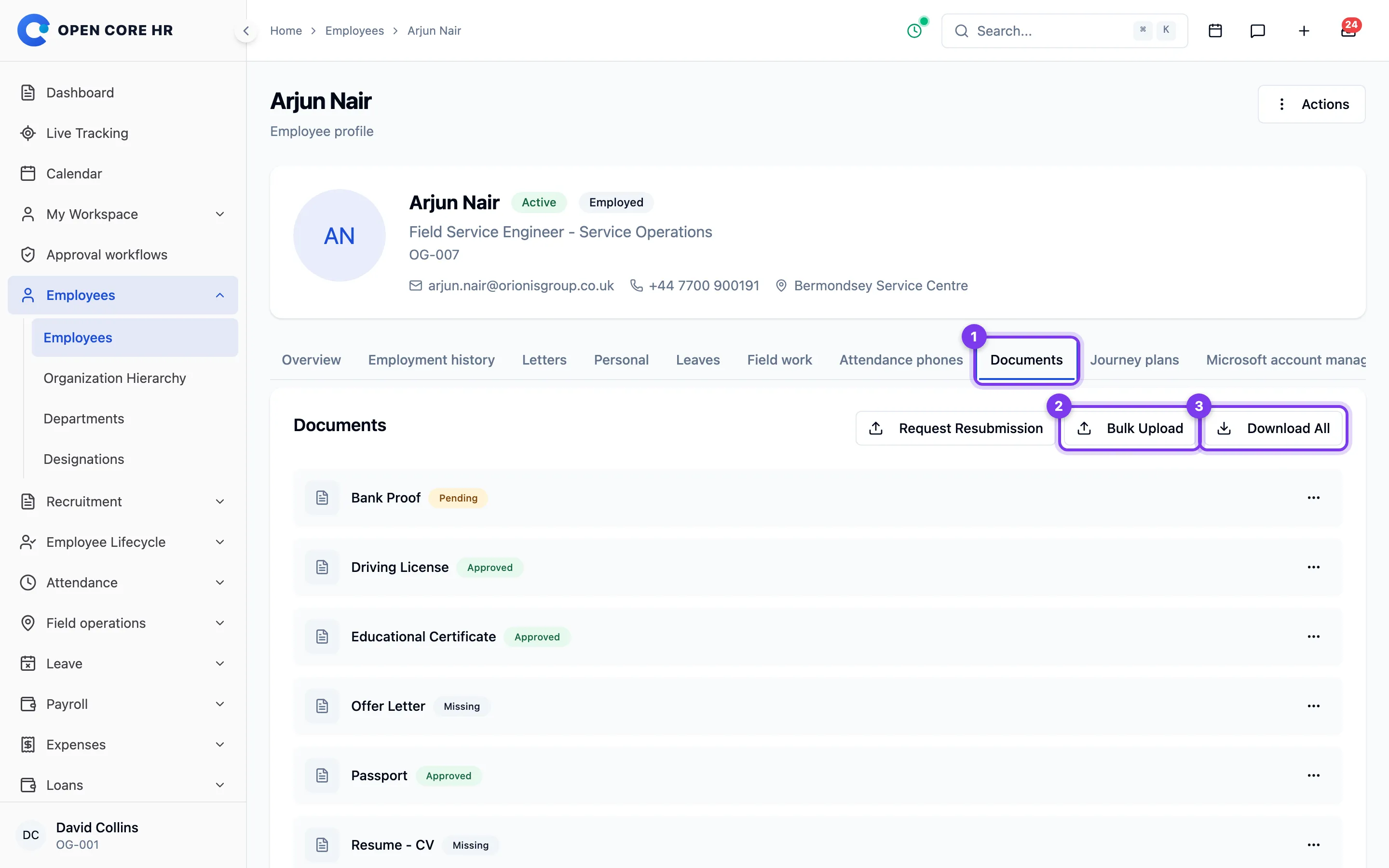
The Documents tab on an employee's profile lists one row per document type (for example ID proof, address proof), so you can see at a glance which documents are on file and add or view them.
Adding or replacing a document
- Open the employee's profile and go to the Documents tab.
- Find the document type's row.
- If nothing is on file yet, click Upload and pick the file. If a document is already there, click the upload icon to replace it.
Bulk uploading documents
- On the Documents tab, click Bulk Upload.
- In the Bulk Document Upload panel, for each row pick a Document Type and choose a File. Click Add Another Document to add more rows (up to 10).
- Click Upload Documents to save them all, or Cancel to close.
Supported file types are PDF, DOC, DOCX, JPG, JPEG, and PNG, up to 10 MB per file.
Viewing and downloading
For a row that has a document:
- Click View, then View in Browser to open it in a new tab, or Open Direct Link to open the stored file directly.
- Click the download icon to download just that document.
Download all
Click Download All at the top of the Documents tab to get a single zip file containing every document on file for the employee, organized by document type. This button appears only when at least one document exists.
Your documents (employees)
The Documents screen in the Documents module lists the documents you've uploaded and lets you view or download them.
Steps
- Open Documents from the module menu.
- To save a copy, click the download icon in the Actions column.
- To open the document in a new browser tab, click the view (eye) icon.


Tips
- To add a document, click Upload Document — see Uploading a document.
Uploading a document
Use the Documents screen to upload a document and file it under a document type.
Steps
- Open Documents from the module menu.
- Click Upload Document. The Upload Document dialog opens.
- Choose a Document Type from the dropdown.
- Under File, choose the file from your device. Accepted formats are PDF, JPG, and PNG, up to 5 MB.
- Click Upload.
After you finish
The document is added to your records.
Note: If you upload a new file for a document type you already have on file, it replaces the previous one.
Troubleshooting
- The upload is rejected — check that the file is a PDF, JPG, or PNG and within the size limit, and that you selected a document type.