
جميع الأدلةMicrosoft 365
Microsoft 365 account management
Provision, link, reset, disable and deprovision Microsoft 365 accounts for employees.
This optional module creates Microsoft accounts for employees and manages account access. It requires Microsoft365Connector. Existing Microsoft accounts can be linked through the connector without purchasing Account Management.
Configure its policies under Settings → Microsoft 365 accounts. Auto provisioning, account-status synchronization and password synchronization are off by default. Each is a separate control.
The Microsoft 365 Accounts overview helps administrators find unlinked employees and inspect recent or disabled accounts. Employee profile actions require Manage settings and Edit employees; viewing account summaries also requires employee-detail access.
For email and calendar access, enable Outlook Email or Outlook Calendar Sync independently.
Automatic account provisioning
- Configure and test the shared Microsoft 365 connection.
- In Settings → Microsoft 365 accounts, set a verified email domain and address format. Set the licence SKU and usage country when assigning a licence.
- Enable Auto provision when newly created active employees should receive an account.
- Create the employee and review the Microsoft account management tab after the queue worker processes the request.
The worker creates a Microsoft identity and assigns the configured licence. Microsoft controls mailbox readiness; licence assignment does not guarantee immediate mailbox availability. Existing unlinked employees can be provisioned manually from their profiles.
If licence assignment fails after the identity is created, use Retry licence assignment. If creation has an uncertain result, check the Microsoft admin centre and link the existing account rather than creating a duplicate. Resolve missing licence capacity or permissions before retrying.
Turning auto provisioning off stops queued automatic provisioning. It does not delete accounts. A deliberate manual provision action remains available.
Reviewing Microsoft accounts
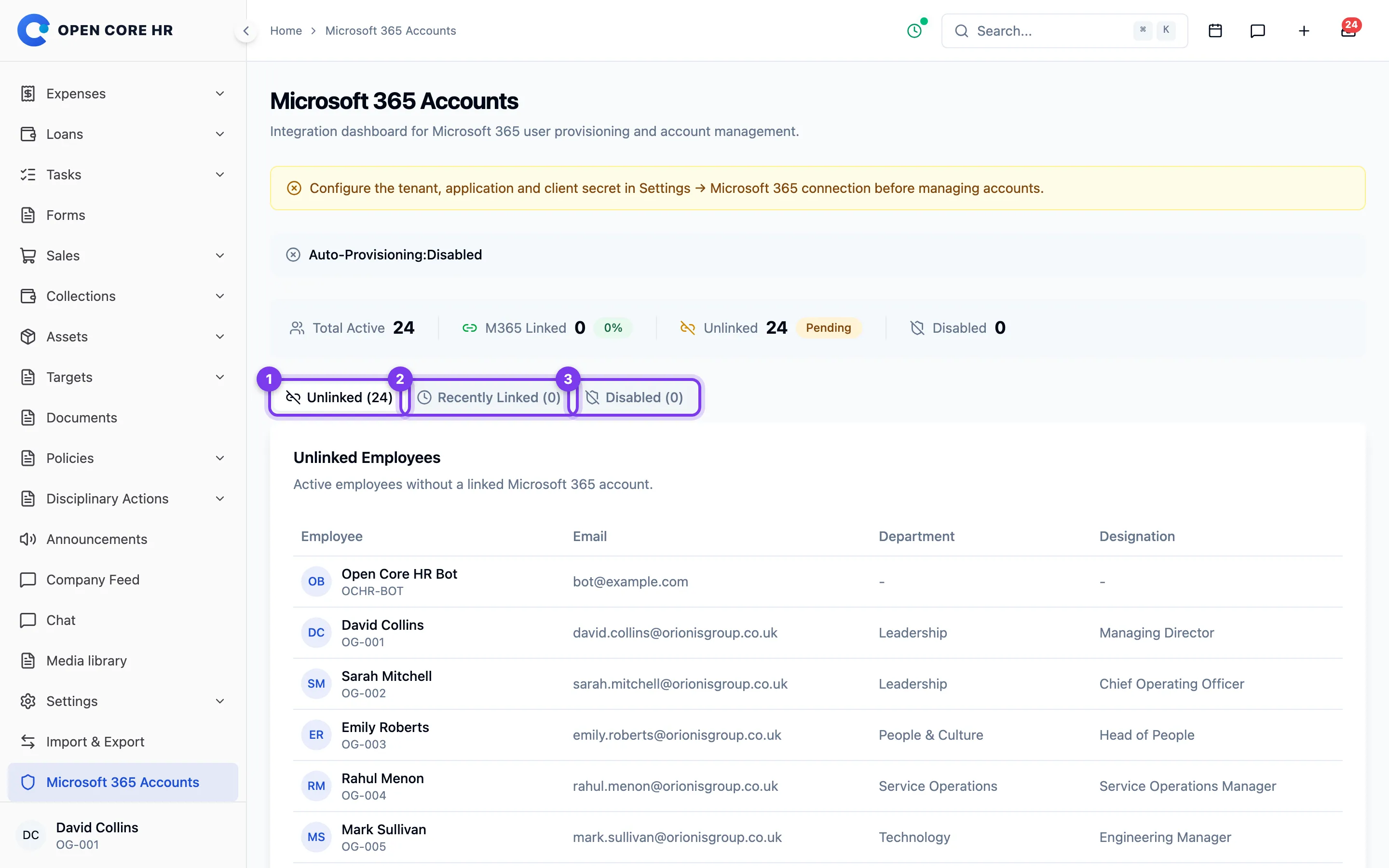
Administrators can open Microsoft 365 Accounts to review active employees without a linked account, accounts linked in the last seven days, and accounts with Microsoft sign-in disabled.
Configure connection credentials in Settings → Microsoft 365 Connection and provisioning policies in Settings → Microsoft 365 Accounts. Automation is off by default. An account link alone does not confirm that a mailbox licence has been assigned.
Open an employee profile to link an existing account or use Microsoft account management to provision and manage an account. Review pending licence assignments and uncertain creation results there before retrying.
Employees without a linked account
Administrators can use Microsoft 365 Accounts → Unlinked to find active employees without a Microsoft account link.
Open the employee profile. If a Microsoft account already exists, link it from Microsoft account. Otherwise, use Microsoft account management to provision one after configuring the account domain and any required licence in Settings.
Automatic provisioning applies only when its setting is enabled and an employee becomes active. Enabling it does not create accounts for every existing employee. A linked account still needs a suitable Microsoft licence before Outlook Email or calendar sync can use its mailbox.
Recently linked accounts
The Recently Linked tab in Microsoft 365 Accounts shows up to twenty accounts linked in the last seven days. This includes existing Microsoft accounts linked by an administrator and newly provisioned accounts.
The link date does not confirm licence assignment or mailbox readiness. Check the employee profile's Microsoft account management tab for provisioning status and initial login details.
Reviewing disabled Microsoft 365 accounts
Use the Disabled view in Microsoft 365 Accounts to review linked work accounts that cannot sign in. Check the employee's account access and the disable date before restoring access.
Disabling an employee account retains the Microsoft 365 account and mailbox; it does not automatically delete them after a grace period. Enable account access from the employee profile only when access should be restored.
Employment status and account access are separate. An ended employment record does not itself prove that access has been disabled. See Pausing and restoring access.
Resetting a Microsoft password
In an employee's Microsoft account management tab, choose the password-reset action and confirm. The result changes the linked Microsoft password only; it does not reset the HR password.
The new password is displayed only to authorized administrators and stored encrypted for credential handover. Close the display after use and follow your organization's approved handover process.
The separate Sync password changes setting mirrors future HR password changes to Microsoft when enabled. It is off by default and does not read existing passwords. A Microsoft failure does not undo a successful HR password change; an administrator must resolve the Microsoft issue.
Viewing Microsoft credentials
Open the employee's Microsoft account management tab and choose the credential action when available. Only credentials generated by Open Core HR can be displayed; linking an existing account does not retrieve its password.
The password is encrypted in storage and excluded from ordinary API responses. Access requires Manage settings and Edit employees. Close the display after use and transfer credentials through your organization's approved process.
Disabling and enabling Microsoft access
Use the employee profile's Microsoft account management actions to disable or enable the linked Microsoft account. Disabling blocks sign-in and requests session revocation. It retains the account and mailbox and does not end employment.
Enable Sync account status in module settings only when employee suspension, deletion and restoration should control Microsoft access automatically. The worker checks the employee's current status before applying a queued change. With the setting off, manage Microsoft access explicitly.
Deleting an HR record never permanently deletes the Microsoft account. Complete mailbox handover, retention and any permanent deletion through the Microsoft admin centre.
Microsoft access when employment ends
Use the employee profile's Microsoft account management actions to disable or enable the linked Microsoft account. Disabling blocks sign-in and requests session revocation. It retains the account and mailbox and does not end employment.
Enable Sync account status in module settings only when employee suspension, deletion and restoration should control Microsoft access automatically. The worker checks the employee's current status before applying a queued change. With the setting off, manage Microsoft access explicitly.
Deleting an HR record never permanently deletes the Microsoft account. Complete mailbox handover, retention and any permanent deletion through the Microsoft admin centre.