
جميع الأدلةالوحدات الإضافية
Tasks
Create, work and update tasks, handle recurring tasks and monitor the task board.
The Tasks screen in the Documents module is where you track work assigned to you, work you have assigned to others, and any recurring task occurrences.
Finding your tasks
Use My Tasks for work assigned to you, Assigned by Me for tasks you assigned to others, and Recurring Instances for individual occurrences of repeating tasks. Check due dates and overdue work before choosing what to work on.
Steps
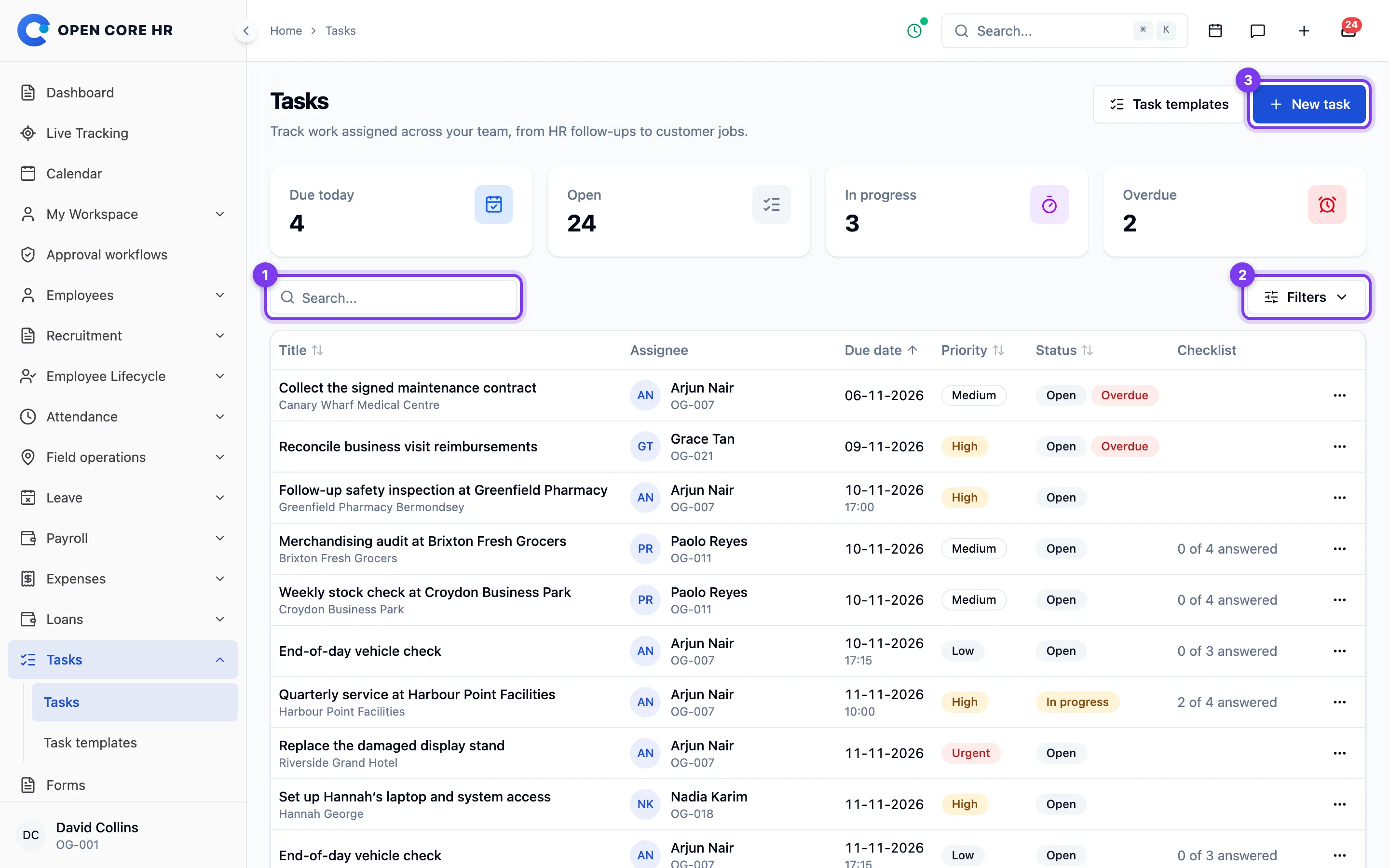
- Open Tasks from the module menu.
- Choose the My Tasks, Assigned by Me, or Recurring Instances tab.
- On My Tasks and Assigned by Me, use the Status, Priority, From Date, and To Date filters to narrow the list, or type in the search box.
- On Recurring Instances, use the Filter by Status dropdown (All Active, Overdue, Today, Upcoming).
- Click the eye icon in the Actions column to open a task and see its details.
Tips
- See Working a task for the Start, Hold, Resume, and Complete actions.
- See Recurring task occurrences for handling individual occurrences of a repeating task.
Creating a task
You can create a task and assign it to another person from the Tasks screen. The task you create appears under the Assigned by Me tab.
Steps
- Open Tasks from the module menu.
- Click Create Task. A panel titled Create New Task slides in from the right.
- Fill in the fields:
- Task Name (required) — a short name for the task.
- Assign To (required) — search for and select the person to assign the task to. You cannot assign a task to yourself.
- Priority (required) — Low, Medium, or High (defaults to Medium).
- Due Date (required) — when the task is due. Must be today or later.
- Due Time — an optional time of day.
- Recurring — Never, Daily, Weekly, or Monthly. Choose anything other than Never to make the task repeat.
- Recurring End Date (required when recurring) — the last date the task should repeat.
- Requires attachment before completion — turn this on if the assignee must upload a document before they can mark the task complete.
- Notes / Description — optional notes for the assignee.
- Voice Description — an optional audio file (MP3, WAV, M4A, or AAC, up to 10 MB).
- Click Create Task.
After you finish
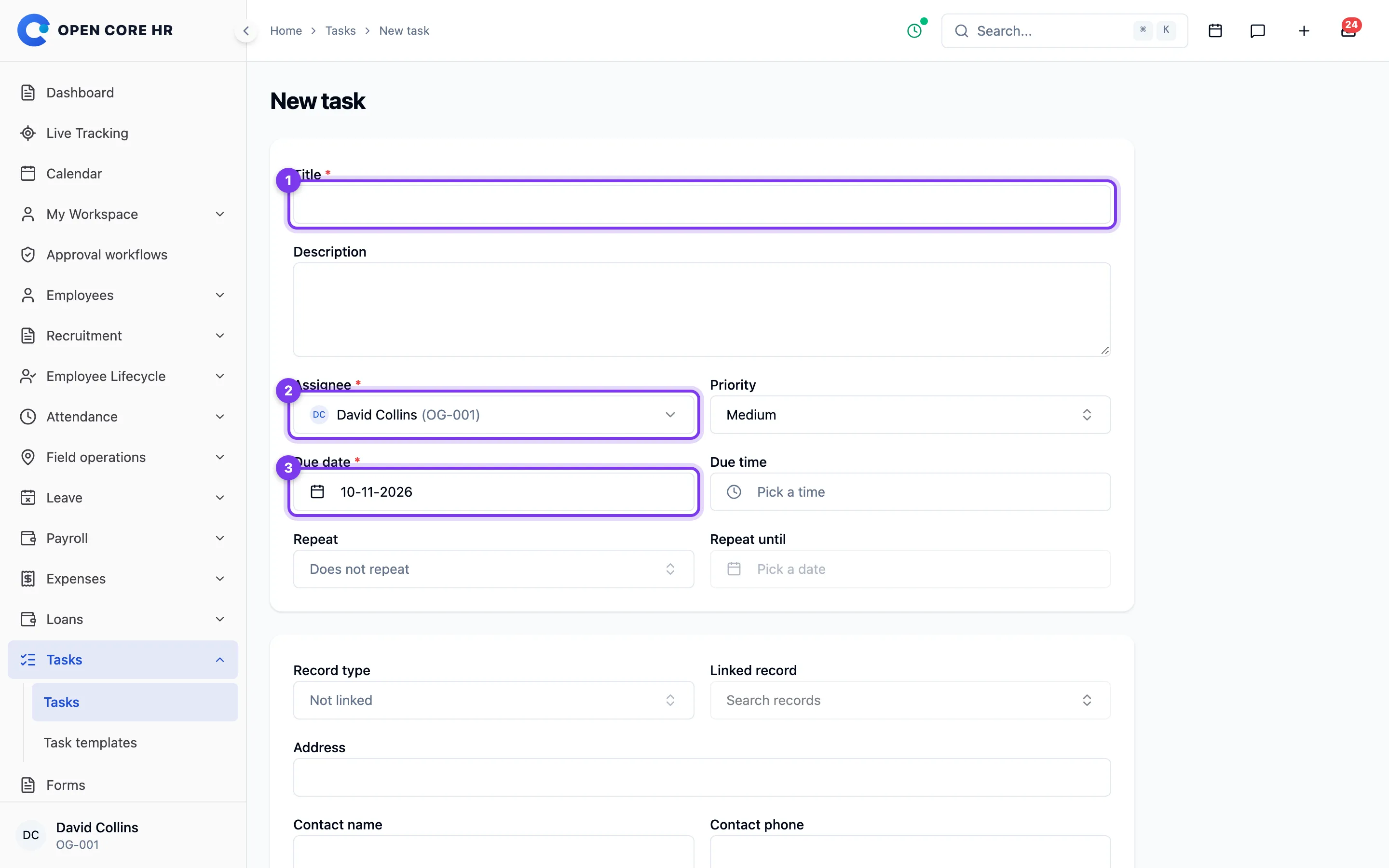
Find the new task under Assigned by Me. For recurring tasks, individual occurrences are created automatically.
Tips
- To cancel without creating the task, click Cancel or close the panel.
- The assignee tracks the task from their My Tasks tab — see Your tasks.
A task's details and activity
Opening a task shows everything about it in a panel that slides in from the right, including a timeline of activity.
Steps
- Open Tasks from the module menu.
- Find the task on the My Tasks or Assigned by Me tab.
- Click the eye icon in the Actions column. The Task Details panel opens.
Reviewing progress
Check the due date, priority, assignee, and repeat pattern before working on the task. Use Activity Timeline to review previous updates and attachments. See Adding a task update and Working a task for the available actions.
Tips
- Click Close to dismiss the panel.
Working a task
As a task moves from new to done you change its status using the Start, Hold, Resume, and Complete actions. These are available only for tasks assigned to you.
How the statuses flow
- New — the task has been assigned but not started. Use Start Task to begin.
- In Progress — you are working on the task. From here you can Hold it or Complete it.
- Hold — the task is paused. Use Resume Task to pick it back up.
- Completed — the task is done.
Note: You can only have one task In Progress at a time. If you try to start or resume a task while another is in progress, you'll be asked to complete or hold the other one first.
Steps
- Open Tasks from the module menu and go to the My Tasks tab.
- Use the buttons in the Actions column, or open the task with the eye icon and use the buttons at the bottom of the Task Details panel:
- Start Task — available when the task is New.
- Hold — available when the task is In Progress. The task moves to Hold.
- Complete — available when the task is In Progress.
- Resume Task — available when the task is Hold. The task moves back to In Progress.
- When using the action buttons in the table, confirm the action in the dialog that appears.
Completing a task that requires an attachment
If the task was set up to require an attachment, clicking Complete opens a Complete Task dialog:
- Choose a file under Attachment (required).
- Optionally add Notes.
- Click Complete Task.
You can also upload the required document ahead of time from the Upload Required Document section inside the Task Details panel while the task is in progress.
Troubleshooting
- The Complete button asks for an attachment — the task requires a document. Attach one in the Complete Task dialog or upload it first from the task details panel.
- You can't start a task — check whether you already have another task in progress and finish or hold it.
Adding a task update
While a task is in progress you can post updates — a written comment, a file, or both. Updates appear in the task's activity timeline so everyone involved can follow progress.
Steps
- Open Tasks from the module menu and go to the My Tasks tab.
- Click the eye icon next to a task that is In Progress to open the Task Details panel.
- Scroll to the Add Update section.
- Type your comment in the box, and/or choose a file to attach.
- Click Send.
After you finish
Your update is recorded in the Activity Timeline.
Tips
- You need to enter a message, attach a file, or both — an empty update can't be sent.
- For required documents on tasks that need an attachment before completion, use the Upload Required Document section instead — see Working a task.
Recurring task occurrences
A task set to repeat daily, weekly, or monthly generates a separate occurrence for each scheduled date. These are listed on the Recurring Instances tab of the Tasks screen.
Finding an occurrence
Use Filter by Status to find overdue, today’s, or upcoming occurrences. Open an occurrence to review its scheduled date and take action.
Steps
- Open Tasks from the module menu.
- Go to the Recurring Instances tab.
- Use the Filter by Status dropdown or the search box to find an occurrence.
- Click the eye icon in the Actions column to view the occurrence details, which show the scheduled date, status, priority, the parent task's notes, and who it's assigned to.
Note: When you mark the parent recurring task complete from the My Tasks tab, the current occurrence (today's, or the earliest pending one) is marked complete automatically.
Note: Opening a single occurrence shows a read-only details panel. There is no per-occurrence complete or skip button on this screen, even though the system supports both.
Task board
The Tasks screen is your organisation-wide view of every task: who created it, who it is assigned to, its priority, status, and due date. From here you can create and assign new tasks and open any task to see its full history.
Steps
- In the left menu, click Tasks.
- Review the summary cards at the top: Total Tasks, New Tasks, In Progress, Completed, Overdue, and Due Today.
- Scroll down to the Filters section and narrow the list by Status, Priority, Assigned To, Created By, Due Date From, and Due Date To. Tick Show Overdue Only to see just overdue tasks, then click Apply Filters. Click Clear Filters to reset.
- In the Task List, switch between table view and grid view using the layout buttons in the top corner.
- Click View on any task to open its details.
- Click Refresh to reload the page with the latest data.
Creating and assigning a task
- Click Create Task at the top of the screen. A panel slides in from the right.
- Fill in Task Name.
- Choose the person under Assign To.
- Set the Due Date and, optionally, a Due Time.
- Choose a Priority - Low, Medium, or High.
- Optionally set Recurring to Daily, Weekly, or Monthly. If you do, a Recurring End Date is required.
- Add Notes if needed.
- Click Create Task.
Opening task details
The details page shows the task name, status, priority, who it is assigned to, who created it, the description, important dates (created, due, last updated), a completion progress indicator, and a Task Timeline of every update - starts, holds, resumes, completions, and any text, image, file, link, or chat updates. Use Print to print the page.
Following up on tasks
Check overdue tasks and tasks due today when prioritising follow-up. Use status and priority to identify work that needs attention.
Tips
- Progress is shown as a percentage based on status - for example New is 10%, In Progress is 50%, and Completed is 100%. It is not entered manually.