
جميع الأدلةالخدمة الذاتية
Your Inbox
Read and manage the notifications that Open Core HR sends you.
The Inbox brings together everything that needs your attention. Open it from the Inbox icon in the top bar. The number on the icon counts approvals waiting for you and updates you haven't read. It changes as soon as something new arrives, and a short message appears in the corner of the screen. Choose Open on that message to go straight to it.
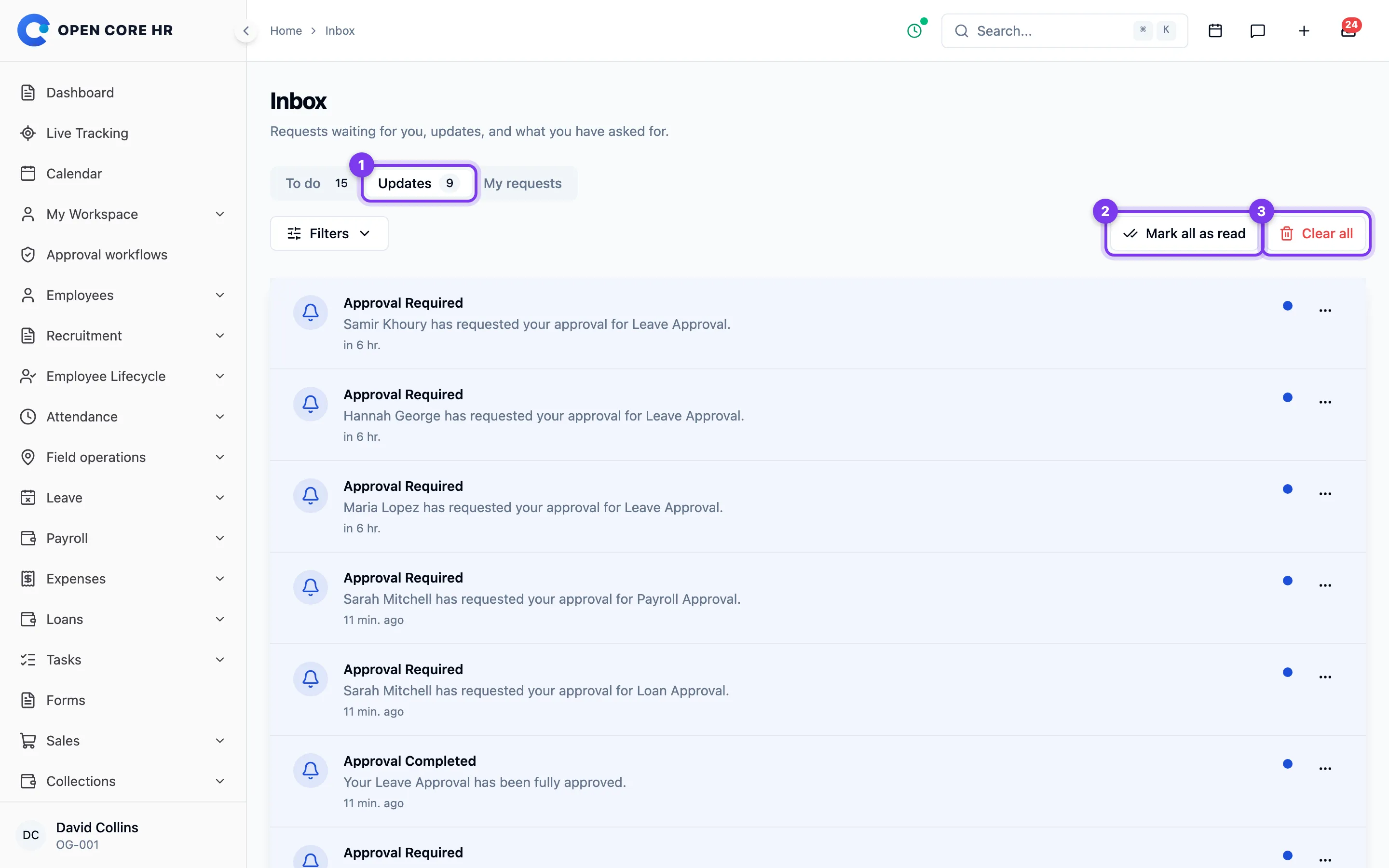
The Inbox has up to three tabs:
- To do: requests waiting for your approval, such as leave, expenses and loans. You see this tab if you approve requests. See Approval inbox.
- Updates: messages Open Core HR has sent you, such as decisions on your requests, announcements and finished exports.
- My requests: your recent leave requests and expense claims with their current status. Use All leave or All expenses to see everything.
Managing updates
Use Filters to show only unread updates or one category. Mark all as read marks them read; Clear all removes them. Use Load more to see older updates.
- Click an update to mark it as read. If it relates to something you can open, such as a leave request, you go straight to that page.
- To remove one update, choose Clear notification from its actions menu.
- To mark everything as read without opening it, click Mark all as read.
- To empty the list, click Clear all.
Tips
- You can link to a tab directly, for example
/inbox?tab=updates. - Clearing an update only removes it from your list. It doesn't undo what it was about.