
جميع الأدلةالوحدات الإضافية
Company feed
Share posts in the company feed and configure how the feed works.
Requires the Feed module and access to the web application. Open Company Feed from the left menu, alongside the communications tools.
The web page and the Connect → Feed area of the HR mobile app show the same posts, comments and reactions. Birthday, work anniversary and welcome posts appear in the same feed with their event label.
Share an update
- Enter your message under Share an update (up to 500 characters).
- Optionally choose an Attachment (up to 20 MB). Images, supported documents, audio and video files can be attached; a file-only post is also allowed.
- Click Publish post. The post appears under your account. If publication fails, your draft stays available to retry.
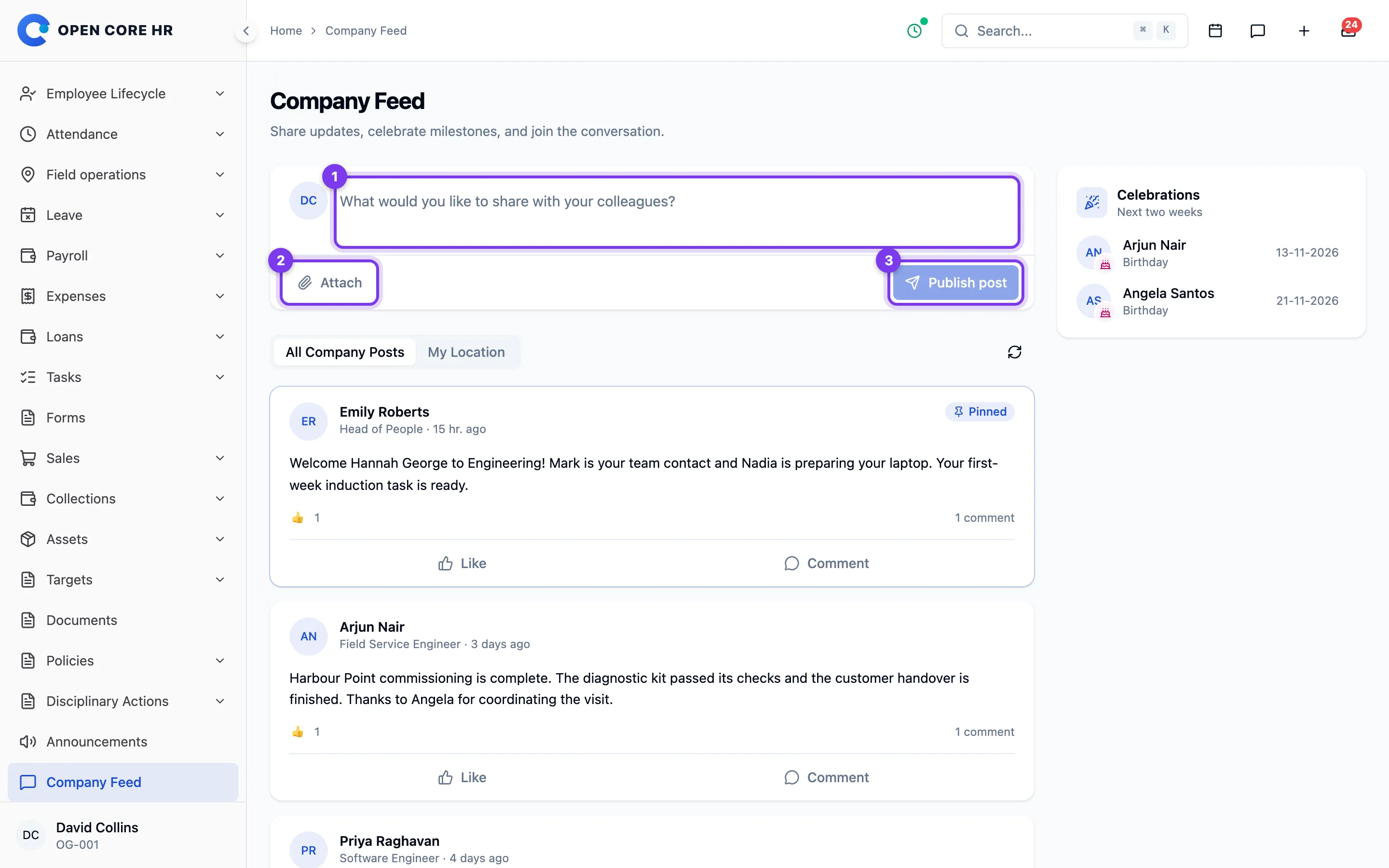
Posts are visible to signed-in staff across the company. Use the audience selector to browse All company posts or My location; this changes the list, not access to posts. Click Refresh to reload, and use Previous posts or Next posts when there are several pages.
Join the conversation
Click a reaction below a post to add your reaction. Click the same reaction again to remove it, or choose another to change it.
Click the comment count to open comments. Enter your message under Add a comment, then click Post comment. Comments allow up to 4,000 characters and show newest first. Use the comment pagination controls to read older replies.
Images display inside the post. Click the attachment to open or download it through the authenticated Feed service.
Configure greetings
Click Feed settings to open Settings → Feed. Viewing requires view_settings; saving requires manage_settings. Enabled greetings post automatically on the day. See Feed settings.
Feed settings
Requires the Feed module. Open Settings → Feed in web admin. Viewing requires view_settings; saving requires manage_settings.
Greetings
Choose which events create Feed posts:
- Birthday greetings — celebrate active employees on their birthday.
- Work anniversary greetings — celebrate completed years of service.
- Welcome messages — welcome active employees on their joining date. This is separate from work anniversaries and is off by default.
Each enabled greeting type posts to the Feed automatically on its day; there is no approval step. Birthday and anniversary greetings are on by default on new installations. The scheduler checks active employees at 06:00 in the configured scheduler timezone. It uses the date of birth and joining date recorded on the employee profile. Disable each event type to stop generating it. Save with Save Changes.
Notifications and mobile
Notify colleagues chooses Same location or Everyone. This controls who is notified, not who can see the post: signed-in staff can browse the organization Feed.
Published greetings appear in the web Company Feed and as ordinary posts in the Connect → Feed area of the HR mobile app, labelled Birthday, Work anniversary or Welcome. Employees can comment and react as usual. Configure greetings in the web admin interface.
Greetings require the Laravel scheduler and system bot account. See the installation guide for scheduler setup.