
جميع الأدلةالوحدات الإضافية
Disciplinary actions
Issue and review warnings and appeals, and respond to warnings you receive.
The Warnings screen lists every disciplinary warning in the system. From here you can filter and search the list, open a warning's details, work on drafts, and start the process of issuing a new warning.
Steps
- Open Disciplinary Actions → Warnings from the left menu.
- Use the toolbar above the table to narrow the list (see below).
- Click the view (eye) button on a row to open a warning's details.
- To raise a new one, click Issue Warning — see Issuing a warning.
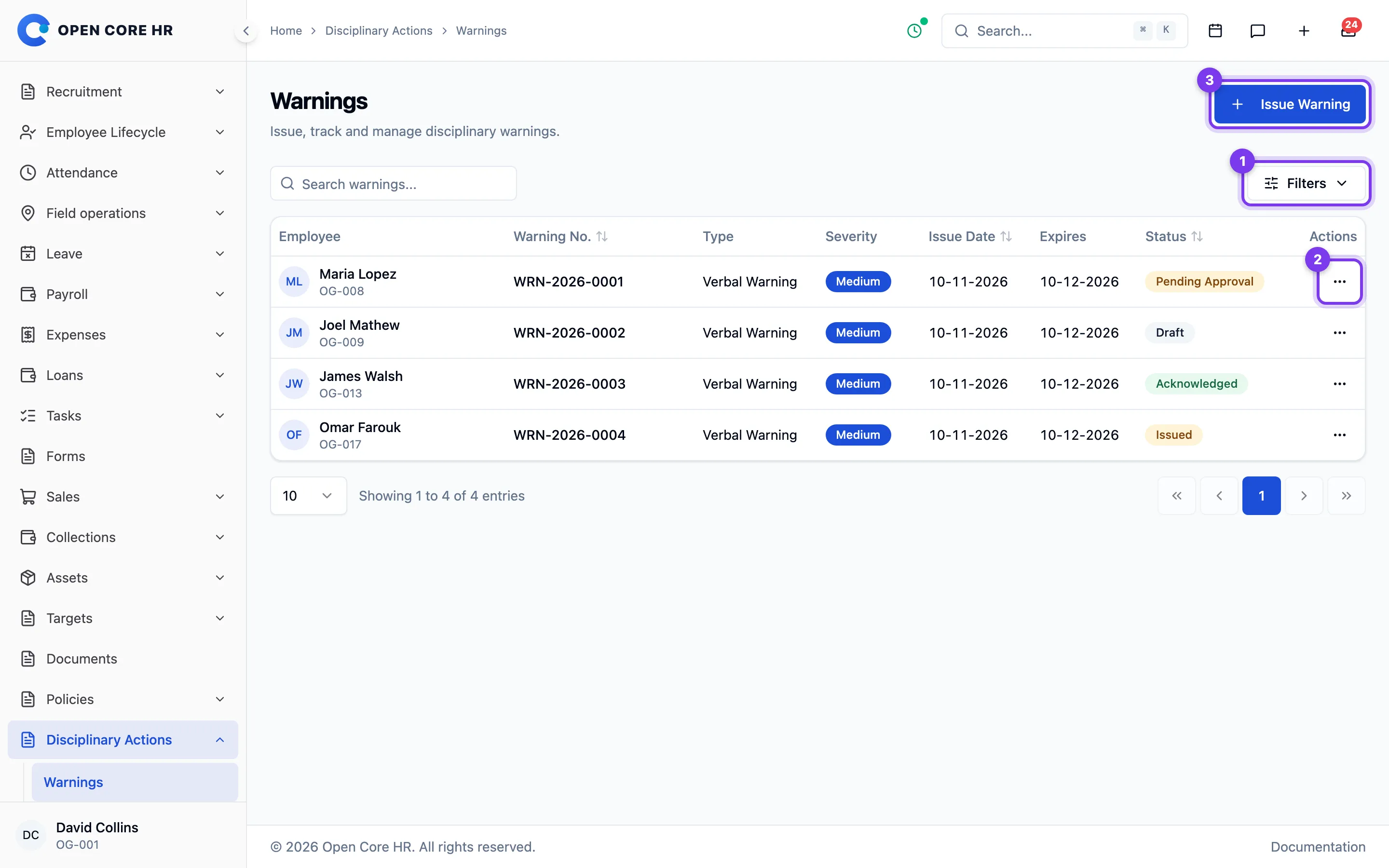
Filtering and searching
The toolbar above the table has:
- An All Employees picker to show warnings for one employee.
- An All Types dropdown to filter by warning type.
- An All Statuses dropdown with: Issued, Acknowledged, Appealed, Appeal Approved, Appeal Rejected, Withdrawn, Expired.
- A Search warnings... box that matches the warning number, the reason text, the employee's name or code, and the warning type name.
You can also sort by the Warning No., Issue Date, and Status columns.
Following up on a warning
Check severity, expiry, and status before acting. A Draft can be edited or submitted for approval if you have permission. Open the warning to review acknowledgment and appeals.
Tips
- A warning isn't issued until it has gone through its approval workflow. New warnings start as a draft, then get submitted for approval — see Issuing a warning.
- Use Acknowledged to find warnings employees have already acknowledged.
Warning types
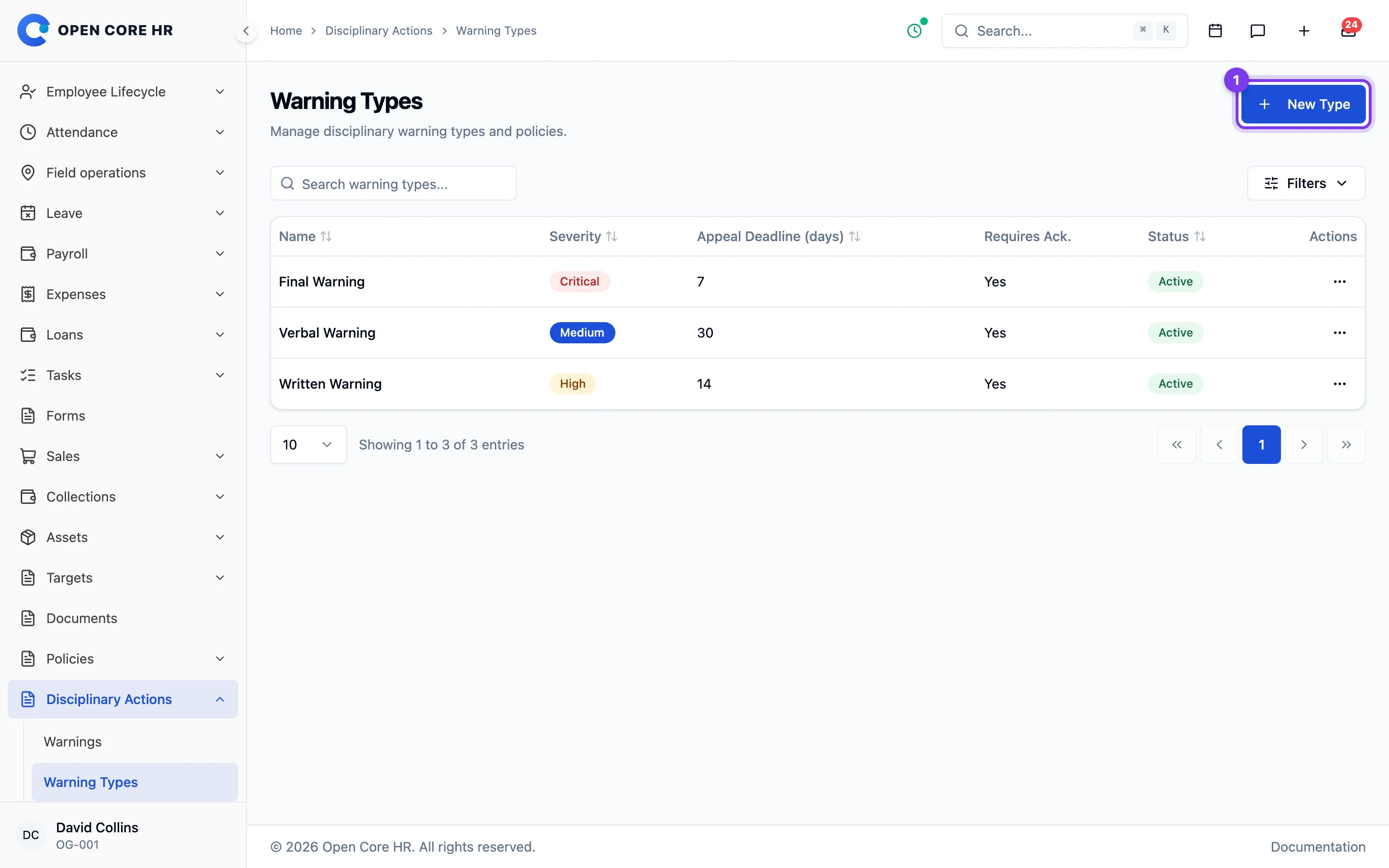
Warning types are the categories you choose from when issuing a warning — for example, "Verbal Warning" or "Written Warning". Each type sets a severity, how long an employee has to appeal, and whether the employee must acknowledge the warning.
Opening the page
Open Disciplinary Actions → Warning Types from the left menu.
Adding a warning type
- On the Warning Types page, click New Type. The New Warning Type panel slides in from the right.
- Fill in the form:
- Name — required (for example, "Verbal Warning").
- Description — optional.
- Severity — Low, Medium, High, or Critical. Required.
- Appeal Deadline (days) — the appeal window in days (0–365).
- Requires employee acknowledgment — tick this if employees must acknowledge warnings of this type.
- Active — tick to make the type available when issuing warnings.
- Click Create.
Editing a warning type
- Click the edit (pencil) button on the row.
- Update the fields in the Edit Warning Type panel.
- Click Update.
Deleting a warning type
- Click the delete (trash) button on the row.
- Confirm in the Delete Warning Type? dialog by clicking Delete.
A type that's already used by existing warnings can't be deleted. If you no longer want it offered, set it to Inactive instead.
Tips
- The severity you set on the type is the severity that appears on every warning of that type.
- Only Active types appear in the warning type picker when issuing a warning.
Issuing a warning
Use this to record a disciplinary warning for an employee. A warning is first created as a draft, then submitted for approval — once the approval workflow finishes, it's officially issued and the employee is notified.
Steps
- Open Disciplinary Actions → Warnings from the left menu. (You can also use Issue Warning from the quick-create menu.)
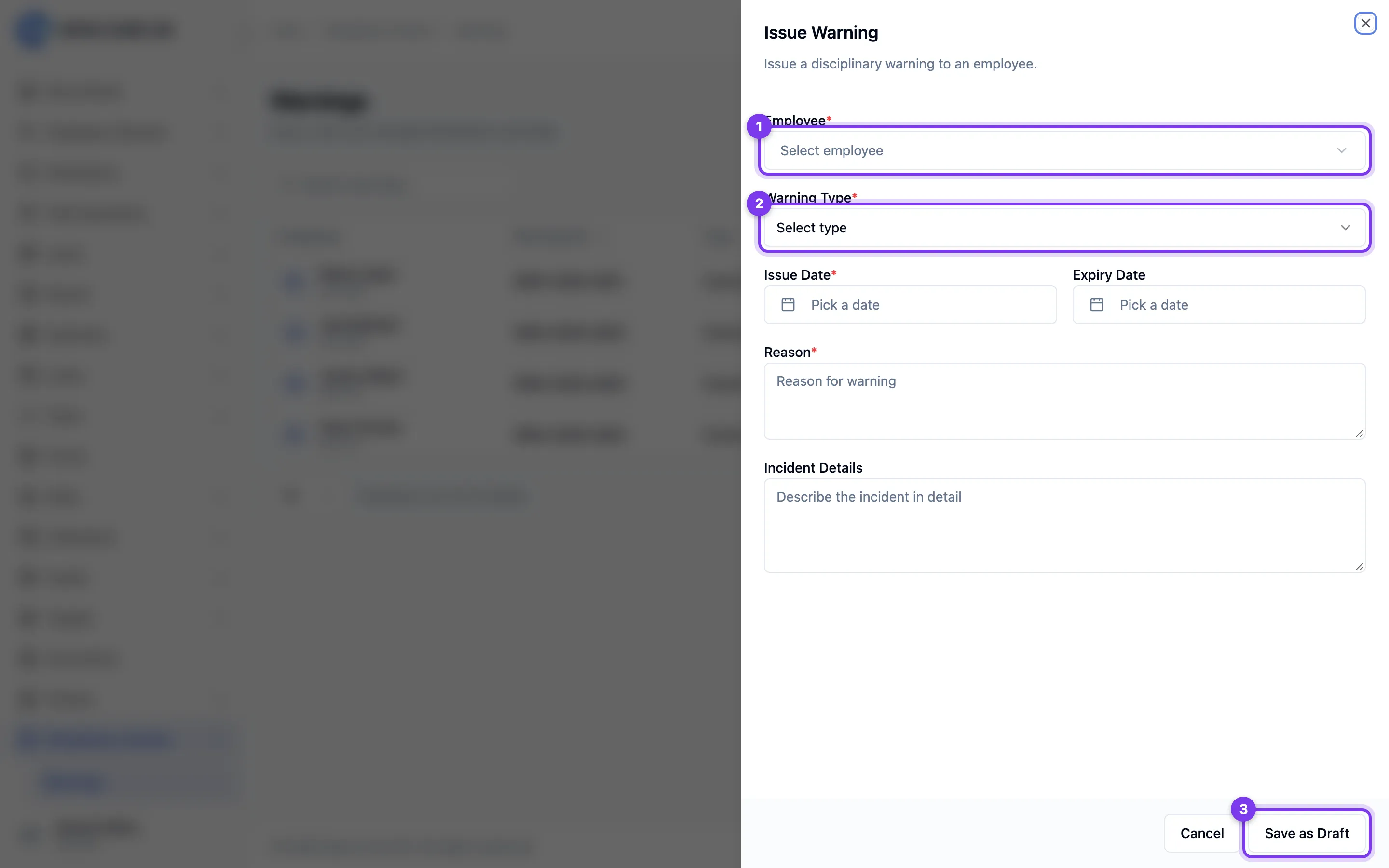
- Click Issue Warning. The Issue Warning panel slides in from the right.
- Fill in the form:
- Employee — the person the warning is for. Required.
- Warning Type — pick from the configured types; the type's severity is shown next to its name. Required.
- Issue Date — the date of the warning. Required; it can't be in the past.
- Expiry Date — optional date after which the warning lapses. It can't be in the past or before the issue date.
- Reason — the reason for the warning. Required.
- Incident Details — optional space to describe what happened in more detail.
- Click Save as Draft. The warning is saved with Draft status; it isn't issued yet.
- To put it forward for approval, find the draft in the warnings list and click the submit (send) button on its row — or open the draft for editing and click Submit for Approval. This runs it through the configured approval workflow. If the draft's issue date has passed, update it before submitting.
After you finish
- After saving, you're returned to the Warnings list with the new draft showing.
- Issuing the warning runs it through the configured approval workflow; saving as a draft holds it until you're ready.
- Once submitted, the status moves through approval; when the workflow approves it, the warning becomes Issued and the employee is notified.
Editing a draft
- On the Warnings list, find a row with Draft status and click the edit (pencil) button.
- Update the fields in the Edit Draft Warning panel.
- Click Save as Draft to keep editing later, or Submit for Approval to send it into the workflow now.
Troubleshooting
- Submitting for approval is refused. The approval workflow for warnings may be turned off. An admin can check it on Approval workflows — see Approval workflows.
- You don't see the Issue Warning button. You need the permission to issue warnings.
Issuing warnings to several employees
Issue a separate warning for each employee, even when several employees are involved in the same incident. Review each employee's reason and incident details before submitting their warning for approval.
Follow Issuing a warning for each employee. Each warning has its own approval workflow and acknowledgment history.
A warning's details
The warning detail page shows the full record of a single warning — what it was for, who issued it, whether the employee has acknowledged it, and any appeals that have been raised against it.
Steps
- Open Disciplinary Actions → Warnings from the left menu.
- Click the view (eye) button on the warning you want to open.
- Use the back arrow at the top to return to the warnings list.
Reviewing the warning
Check the reason, incident details, expiry, and acknowledgment. Review Appeal History for any decision, resolution notes, and reviewer. Use Download Warning Letter to save the letter.
Tips
- Use the Appeal History section to track whether an appeal is still pending or has been resolved. To act on appeals, go to Appeals.
Appeals
When an employee disagrees with a warning, they can appeal it. The Appeals screen lists every appeal so you can review the employee's case and decide the outcome.
Steps
- Open Disciplinary Actions → Appeals from the left menu.
- Use the status filter and search box to find an appeal.
- From the appeal's actions menu, choose View to read its details, or Review to decide it — see Reviewing an appeal.
Filtering and searching
- An All Statuses dropdown with: Pending, Under Review, Approved, Rejected, Withdrawn.
- A Search appeals... box that matches the appeal reason, the employee's name or code, the warning number, and the warning type name.
You can sort by Appeal No., Submitted, and Status.
Choosing an appeal to review
Open an appeal to review the related warning and employee’s statement. Review is available for Pending or Under Review appeals if you have permission.
Tips
- Appeals you can still act on are in Pending or Under Review status. Once an appeal is Approved or Rejected, View shows the recorded resolution but you can't change it.
- Filter on Pending to see appeals that haven't been looked at yet.
Reviewing an appeal
When an employee appeals a warning, you review their case and record a decision — approve the appeal (and choose what happens to the warning) or reject it. Your decision updates the warning's status and notifies the employee.
Steps
- Open Disciplinary Actions → Appeals from the left menu.
- Find an appeal that's Pending or Under Review and choose Review from its actions menu. View opens the appeal read-only. The Review Appeal panel slides in from the right.
- Read the employee's case — the panel shows the Appeal Reason, the Employee Statement if one was given, and any Supporting Documents they attached.
- Choose a Decision:
- Approve Appeal — you're upholding the employee's appeal.
- Reject Appeal — the warning stands.
- If you chose Approve Appeal, pick an Outcome:
- Upheld — the appeal is upheld.
- Reduced — the warning is reduced. Choosing this reveals a New Warning Type picker; select the lower-severity warning type to move the warning to. This is required.
- Dismissed — the warning is dismissed.
- Enter Resolution Notes explaining your decision. This is required.
- Click Submit Review.
After you finish
- The appeal's status changes to Approved or Rejected, with the outcome and your notes recorded against it.
- The warning's status updates accordingly — Appeal Approved or Appeal Rejected — and if you chose the Reduced outcome, the warning is switched to the new warning type you picked.
- The employee is notified of the resolution.
- The recorded resolution then shows on the appeal's details (via the view button) and in the warning's Appeal History — see A warning's details.
Troubleshooting
- There's no Review button on the appeal. You can only review appeals that are Pending or Under Review, and you need the permission to review appeals.
- Submit Review won't go through. Resolution notes are mandatory, and if the outcome is Reduced you must also pick a new warning type.
Note: The Appeals screen goes straight from the list to the Review panel. There is no step for assigning an appeal to a specific reviewer before deciding it.
Your warnings (employees)
This page lists the warnings on your record so you can read them, download a copy, and acknowledge any that need a response. Open it from My Warnings.
Following up
Open a warning to read it, download the letter, or acknowledge it when required. Drafts and warnings still going through approval are not shown here.
Steps
- Go to My Warnings.
- Use the Status, From Date, and To Date filters, or the Search warnings... box, to narrow the list.
- On any row, use the actions:
- The view icon opens the warning's details.
- The document icon downloads the warning letter.
- The check icon (shown only when a warning is Issued and needs a response) opens the Acknowledge Warning window — see Acknowledging a warning.
- Use View My Appeals to switch to your appeals.
Tips
- A warning only shows the acknowledge action while its status is Issued and it requires acknowledgment.
Viewing a warning you received
This page shows the full details of a single warning, plus any appeals raised against it. Open it from your warnings by selecting the view icon on a row.
Responding to a warning
Read the warning and use Download Letter to save a copy. Acknowledge is available when an issued warning needs a response. Appeal is available while the warning is Issued; see Raising an appeal. Review existing appeals for their status and decisions.
Steps
- Open My Warnings from the menu.
- Click the view icon on the warning you want.
- Read the warning information and description.
- Use Download Letter if you want a copy.
- If the warning is Issued, decide whether to acknowledge it or raise an appeal.
Tips
- Acknowledging a warning closes off the option to appeal it, so review it carefully before choosing.
Acknowledging a warning
Acknowledging a warning confirms that you have read and understood it. You can do this from your warnings list or from the warning's details.
Steps
- Open My Warnings, or open a warning's details page.
- Select the acknowledge action — the check icon on a row, or the Acknowledge button on the details page. It only appears when the warning's status is Issued and it requires acknowledgment.
- In the Acknowledge Warning window, optionally type a note in the Comments (Optional) box.
- Select Acknowledge.
After you finish
After acknowledging, the warning's status changes to Acknowledged, and the acknowledged date and your comments appear on the warning's details page.
Tips
- Acknowledging a warning means you can no longer appeal it. If you want to contest the warning, raise an appeal instead — both options are available while the warning is Issued.
Your appeals
This page lists the appeals you've raised against warnings, with their status and outcome. Open it from My Appeals.
Tracking your appeal
Check the status and, once decided, the outcome: Warning Upheld, Warning Reduced, or Warning Revoked. Open the appeal to read HR’s decision.
Steps
- Go to My Appeals.
- Use the Status, From Date, and To Date filters, or the Search appeals... box, to narrow the list.
- On any row, use the actions:
- The view icon opens the appeal's details.
- The X icon (shown only while the appeal is Pending or Under Review) starts a withdrawal — see Withdrawing an appeal.
- Use View My Warnings to switch to your warnings.
Tips
- To raise a new appeal, open the warning you want to contest and use its Appeal button — see Raising an appeal against a warning.
Raising an appeal against a warning
If you disagree with a warning, you can submit an appeal for HR to review. You start an appeal from the warning itself.
Steps
- Open the warning's details from My Warnings.
- Select Appeal. (This is available while the warning is Issued and the appeal deadline hasn't passed.)
- On the Submit Appeal page, review the Warning Summary — it shows the warning number, type, reason, and the Appeal Deadline.
- Fill in the appeal form:
- Reason for Appeal (required) — a brief description of why you're appealing.
- Your Statement (required) — your detailed statement and any relevant context.
- Supporting Documents (Optional, max 5 files) — use Upload Files to attach evidence. Accepted file types are PDF, JPG, JPEG, PNG, DOC, and DOCX. Use Remove next to a file to take it off.
- Select Submit Appeal. To stop without submitting, select Cancel.
After you finish
After you submit, the appeal is created with status Pending, the warning's status changes to Appealed, and you're taken to the appeal's details.
Tips
- You can have only one active appeal per warning.
- If the deadline to appeal has already passed, or an appeal is already in progress, you'll be sent back to the warning with a message explaining why.
- Acknowledging a warning ends the option to appeal it, so don't acknowledge a warning you intend to contest.
Viewing your appeal
This page shows everything about a single appeal — what you submitted, its current status, and HR's decision once it's reviewed. Open it from your appeals by selecting the view icon on a row, or from the linked appeal on a warning's details page.
Reviewing the decision
Read Review Notes and the outcome once HR has reviewed the appeal. If the warning was reduced, check the new warning type. You can withdraw an appeal while it is Pending or Under Review.
Steps
- Open your appeals and select the view icon on the appeal you want.
- Review the overview, your submitted text, and any review notes.
- If the appeal is still Pending or Under Review and you no longer want to pursue it, use Withdraw — see Withdrawing an appeal.
Withdrawing an appeal
You can withdraw an appeal you've raised, as long as HR hasn't finished reviewing it. Do this from your appeals list or from the appeal's details.
Steps
- Open My Appeals, or open an appeal's details page.
- Select the withdraw action — the X icon on a row, or the Withdraw button on the details page. It's only available while the appeal's status is Pending or Under Review.
- In the Withdraw Appeal confirmation window, select Withdraw Appeal. To keep the appeal, select Cancel.
After you finish
The appeal's status changes to Withdrawn. The related warning goes back to the status it had before you appealed, and any supporting documents you attached are removed.
Tips
- Withdrawing an appeal can't be undone. If you still want to contest the warning afterward, you'd need to raise a new appeal — and only if the warning is still appealable.