
جميع الأدلةالإدارة
Shifts and holidays
Define work shifts and maintain the holiday calendar.
Shifts
A shift defines working days, attendance eligibility and a fixed or flexible schedule for any employee, including field employees. Open the screen from the left menu under Settings → Master Data → Shifts.
Adding a shift
- Click Add New.
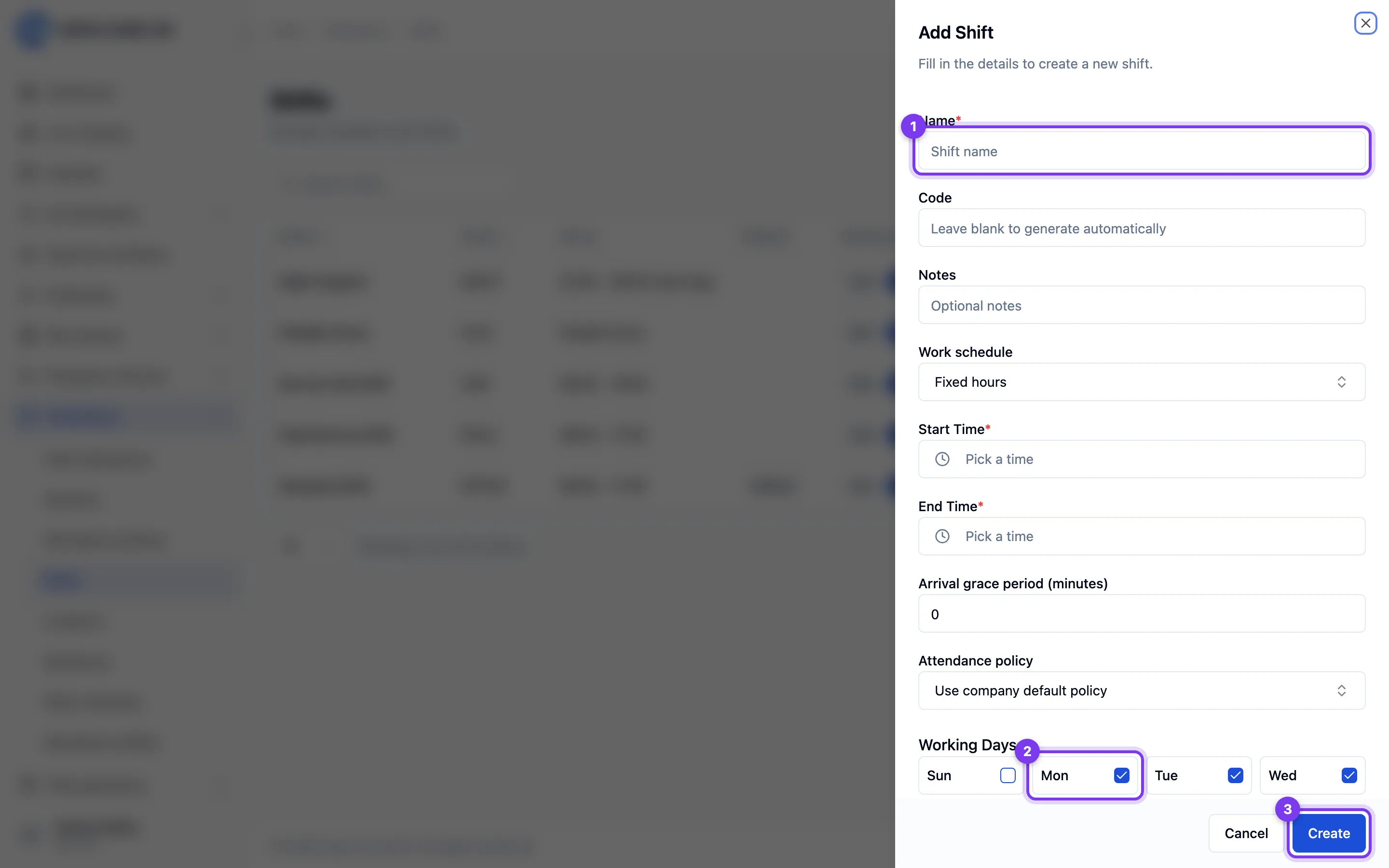
- In the Add Shift panel, enter a Name. Leave Code blank to generate it when saving, or supply your own code.
- Optionally add Notes.
- Choose fixed or flexible scheduling, set the late-arrival grace period, and set different Start Time and End Time values. An end time earlier than the start time means the shift ends the next day. All shift times use the application timezone.
- Under Working Days, tick at least one day this shift runs (Sun through Sat).
- Use the Status switch to set whether the shift is active.
- Choose an attendance policy or inherit the default. Set Attendance enabled and Allow multiple check-ins per day. These settings apply to employees assigned to this shift.
- Optionally enable Default shift. A default must be active; choosing a new default replaces the previous one.
- Click Create.
Editing or removing a shift
- Open More actions → Edit on a row to open the Edit Shift panel, change the details (the Code remains read-only), and click Update.
- Open More actions → Delete and confirm to remove a shift. First reassign employees who use it and choose another default if needed. Assigned or default shifts cannot be deleted or deactivated. Attendance history is retained.
Tips
- Use the search box above the list to find a shift by name or code.
Attendance policy
An active employee needs an active assigned shift (or the active default when no shift is assigned) with attendance enabled and permission to record their own attendance. The Employee preset supplies that permission. Adding an administrative role does not enroll a person for attendance.
When multiple check-ins are disabled, employees can complete one session per work date. Overnight attendance belongs to the date the shift starts, including checkout after midnight. Full-day, half-day and hourly leave for an overnight shift use that same work date. When enabled, they can start another session after checking out. Two overlapping sessions are never allowed. The same rules apply to web and mobile. An explicit inactive shift assignment disables attendance; it does not fall back to another shift.
Working days determine which days count toward leave. Fixed shifts evaluate lateness against the scheduled start and grace period. Flexible shifts retain a work-date window without treating a late start as fixed-shift lateness. Working hours come from recorded sessions and breaks.
Use Assignments to schedule an employee's shift from an effective date. A dated assignment takes priority over their recurring employee shift. Open attendance keeps its original schedule when an assignment changes. Review overnight times in the deployment timezone before assigning them.
Leave days, weekly offs in attendance reports and daily attendance use the shift in force on each date, so a dated assignment changes only the days from its effective date. You can remove an assignment that has not started yet; one already in force is replaced by adding a new assignment.
Employees receive an in-app and push notification with the effective date when an assignment is added, changed or removed, when their recurring shift changes, or when the start time, end time, mode or working days of the shift they are on today change.
Attendance policies control recording channels and verification rules independently from shift hours.
Codes
Code is optional when creating a record. Leave it blank to generate a code when saving, or supply an existing code of up to 50 characters. Custom codes use uppercase letters, digits, hyphens and underscores; surrounding whitespace is removed. Once saved, the code is read-only and remains reserved when the record is deleted.
Holidays
The Holidays screen is where you record public and company holidays for each location. Open it from the left menu under Settings → Master Data → Holidays.
Finding holidays
Filter by Year and location to review the holidays that apply.
Adding a holiday
- Click Add Holiday.
- In the Add Holiday panel, enter a Name.
- Pick the Date.
- Choose a Location — or pick All Locations to add the holiday to every location at once.
- Set the Status to Active or Inactive.
- Optionally add Notes.
- Click Create.
Editing or removing a holiday
- Open the holiday's row actions menu and choose Edit, make your changes, and click Update.
- Choose Delete from the row actions menu and confirm in the Delete Holiday dialog to remove it. This cannot be undone.
Importing holidays
Open Import & Export and choose Holidays under imports. Permission to create holidays is required. Download the current template and enter one holiday per row, using an existing active location's code and an unambiguous date. Create the locations first; importing holidays does not create them. Duplicate dates for the same location are rejected.
Upload and validate the file, correct all reported row errors, then confirm the import. Validation does not save holidays. Check History for the result before uploading the same holidays again. See Importing a spreadsheet for the full workflow.
Bulk actions
- Tick the holidays you want to change. The header checkbox selects the current page only, up to 100 holidays.
- Choose Activate Selected, Deactivate Selected, or Delete Selected from the selection bar. For deletion, confirm in the Delete Selected Holidays dialog.
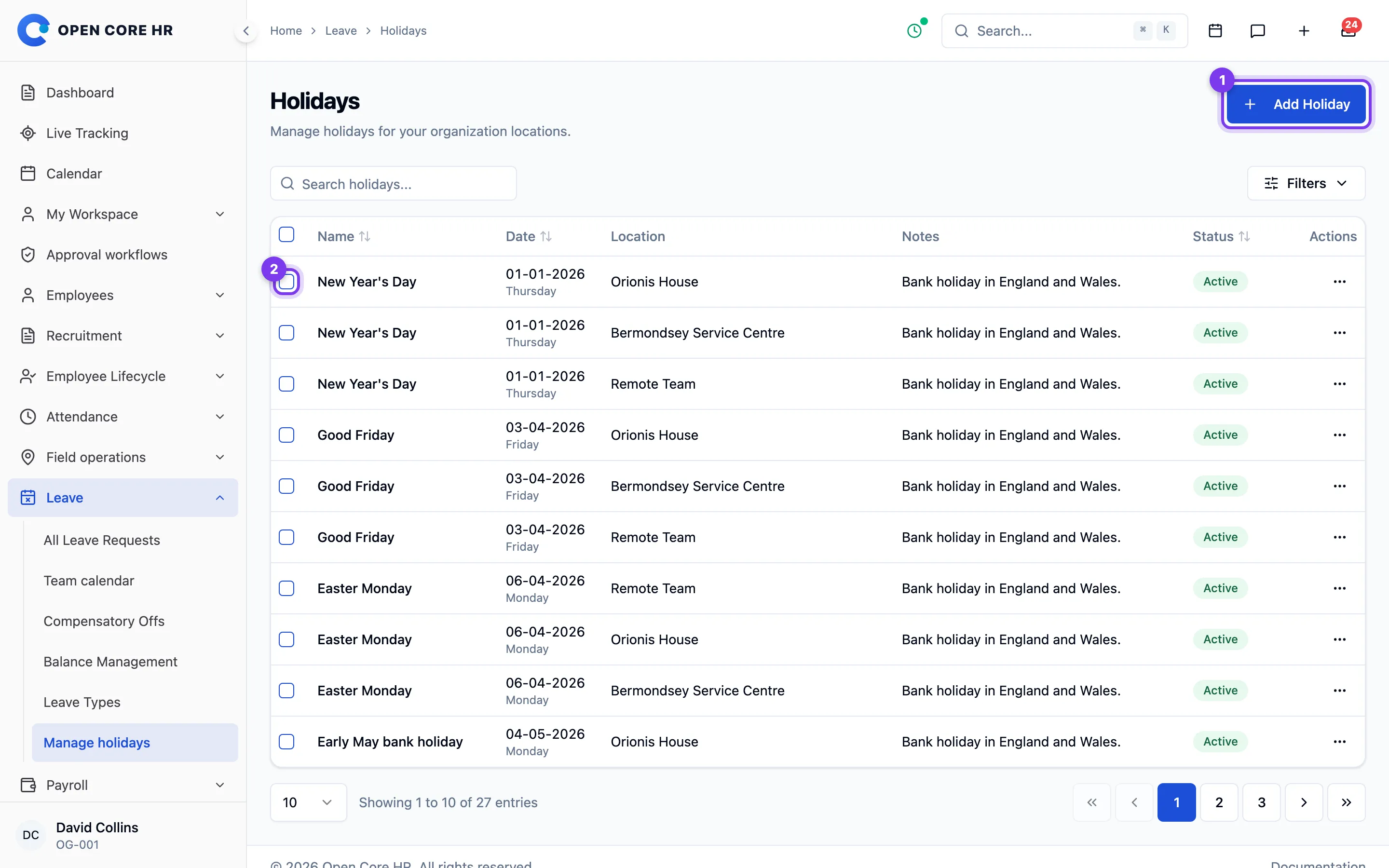
Selection and actions are available according to your edit and delete permissions. Use Clear selection to start again. Changing the search, filters, sort order, page or page size, or refreshing the list clears your selection.
Each batch is saved together. If a selected holiday is no longer available, nothing in the batch changes; refresh the list and select again. Other failures keep your selection available for retry. The result reports the number actually changed, so activating holidays that are already active does not count them again.
Tips
- Use Filters to choose a year and location together, then apply them to review one site's holidays.
- Use the search box above the list to find a holiday by name.
Codes
Code is optional when creating a record. Leave it blank to generate a code when saving, or supply an existing code of up to 50 characters. Custom codes use uppercase letters, digits, hyphens and underscores; surrounding whitespace is removed. Once saved, the code is read-only and remains reserved when the record is deleted.
Choosing all locations generates a separate code for each location. A custom code can only be supplied for a single location.