
All guidesAdministration
Attendance
Review attendance records and analytics, close open sessions and set attendance policies.
Open Attendance → Team attendance to review daily attendance for the employees you can see: everyone with full attendance access, or yourself and your direct reports as a manager. The page has three tabs: Records, Needs review and Refused attempts.
Finding records
Search by employee name, code, shift name or date. Select Filters to narrow the list by:
- Status — Still checked in, Completed, Late, Early departure, Overtime or Corrected (closed by a manager or HR).
- From date and To date — the work dates to include.
- Employee — one person.
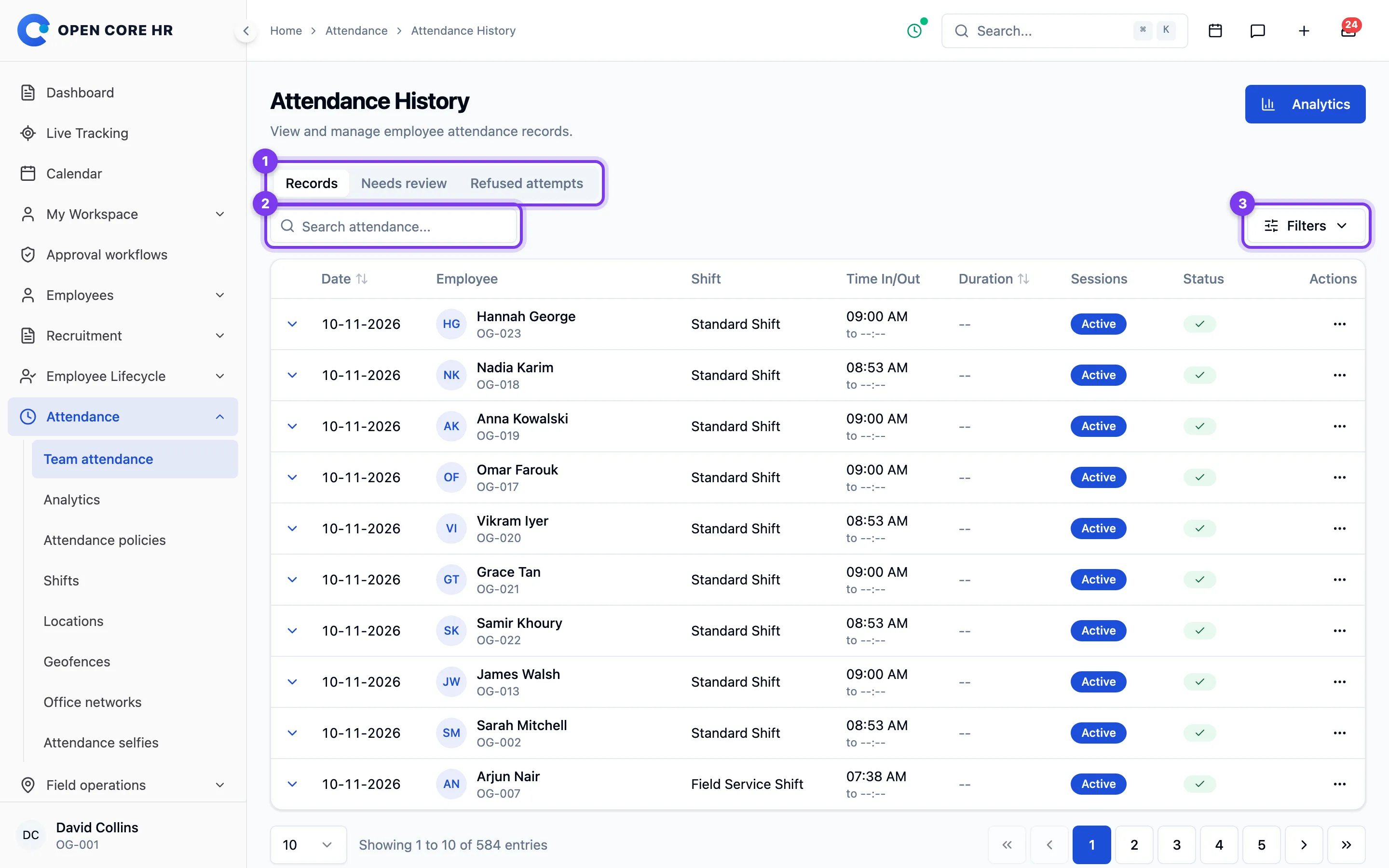
Expand a row for its session timeline or open the details panel for the full day. See Attendance sessions. Each record keeps the shift that applied on that work date, so later shift changes do not alter past days.
Needs review
Sessions left open lists employees who are still checked in after their scheduled shift end plus the review allowance set in Attendance policies. Close each one at the time the employee actually stopped working. See Closing a session left open.
Refused attempts to review lists check-ins and check-outs that the attendance rules rejected and nobody has reviewed yet.
Refused attempts
When a check-in or check-out is refused for a business reason, the attempt is kept with the employee, time, web or mobile channel, the message the employee saw and any location they sent. Typical reasons are an inaccurate, out-of-date or simulated location, no attendance-enabled shift, leave, an already completed day, a module requirement such as outstanding documents, or checking out without being checked in. Requests rejected because required details were missing or malformed are not recorded.
Filter by review status, action, employee or date. Select Mark reviewed after you have followed up, for example by contacting the employee or correcting their policy. You cannot review your own attempts. Location evidence on attempts is removed after the retention period in Attendance policies; the attempt itself remains.
Closing sessions and reviewing attempts require the Close open sessions and review refused attempts permission. HR and Manager presets include it.
Attendance analytics
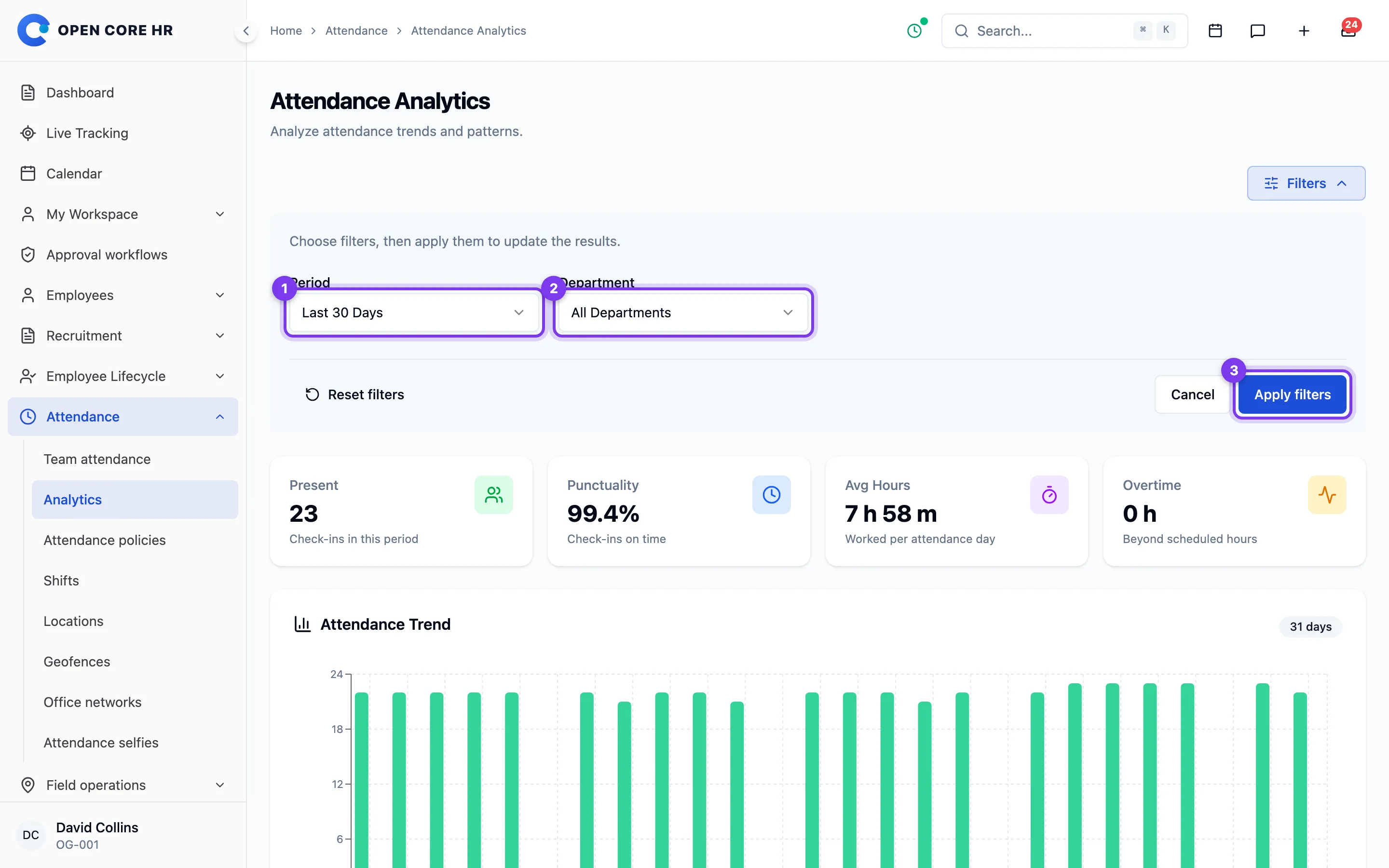
The Analytics screen turns attendance data into trends, department comparisons, tracking-quality figures, and a list of anomalies. Open Attendance → Analytics from the left menu (you can also reach it from the Analytics button on the All Attendance screen).
Steps
- Open Attendance → Analytics.
- Choose a Period: Last 7 Days, Last 30 Days, Last 90 Days, or Custom. If you pick Custom, set a Start Date and End Date.
- Optionally pick a Department, or leave it on All Departments.
- Click Apply to refresh the figures. Click Clear to reset to the last 30 days and all departments.
Reviewing attendance
Compare attendance, punctuality, and working hours over the selected period and across departments. Review flagged anomalies before following up with an employee.
A day's attendance sessions
Each attendance record can hold several work sessions and breaks for the same day. You can see the session log without leaving the All Attendance screen — it opens as a slide-over panel, not a separate page.
Steps
- Open Attendance → All Attendance.
- Find the row for the employee and date you want.
- To see a quick session timeline, click the chevron at the start of the row. A Session Timeline strip expands under the row, listing each event (Check In, Check Out, Break Start, Break End) with its time and address, plus the session count.
- For full details, click the eye icon in the Actions column. The Attendance Details panel slides in from the right with three tabs:
- Summary — employee, date, shift, working hours, check-in and check-out times, late hours, overtime, and any notes.
- Sessions — the full list of check-in, check-out, break-start and break-end events, each with its time, address, and notes. A "Session is active (not checked out)" banner appears if the employee is still checked in.
- Metrics — a time summary of the day: late, early, overtime and working hours.
- Click Close to dismiss the panel.
Record access
Session details are read-only; you cannot edit recorded sessions here.
Closing a session left open
When an employee forgets to check out, their session stays open and appears under Attendance → Team attendance → Needs review once their shift has ended and the review allowance has passed. A manager or HR user closes it on the employee's behalf.
Steps
- Open the Needs review tab.
- In Sessions left open, open the row's actions and choose Close session.
- Enter the date and time the employee stopped working, in the organisation's timezone. It must be after the check-in and not in the future.
- Enter the reason for the correction and select Close session.
What changes
The session ends at the time you entered and the day's working hours, early departure and overtime are recalculated from the shift recorded for that day. A break that was still running ends at the same time. The check-out entry records who closed it and your reason, and the record appears under the Corrected status filter. The employee can check in again for their next session.
You cannot close your own session this way, and you can only close sessions of employees whose attendance you can see. If someone has already closed the session, refresh the list.
To add a forgotten day or change recorded times, see Correcting attendance below.
Correcting attendance
Attendance is corrected in two ways on Attendance → Corrections: employees ask for a fix and an approver decides, or a manager or HR user fixes a day directly. Anything beyond your own requests needs the Close open sessions and review refused attempts permission, and you only see employees whose attendance you can see.
Approving a request
Requests follow the Attendance Correction Approval workflow, which by default goes to the employee's reporting manager. Change the steps under Approvals → Workflows; if the workflow is turned off, employees cannot send requests.
Open the request from the approval inbox or from Corrections. It shows the requested times next to what was recorded, with the employee's reason. Approve, or reject with a note the employee will see. If the attendance changed after the request was sent, reject it and ask for a new one.
Fixing a day directly
Select Fix an employee's attendance, choose the employee and the day, then what to fix, the times and a reason. The change applies immediately, without approval, and is listed as fixed by you.
Rules and limits
- Lateness, working hours, early departure and overtime are recalculated from the shift recorded for that day, and the session appears under the Corrected status filter with the times that were replaced.
- New times must include the recorded breaks, must not overlap another session, cannot be in the future, and a session cannot be longer than 24 hours.
- When the Payroll add-on is on, a day in an approved or finalised payroll run cannot be changed.
- Under Attendance → Attendance policies → Default policy, set how many days back employees can ask (30 by default) and how many requests each employee can make per month (0 means no limit). These limits do not apply to direct fixes.
Attendance policies
Use Attendance policies to configure verification for all employee types. Managing policies requires the attendance-policy management permission; assigning an employee override also requires permission to edit that employee.
Create a named, active policy and select web, mobile, or both recording channels. Configure check-in and check-out independently. Leave an action's alternatives empty for open attendance without verification requirements.
Each alternative contains checks that must all pass. If there is more than one alternative, passing any complete alternative is enough. Location checks can require a recent position, limit accuracy and reject simulated locations; a location boundary also requires a centre and radius. A required check whose provider is unavailable prevents attendance rather than silently skipping that check.
Set the installation default, select a policy on a shift, or assign an employee override. Resolution uses the employee override first, then the shift policy, then the installation default. An open attendance session keeps a snapshot of its original policy for checkout.
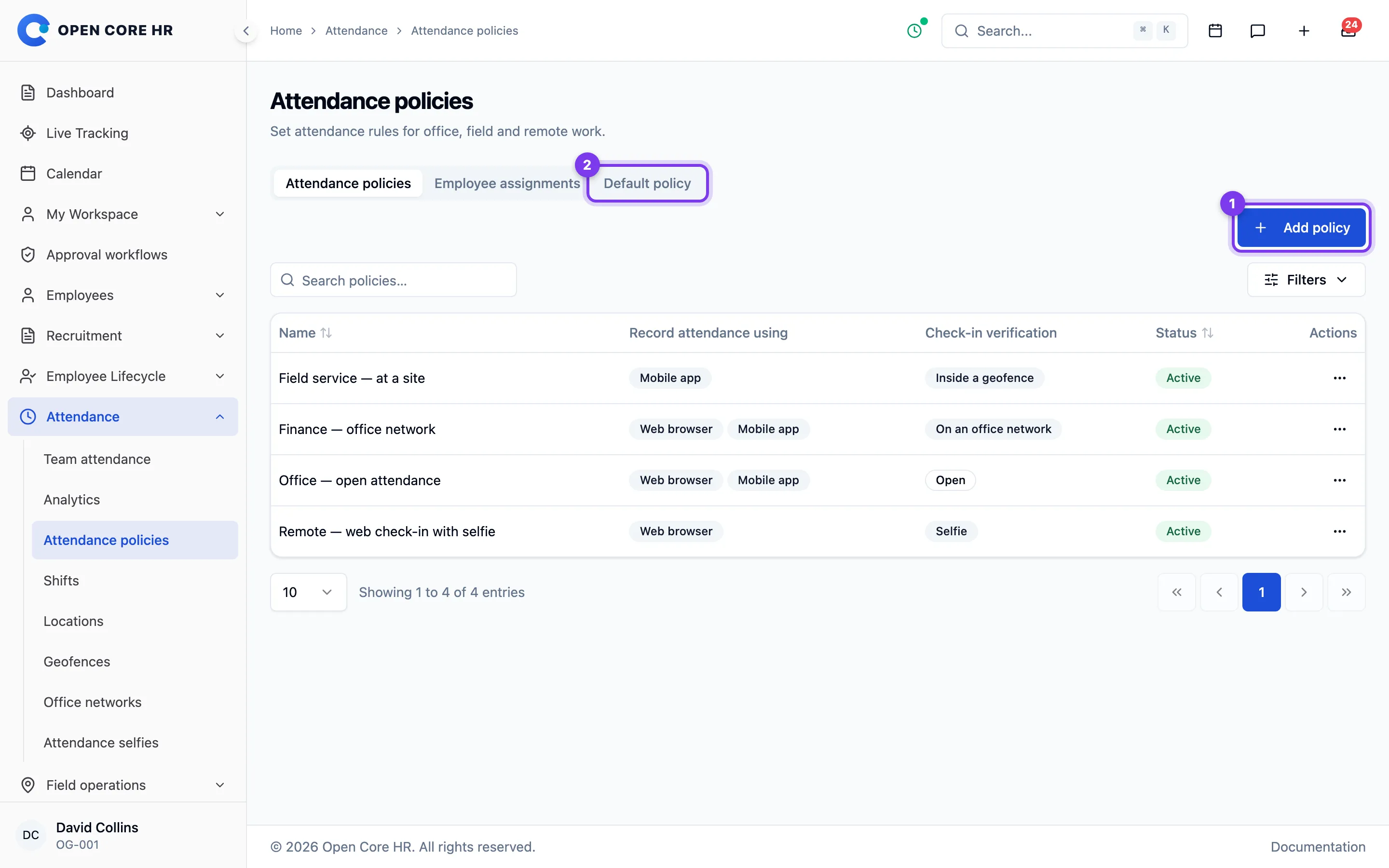
Choose requirements employees can meet at their actual workplace. A field employee can use a flexible shift and a mobile location policy, while an office employee uses a fixed shift and an open policy. Both feed the same attendance history and Payroll inputs.
If another administrator changes a policy while you edit it, refresh and review the latest version before saving. Deactivating a policy does not replace an explicit assignment with a weaker default; assign a suitable active policy before future check-ins.
Review settings
The default-policy tab also sets Review open sessions after (hours) — how long after the scheduled shift end a session still open appears under Needs review — and Keep refused-attempt locations for (days), after which location evidence on refused attempts is removed daily.