
All guidesAdministration
Home profiles
Choose what different groups of people see on their home screen.
A home profile decides what each kind of person sees first: their shortcuts, the cards on Today in the mobile app, and the widgets on each web dashboard view. A profile never grants access. Anything a person cannot open is left out, whatever the profile lists. Open Home profiles under Settings. You need the Manage home profiles permission.
Four profiles are built in: HR, Manager, Field sales and Employee. You can edit them but not delete them.
How a person's profile is chosen
- A profile that names the person directly wins.
- Otherwise the profile with the lowest Priority number that matches the person is used. A profile matches if the person holds one of its roles or meets its rule.
- If nothing matches, the person sees the everyday shortcuts and no profile cards.
Rules let you match people without listing roles:
- Anyone with direct reports matches managers, whatever their role.
- Can record field visits matches field staff.
- Everyone matches all people and is useful for a final default with a high priority number.
Someone who manages people but uses another profile, such as an HR officer with a team, also gets the Your team today card at the end of Today.
Create or edit a profile
- Choose New profile, or Edit from a profile's actions.
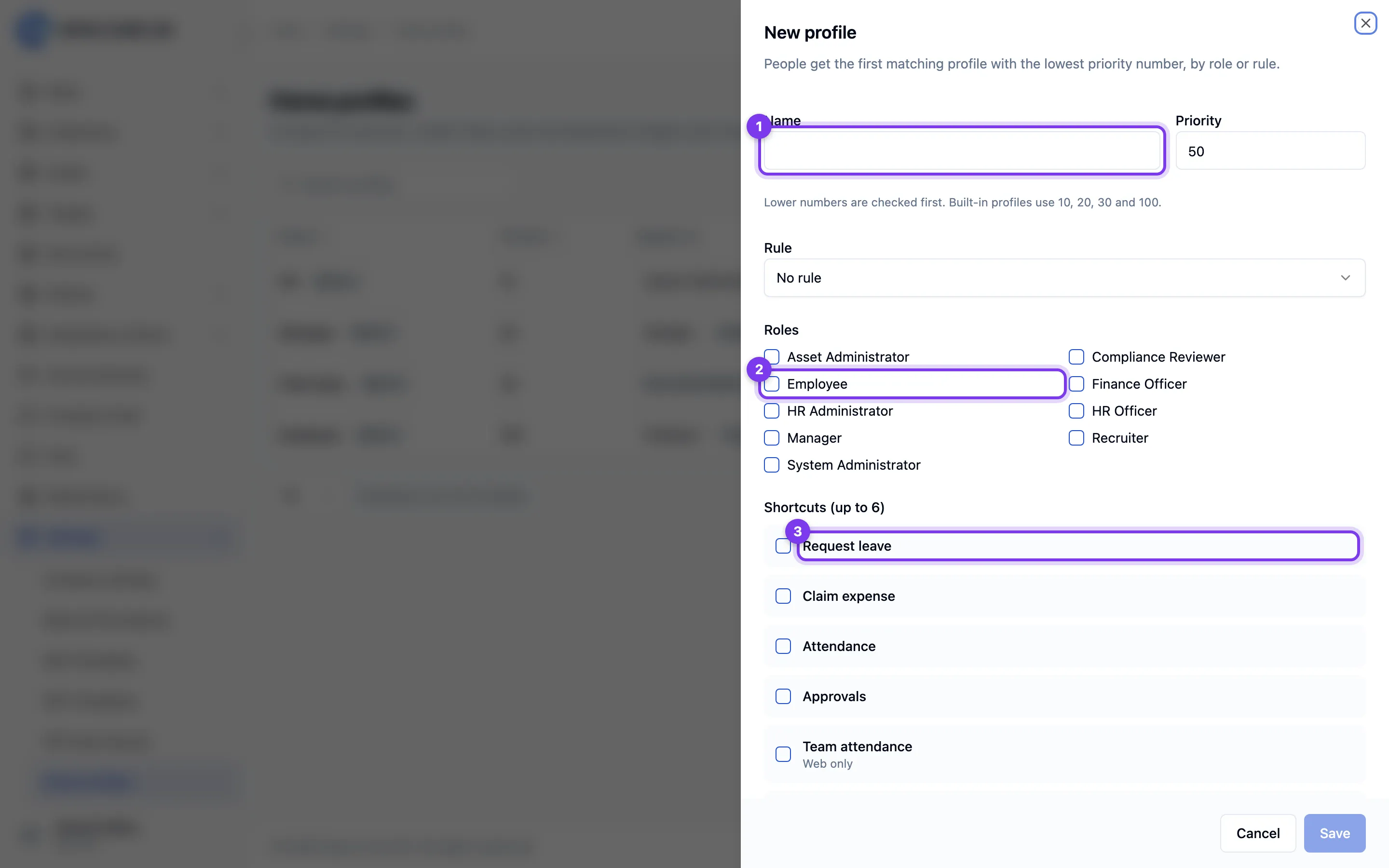
- Enter a name and priority, then choose the roles and the rule it applies to.
- Choose up to six Shortcuts in order. The mobile app shows the first four that have a mobile screen; items marked Web only appear only on the web dashboard.
- Choose the Mobile Today cards in order.
- For each dashboard view, choose the widgets and their order. Widgets you leave out remain available to people in Edit dashboard.
- Save.
Changes apply the next time people open Today or the dashboard. People who chose their own shortcuts keep them until they choose Use my profile's. A person's own dashboard layout also takes precedence over the profile.
Delete a profile
Deleting a custom profile moves its people to their next matching profile. Their own shortcuts and dashboard layouts are kept.