
All guidesAdministration
Roles and permissions
Control what people can see and do with roles and individual permission overrides.
The Roles & Permissions screen lists every role in the workspace and lets you see — and change — exactly what each role can do. Open it from Roles & Permissions in the left menu, under the Settings heading.
Reviewing access
Expand a role to review permissions by feature. Built-in roles cannot be deleted. The System Administrator role has all permissions.
Changing what a role can do
On an expanded role card:
- Click Roles & Permissions in the left menu.
- Click the role to expand it.
- Tick or untick individual permissions, or tick a group's checkbox to turn all of its permissions on or off.
- Changes save automatically.
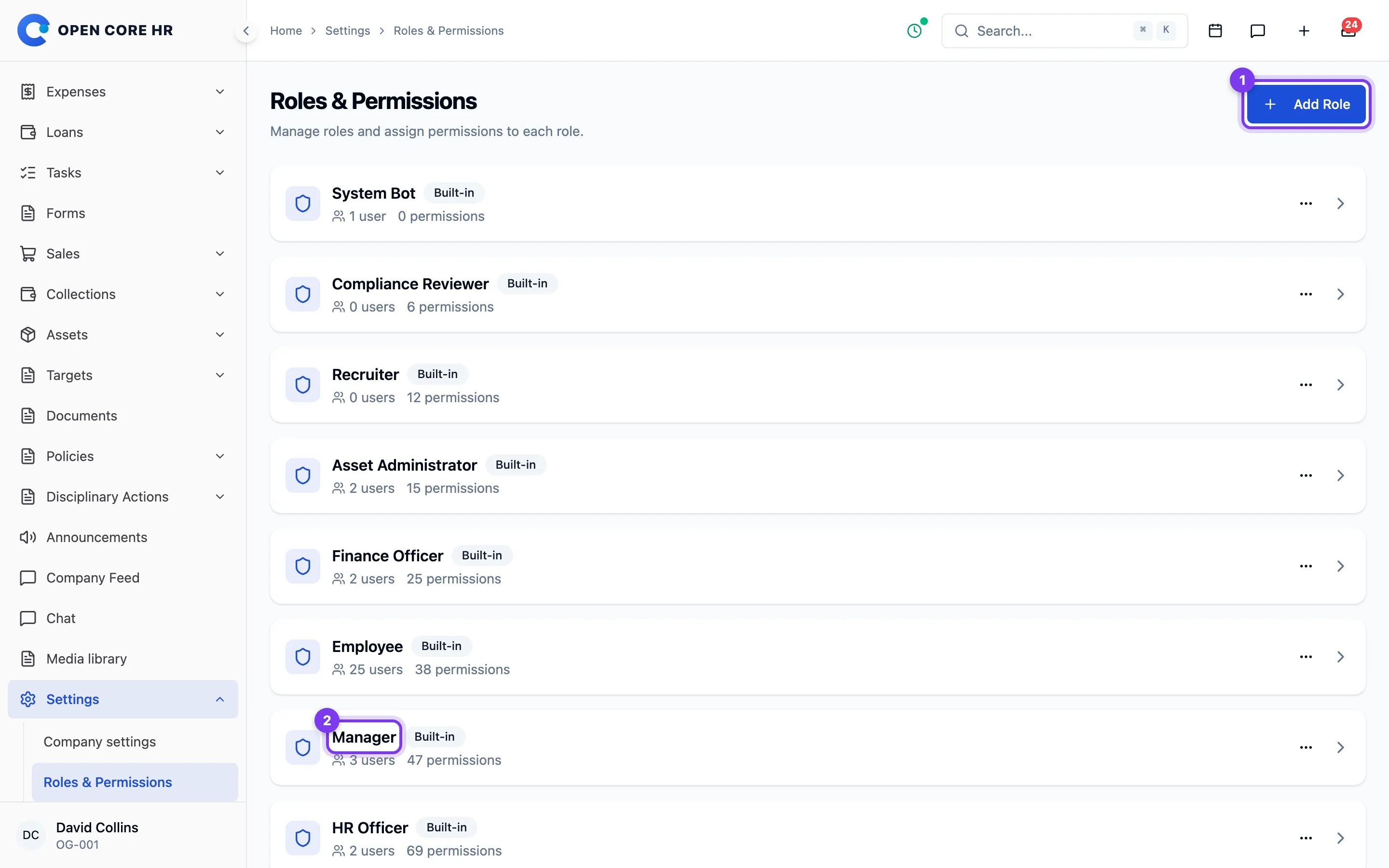
For larger changes (including changing the display name or app-access permissions), use the pencil button to open the full edit screen — see Creating and editing a role.
Notes
- System Administrator always has every permission. Its permissions can't be changed — the expanded card says so.
- Whether you can add, edit, delete roles, or change their permissions depends on your own role.
- To delete a role, it must have no users assigned. If it does, the confirmation dialog tells you to reassign those users first.
See also
Supplied presets
The standard presets are System Administrator, HR Administrator, HR Officer, Manager, Employee, Finance Officer, Asset Administrator, Recruiter and Compliance Reviewer. Optional-feature permissions are included only when the relevant modules are enabled.
Assign Employee alongside functional roles when a staff member needs personal services. Manager permissions use the configured Reporting To relationships; a manager role does not create a reporting relationship.
Permissions in App Access control each portal and app separately. Access to an app does not automatically grant administrative actions.
Field operations separates routine customer management from bulk data access. Reassign customers to employees controls changing a customer's employee, including bulk reassignment and reassignment while disabling an employee. Export customers and Export field reports control downloads. HR Administrator and Manager receive all three by default; HR Officer receives the two export permissions.
Creating and editing a role
Roles group permissions. An employee can hold several roles, and permissions from all assigned roles apply together. Open Roles & Permissions under Settings.
Adding a role
- Click Add Role.
- Enter a Role Identifier. It is the permanent reference used for assignments and imports.
- Select the permissions the role needs. The App Access group controls entry to Administration, the web application and the unified HR mobile app independently.
- Click Create Role.
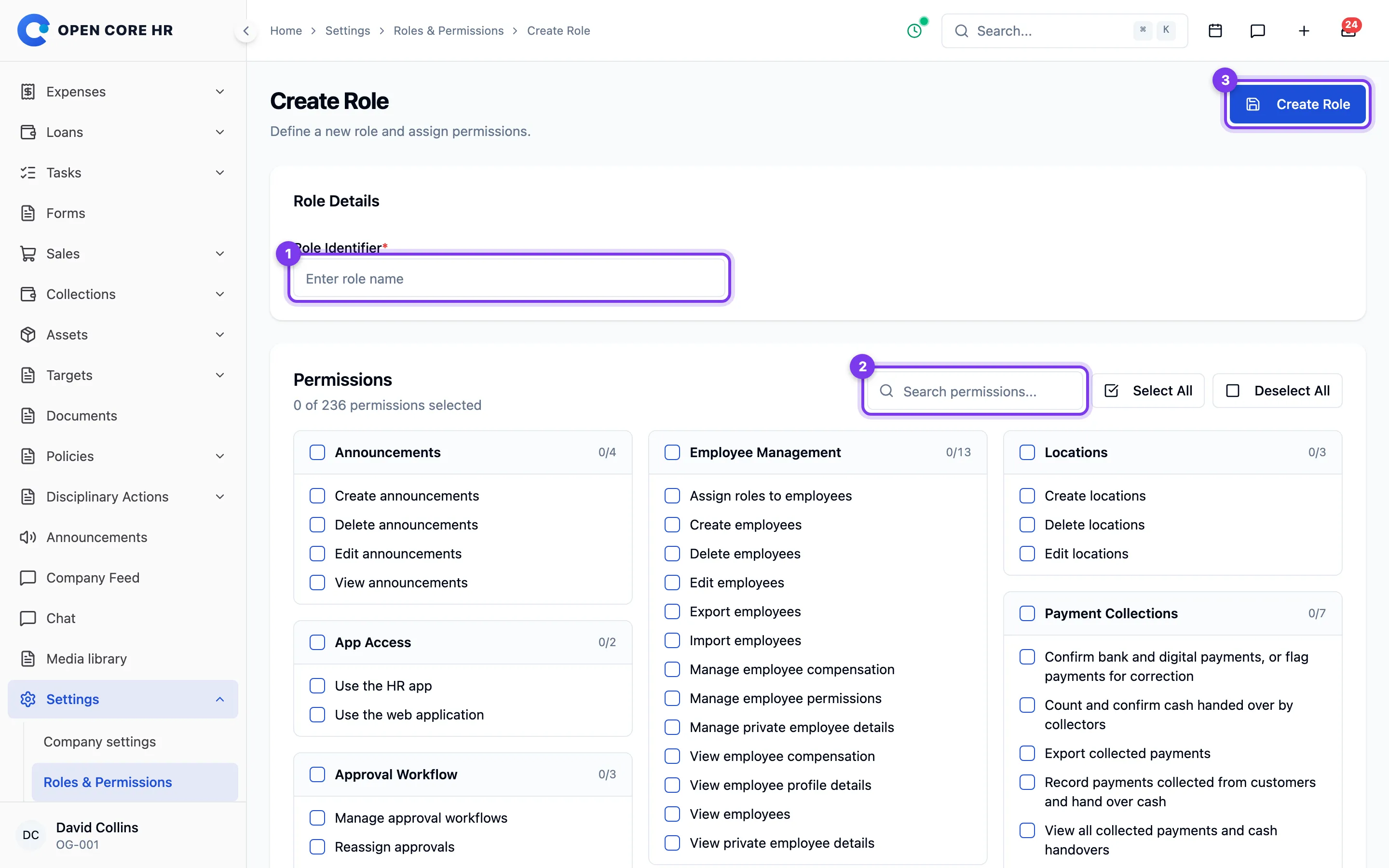
Use the search box and group checkboxes to review permissions. App entry alone does not grant permission to view or change employee records.
Editing a role
- Click the pencil button on the role's card.
- Change its Display name or selected permissions. The identifier remains unchanged.
- Click Update Role.
The System Administrator role always holds every permission. Other supplied presets can be customized. An administrator cannot grant permissions they do not hold.
Permission and app-access changes apply to subsequent requests. Removing HR app access blocks existing mobile tokens as well as new sign-ins.
Assigning roles to an employee
Use the Roles checkboxes when adding an employee, editing Work Information or completing onboarding. A person might hold Employee, Manager and Finance Officer together.
Employee provides personal services. Other roles add responsibilities; department and designation describe the person's job, and Reporting To determines their team relationship. Role assignment requires permission, and only a System Administrator can assign or remove System Administrator membership. At least one active System Administrator must remain.
Deleting a role
Custom roles can be deleted after all assigned users have been reassigned. Supplied presets cannot be deleted. Attendance behavior is configured on shifts, not roles; see Shifts.
Giving an individual extra permissions
In Open Core HR, what a person can do is decided by their role. There isn't a separate screen in the current app for granting one individual extra permissions on top of their role. To change what someone can access, you either move them to a different role or adjust the permissions on the role itself.
- Roles & Permissions — Open Roles & Permissions from the menu.
How to change one person's access
Pick whichever fits:
- Move the person to a different role — open their employee profile and change the Role in the work information section. They immediately get whatever that role allows. Use this when an existing role already matches the access they need.
- Create a role for the access you want — on the Roles & Permissions screen, click Add Role, tick exactly the permissions needed, and assign that role to the person. Use this when no existing role fits. See Creating and editing a role.
- Adjust an existing role's permissions — on Roles & Permissions, expand the role and tick or untick permissions. Remember this affects everyone with that role, not just one person.
See also
- Roles and permissions
- Creating and editing a role