
All guidesAdd-on modules
Payroll
Set up payroll, prepare and approve payroll runs, record payments and download payslips.
Set up payroll
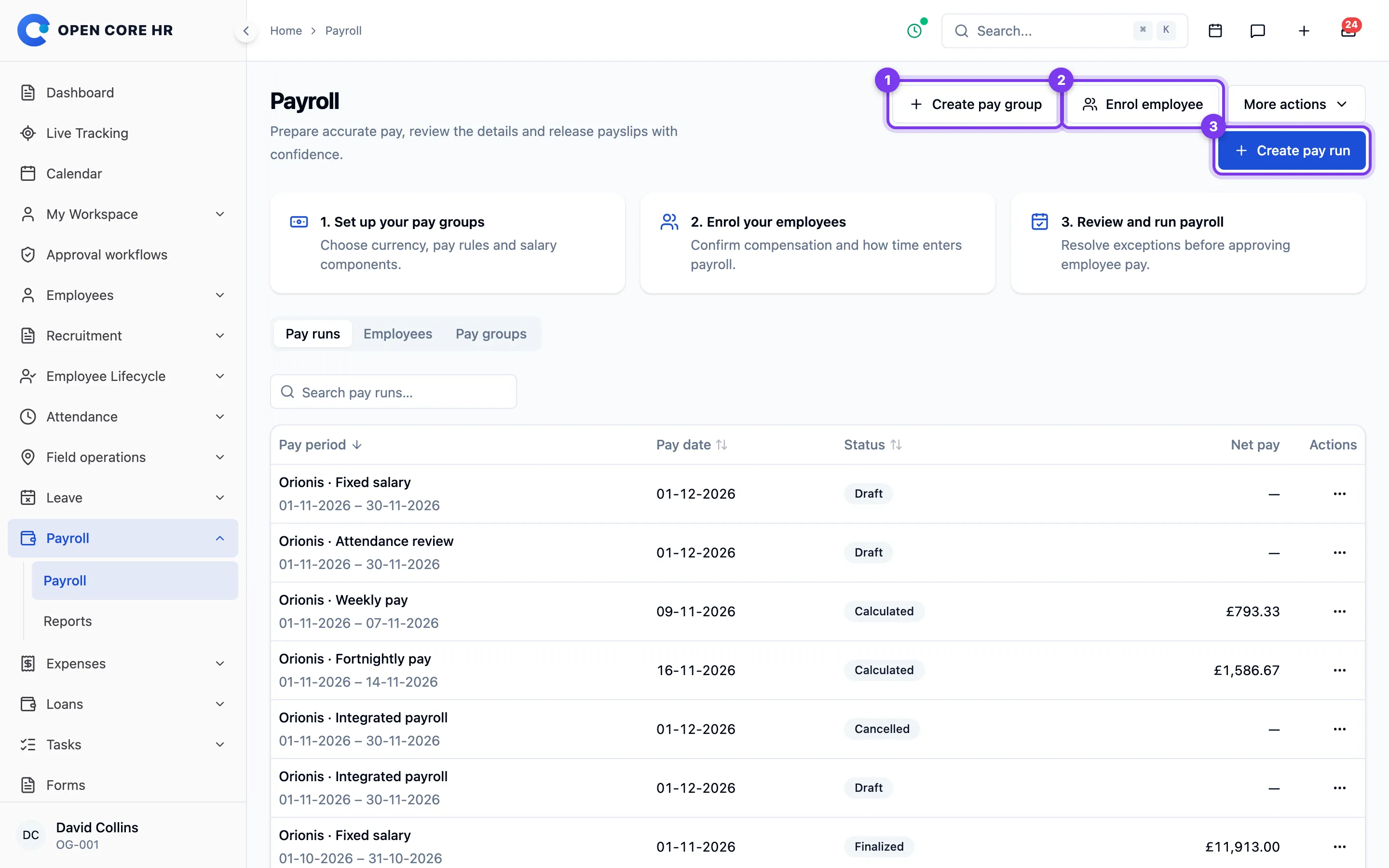
Payroll is an optional feature. Enable it in Modules and give the appropriate people permission to configure, prepare, review, approve, finalize and record payments. Viewing employees or attendance does not grant access to payroll.
This release supports monthly, weekly and fortnightly country-neutral payroll. India, UAE and Saudi statutory calculations and filing formats are not included. Confirm your organization's applicable pay rules before using a pay group.
Payroll settings
Open Settings → Payroll, or choose Settings from Payroll. Set the default monthly pay day and whether payment falls in the payroll month or the following month. If that day does not exist in a shorter month, its last day is used. The suggested pay date remains editable when you create a run.
An optional payslip note can provide a contact or short instruction to employees. It is saved with each new run; changing the setting leaves existing runs and their payslips unchanged. Corrections retain the original run's note. Viewing settings requires View Settings; saving changes requires Manage Settings.
Optional integrations
Enable only the integrations your organization uses. All three start off, and their source module must be enabled before you can turn them on:
- Loan deductions includes eligible scheduled loan repayments.
- Expense reimbursements includes approved, unpaid expense claims.
- Final settlements lets Payroll calculate final salary and add approved Lifecycle settlement adjustments.
These choices are saved when a pay run is created. Changing settings affects new runs; it does not remove items from an existing run. Leave an integration off when you manage those amounts outside Payroll. Loan and expense amounts use the organization's currency; the pay group must match it. No currency conversion is performed.
Create a pay group
Open Payroll and choose Create pay group to open the setup page. Enter a meaningful name, currency and timezone. Group employees who share these settings and salary rules. Employee compensation and the pay group must use the same currency; payroll does not perform currency conversion.
Choose Monthly, Weekly (7 days) or Fortnightly (14 days). Weekly and fortnightly groups need one known cycle start date and the number of days after period end to pay (zero means the final day). The anchor defines the repeating pattern, including earlier cycles. Fortnightly means every 14 days, not twice a month. Once a group has any run, create a new group to change its frequency or anchor; end the old employee assignments before enrolling them in the new group.
Compensation keeps its agreed frequency. A monthly salary is prorated across the cycle's dates; a fortnight of fixed weekly salary pays two weeks. Fixed components apply once per run, so review their amounts when configuring shorter cycles. Scheduled-day proration uses the full calendar month's working schedule, including for joiners and leavers. Each run rounds its own pay lines to currency precision.
Choose how partial periods and unpaid time reduce salary:
- Calendar days uses the days in the payroll month.
- Scheduled working days uses the confirmed working schedule.
- Fixed divisor uses the number of days you specify. Confirm this divisor against your policy rather than assuming that every month has the same length.
Review time conversions when you pay employees by the hour, day or week. Overtime pay requires an overtime component and approval of the recorded overtime. An overtime quantity component uses its straight hourly rate multiplied by the group's overtime multiplier. Overtime also needs approval during the pay run's input review.
Leave self-approval off when a different person must approve the preparer's work. If one authorized person operates payroll, explicitly enable self-approval for that pay group.
Configure approval steps
Open Approval workflows and edit Payroll Approval. Keep it active and configure at least one approval level in the order your organization requires. This workflow applies to every pay group. Each resolved reviewer needs View Payroll, Approve Payroll and View Approvals permissions as well as the role or assignment selected for their step. Self-approval remains subject to the pay group's setting, including for administrators.
Submitting payroll creates a request in the shared approval inbox. Only the current step can proceed; later reviewers are notified when their step becomes current. If a step has no eligible reviewer, it remains pending and administrators receive a notification. Correct reviewer access or withdraw and resubmit after updating the workflow. Changes to workflow levels apply to new submissions; requests already in progress retain their original steps.
Define salary components
Base pay comes from the employee's effective-dated agreed compensation. Additional components can be fixed amounts, percentages of base pay or another component, or quantities multiplied by a rate.
Choose the correct component type:
| Type | Effect |
|---|---|
| Earning | Increases gross earnings and net pay |
| Employee deduction | Reduces net pay |
| Employer contribution | Increases employer cost without reducing employee net pay |
| Reimbursement | Is paid separately from gross earnings |
Use a unique component code. A percentage rule cannot refer to itself or create a circular chain of dependencies. Add one-off adjustments to a particular pay run rather than changing a recurring group component.
Choose Save pay group when the rules and approval setting are ready. To update a group, open Payroll → Pay groups and choose Edit pay group from its actions. Changes apply to new pay runs; existing runs retain their saved rules. If you leave an edited form without saving, choose Keep editing to retain your entries or Discard changes to return to the pay groups list.
Enrol employees
Choose Enrol employee, select the employee and pay group, and set the effective date. An optional end date limits the assignment. Confirm the working schedule, including overnight hours and working weekdays. Add fixed unpaid break windows when they reduce scheduled working time; for example, 09:00–18:00 with a 12:00–13:00 unpaid break is an eight-hour day. You can add up to five breaks.
Recorded attendance breaks are paid controls explicit break start/end records. It does not automatically pay gaps between a check-out and the next check-in.
Choose Fixed salary when payroll should not depend on attendance. Choose Manual or imported time for reviewed time supplied by another process, or Attendance records to process Open Core HR attendance and leave.
Confirm whether the agreed compensation represents base pay before additional components or total agreed gross pay. Payroll must not guess this distinction. Record compensation on the employee profile with its correct effective date before creating a run. The source compensation records currently retain two decimal places; do not rely on more precise rates that have already been rounded there.
To change an ongoing assignment, open its row actions under Employees and choose End enrolment. Enter the last covered date and a reason, then enrol the employee again from the following day with the new pay group, schedule or input method. Assignments cannot overlap. Review any draft affected by a change; existing finalized payroll retains its saved calculation.
Continue with prepare and approve payroll.
Prepare and approve payroll
Complete payroll setup first. The preparer needs permission to prepare payroll, the time reviewer needs permission to review payroll inputs, and the approver and finalizer need their respective permissions.
Prepare a pay run
- Open Payroll and choose Create pay run.
- Select the pay group and a day in the cycle. Check the suggested period and pay date; only complete cycles matching the group calendar can be created.
- Create the draft and check the included employees.
- For attendance-based payroll, refresh inputs after attendance or leave changes.
- Resolve all input exceptions. Use each employee's Review inputs and adjustments action to record confirmed time and one-off amounts.
Expand a date to review or change its daily hours. Time entries use decimal hours:
30 minutes is 0.5. Worked hours exclude unpaid
breaks but include overtime; enter overtime separately so it is not also paid as
regular time. Confirm paid leave, unpaid time and paid holidays against the
underlying records. A correction needs a reason explaining the evidence checked.
Fixed salary uses agreed compensation and employment dates. Hourly or daily fixed pay uses scheduled entitlement. Changing worked, unpaid or leave hours does not reduce fixed base pay. Record a documented one-off deduction or use the appropriate manual or attendance assignment when pay should depend on reviewed time.
Missing check-outs, conflicting leave and uncertain schedules must be resolved before payroll proceeds. Correct the source record and refresh when possible. Do not treat missing attendance as confirmed absence without reviewing it.
Refresh inputs asks you to confirm before replacing entered or imported daily time with fresh source inputs. One-off adjustments are kept. Review and calculate the refreshed inputs again before continuing.
Include loans, expenses and settlement adjustments
Check the run's saved integration choices and source items before reviewing pay. Loan instalments are included in the cycle containing their repayment due date. Enabled loan and expense integrations reserve eligible items for this run so they cannot also be processed manually or included in another run. Do not copy those amounts into one-off adjustments.
For final salary, complete the employee's separation and approve a Lifecycle settlement using Payroll adjustments mode. The last working date must fall within the payroll period. Choose Link settlement for that employee and select the approved adjustments. Payroll calculates salary using employment dates; the settlement must exclude salary and amounts already included elsewhere. Full settlement records cannot be linked.
Changing a settlement link requires fresh input review and calculation. If a source changes or becomes unavailable, resolve the reported issue before continuing. Cancelling an unfinalized run releases its reserved items.
Import time
Choose Import time and download the CSV template. Enter an employee code and
date for every row; use YYYY-MM-DD dates and decimal hours. Import into the
correct run and check any row errors before retrying. A successful import still
needs input review and payroll calculation.
Review, calculate and approve
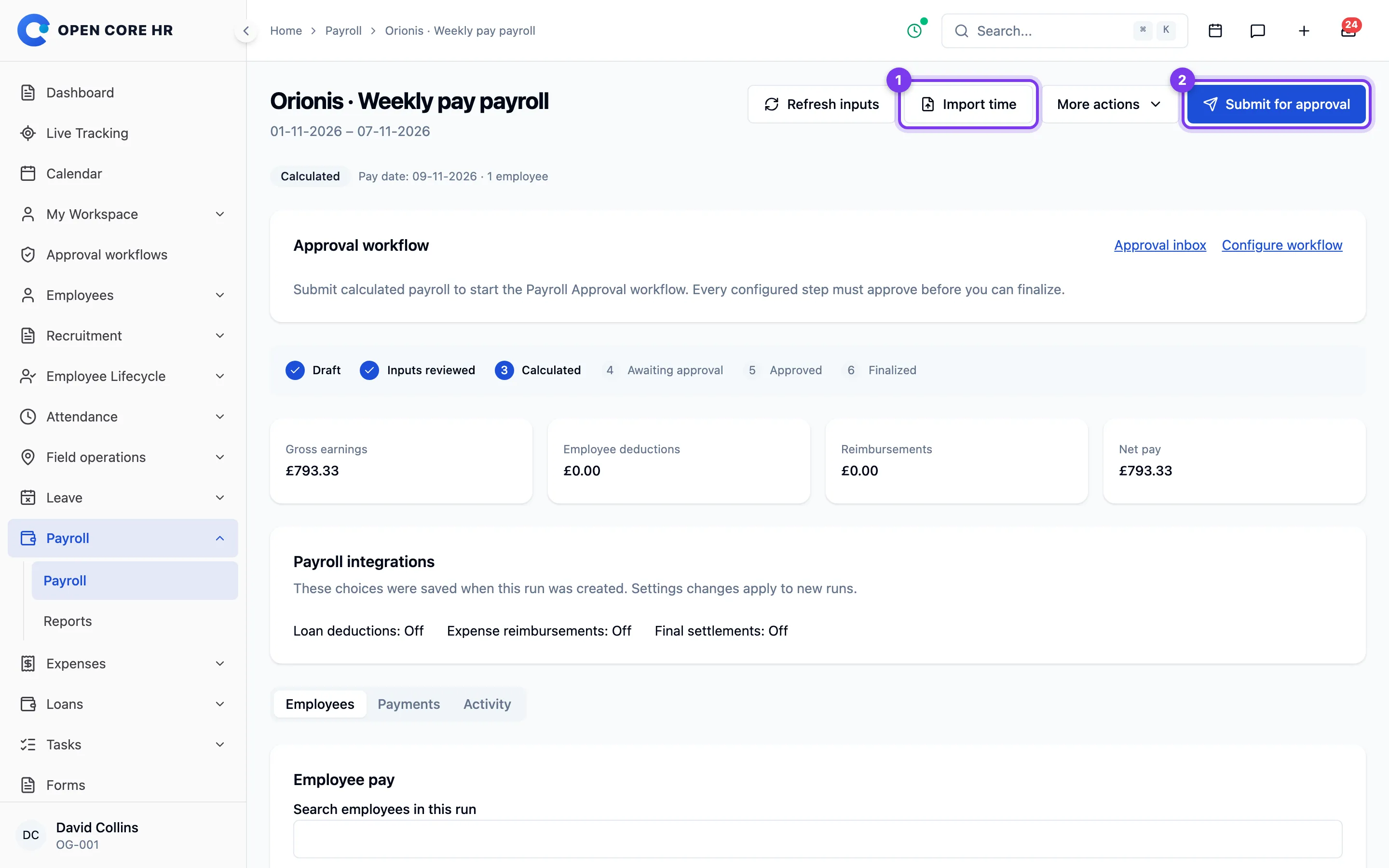
- Choose Review inputs, add a review note, and explicitly decide whether to approve the recorded overtime.
- Choose Calculate payroll. Open an employee's calculation to inspect each amount and its explanation, including earnings, deductions and employer costs.
- Resolve calculation errors, including missing compensation, currency mismatch or deductions that would produce negative net pay.
- Submit the calculated run to the configured Payroll Approval workflow.
- The reviewer opens the approval notification or Approvals inbox, views the pay run and approves the current step or rejects it with a reason. The pay run also offers these actions to eligible reviewers and shows the step history. Each approval notifies the requester; the next reviewer receives a notification when their step becomes current. Self-approval requires the pay group setting.
- The authorized finalizer confirms Finalize payroll after every step approves.
Rejection returns payroll to draft and closes the remaining steps. To correct a pending run yourself, choose Withdraw for correction and provide a reason. Refresh changed source inputs, review, calculate and submit again. The new request starts at the first step and preserves the previous request's decisions and notes. Compensation and source changes block approval at every level; a reviewer can still reject stale payroll so the preparer can correct it.
Editing or refreshing inputs requires a new review and calculation. An approval applies to the reviewed calculation; it cannot be carried over to changed amounts. If another person changes the run while you are working, reload it and review the current state before retrying.
Finalization preserves the approved amounts. It does not transfer money or release payslips. Follow payments and payslip release next.
Cancel a draft
Cancel an unfinalized draft when it should no longer proceed and record the reason. The cancelled run remains in history. Do not cancel a completed payment to disguise a correction; retain the original financial record and use the supported correction process.
Correct a finalized run
Open the original finalized run and choose Create correction run. Set the correction pay date, then enter the additional one-off amounts for the affected employees. The correction starts at zero: it does not pay base salary or recurring components again. Review, calculate, approve and finalize it in the same way as a regular run.
This process records explicit adjustments; it does not automatically recalculate past payroll. If recovering an overpayment would make the correction negative, record an authorized deduction in the next regular run and identify the original period in the reason. Never represent a recovery as a negative bank transfer.
Record payments and release payslips
Start with a finalized pay run. Payment recording requires payment permission; releasing payslips requires payroll finalization permission.
Record payment
Export the payment file when you need the run's payment details. This is a generic export, not a country-specific bank or wage-protection submission. Downloading it does not send money or mark employees paid.
After confirming a transfer outside Open Core HR, choose Record payment for the relevant employee. Enter the amount actually paid, the payment reference and payment date. For a partial payment, record only the amount received; record the remaining amount when it is confirmed.
Check the employee and outstanding amount before saving. If a request fails, keep the payment form open and retry after checking the error. Do not invent a new payment reference merely because the response was delayed; first check payment history to avoid recording the same transfer twice.
Payroll approval, finalization and payment are separate events. An approved or finalized run can still be unpaid. A partially paid run remains open for the outstanding amounts.
If a transfer is returned or a payment was recorded incorrectly, open Payments, choose Reverse payment from that record's row actions, and explain the reason. The original record stays in history alongside its reversal, and the amount becomes outstanding again. This corrects the payroll record; it does not reverse a bank transfer. Record a replacement only after it has been confirmed.
Release payslips
Choose Release payslips when the finalized statements are ready for employees. Employees can then download their own statements from Payslips in the module menu. Payslip release does not confirm bank payment.
Payroll documents contain private employee information. Share downloaded payment files and payslips only with the intended people and follow your organization's retention policy.
Linked source records
When integrations are enabled, finalizing payroll applies its loan deductions once. Reversing a payroll payment does not undo the loan deduction: the employee is still owed the outstanding net salary.
Linked expenses and settlement adjustments are marked paid only when the employee's full net pay is recorded. A partial payment leaves them unpaid and reserved by Payroll. Reversing payment reopens their paid status and retains the Payroll link. Record the replacement through Payroll instead of paying the source record separately.
Payroll reports
Open Payroll → Reports with both View payroll and View and export payroll reports permissions. Finance officers and administrators receive reporting access by default. Select a pay-date range of up to 366 days and optionally a pay group, then apply the filters. The initial range is year-to-date; use a single month for monthly reporting.
Employee totals use finalized payroll snapshots, including finalized corrections as additional amounts. A December salary with a January pay date belongs to January's report. Unpublished or unpaid finalized runs are included; draft and cancelled runs are excluded. Employee renames, later salary changes and payment reversals do not rewrite accrued totals. Each currency stays separate, without conversion or imported opening balances.
Export Summary CSV for employee earnings, deductions, reimbursements, net pay and employer costs. Employer cost includes earnings, reimbursements and employer contributions. Use the existing payment register to reconcile paid and outstanding amounts instead.
The Accrual journal groups accounting entries by pay run and component. Before posting its CSV to accounting, map the account categories and component codes to your chart of accounts. Earnings debit payroll expense; deductions credit clearing; net pay credits payroll payable. Employer contributions have matching expense and payable entries. Reimbursements debit clearing so an expense already booked elsewhere is not expensed twice. Review the clearing accounts against the corresponding loan, expense and settlement records. Negative adjustments reverse the debit or credit side.
Journal exports do not post entries or include bank payments. Exported files contain confidential payroll data. Both exports include the whole selected date/group scope; the table search only helps browse the displayed report.
Download your payslips


When your organization enables Payroll and grants you access, open Payslips in the module menu. You can download only statements the payroll team has released for you.
Find the relevant pay period and choose Download payslip from its actions. The statement explains earnings, employee deductions, reimbursements and net pay. Employer contributions are separate from deductions taken from your pay.
In the employee mobile app, open My payslips under HR services. Select a pay period to review its breakdown, then choose View payslip PDF. Use Save or share PDF to save a copy through your device's share options. Pull down to refresh the list; older statements load as you scroll. If loading fails, choose Retry. Access requires Payroll and the View my payslips permission.
If a period is missing, ask the payroll team whether its payslips have been released. If an amount appears incorrect, quote the pay period and the affected component when contacting them. You cannot edit a released payslip yourself.
A released payslip is a statement of calculated pay; it does not by itself confirm that your bank has received a transfer. Contact the payroll team about payment timing. Keep downloaded statements private.