
All guidesSelf-service
Your attendance
Check in and out, review today's status and look back at your sessions and monthly summary.
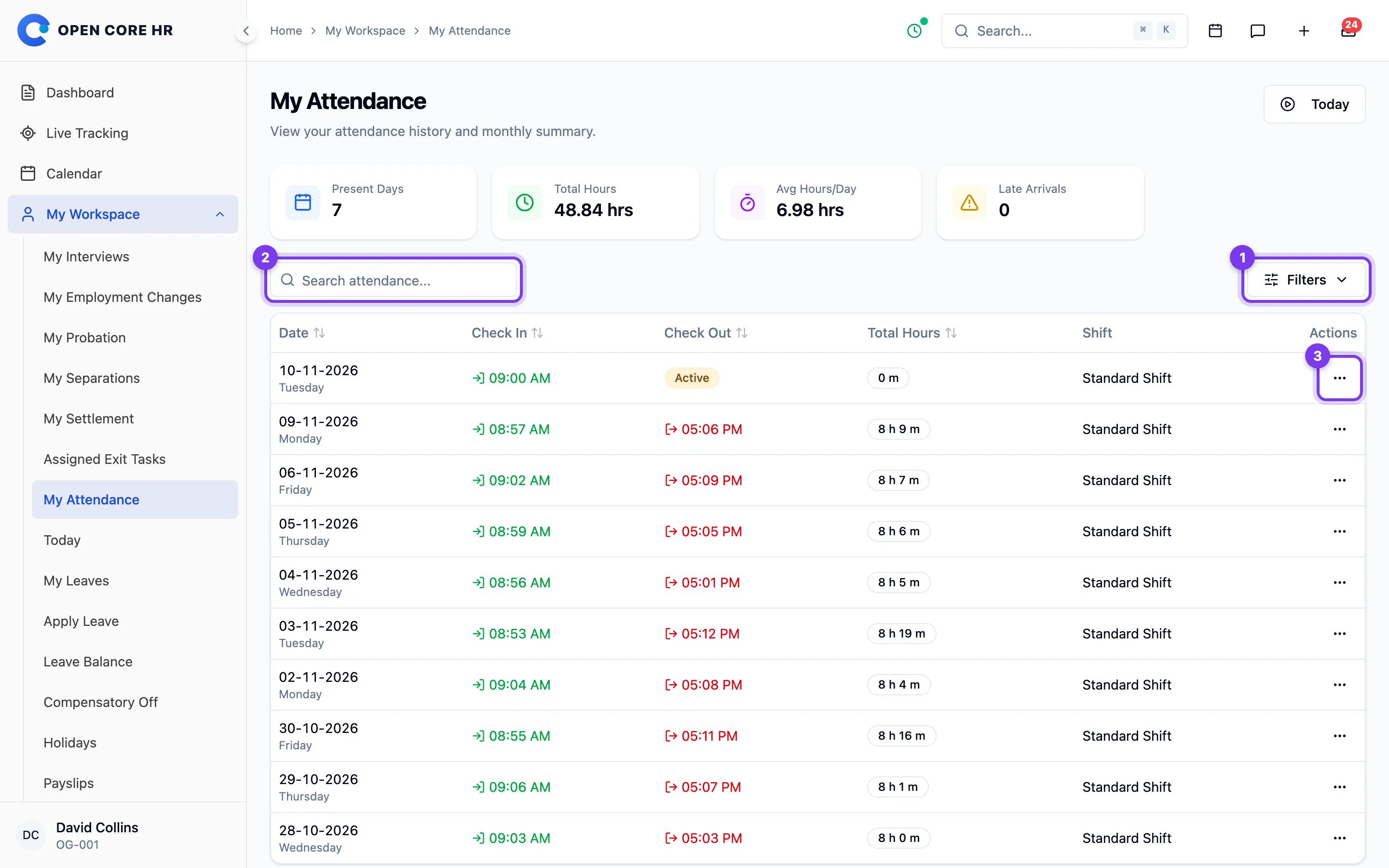
The My Attendance screen shows your attendance history along with a snapshot of how the current month is going. Open it from My Workspace > My Attendance.
Checking your records
Review your first check-in, last check-out, and total hours for each day. An Active session means you have not checked out. If multiple check-ins are enabled, review the sessions to confirm each work period.
Steps
Filter the list
- Use the From Date and To Date pickers above the table to limit records to a date range.
- Type in the Search attendance... box to search within the table.
- Click Clear to remove the date filters.
View a day's details
- Click the view (eye) button in the Actions column for the day you want.
- A panel titled Attendance Details slides in from the right showing the status, check-in and check-out times, working hours, shift, and any late, early-leave, or overtime amounts.
- If that day had more than one session, each one is listed under Sessions. Break times, if any, appear under Breaks.
Tips
- Use the Today button in the top-right corner to jump to today's attendance screen, where you can check in and out.
Today's attendance status
The Today's Attendance screen shows where you stand for the day — whether you're checked in, your check-in and check-out times, working hours so far, and a breakdown of your sessions. Open it from My Workspace > Today, or by clicking the Today button on the My Attendance screen.
- Attendance — Open the Attendance group in the menu.
- Today — Then choose Today.
Checking today’s attendance
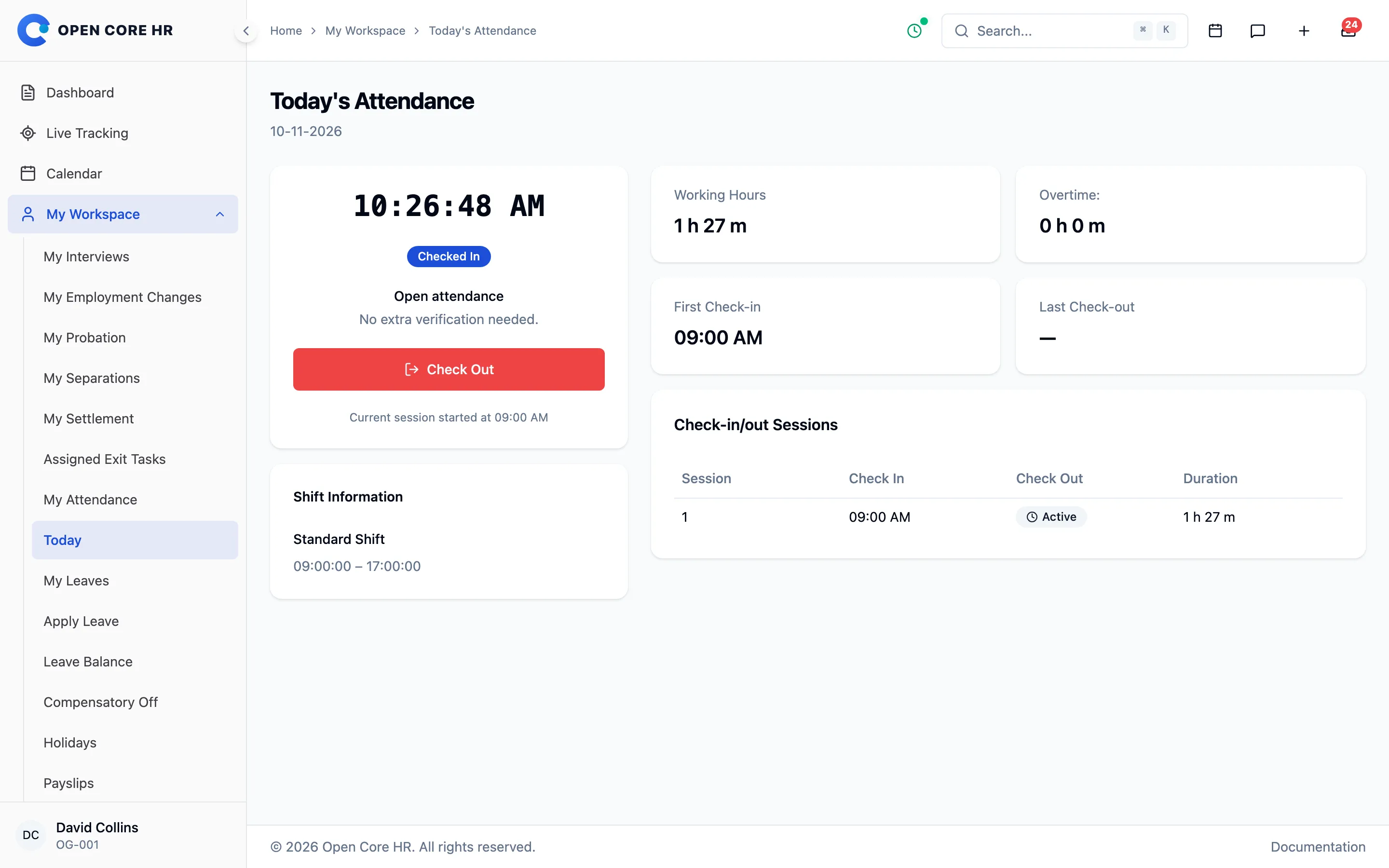
Check whether you are Not Checked In, Checked In, or Completed before taking action. Review the recorded shift and working hours. Use Check-in/out Sessions and Activity Timeline to confirm today’s check-in and check-out events.
Tips
- This screen refreshes itself after you check in or check out, so the times and totals update right away.
- To check in or out from here, see Checking in and out.
Checking in and out


Office, field, remote and hybrid employees use the same attendance system. Your assigned shift and attendance policy determine whether you can record attendance from the web, the mobile app, or both.
Open Today in your web workspace or the mobile app. Choose Check in to start work and Check out when you finish. In the mobile app a sheet lists what will be recorded, such as your shift and, when your policy requires it, your location; confirm there. Start and end breaks during an open session when those actions are available.
Location access is requested only when your policy requires it. An open policy does not require location. If a policy uses a location boundary, capture a fresh, accurate position inside the permitted area. Your administrator can set different requirements for check-in and check-out.
Multiple sessions and overnight work
A shift that allows multiple check-ins lets you start another session after checking out. Sessions cannot overlap. Overnight work remains attached to the date the shift starts, including a checkout after midnight.
An open session keeps the shift and policy that applied when it started. A later assignment or policy edit applies to future sessions. Attendance and customer visits are separate: recording a visit does not check you into work, and ending a visit does not check you out.
Interrupted requests
If the response is lost, the app keeps the request and sends it again by itself when the connection returns, or straight away when you tap Send now on the workday card. It repeats the same action and never turns a check-in into a check-out. The sync icon on Today also shows the saved request; see Sync status. Attendance requires a server connection; a saved request is not confirmed attendance until the server accepts it.
If attendance is unavailable, refresh first. Contact your manager if your shift or policy is missing, the policy excludes your device, or your employee account cannot record attendance. Approved leave and a completed single-session work date can also prevent another check-in.
Your attendance sessions for a day
A "session" is one check-in paired with the matching check-out. On a day where you check in and out more than once, each pair is a separate session. Open Core HR shows your sessions in two places.
On the Today's Attendance screen
- Go to My Workspace > Today.
- The Check-in/out Sessions table lists every session for today with its check-in time, check-out time (or an Active badge if it's still open), and duration.
- A summary row shows Total Sessions, Total Duration, and Active Sessions.
- The Activity Timeline below shows the same check-in and check-out events in time order.
For a past day
- Go to My Workspace > My Attendance.
- Find the day you want and click the view (eye) button in the Actions column.
- The Attendance Details panel opens. If that day had any sessions, they appear under Sessions, each numbered with its check-in time, check-out time, and duration. An Active badge marks a session that was still open.
- Any breaks for that day appear under Breaks, with start and end times and total break minutes.
Starting another session after check-out requires Allow multiple check-ins per day on your assigned shift. Adding or changing a security role does not change this setting. If attendance is unavailable, ask your administrator to check your shift and attendance permission.
Your monthly attendance summary
Open Core HR keeps a running summary of your attendance for the current month. You'll see it at the top of the My Attendance screen.
Where to find it
- Go to My Workspace > My Attendance.
- The cards across the top of the page summarise the current month:
- Present Days — the number of days you have an attendance record.
- Total Hours — total working hours recorded this month.
- Avg Hours/Day — average working hours per present day.
- Late Arrivals — the number of days you arrived late.
- Total Distance — total distance recorded for the month.
- The table below shows the individual days that make up these totals. Use the From Date and To Date filters to focus on a particular stretch of the month.
Tips
- The summary cards always reflect the current calendar month. To review an earlier period, use the date filters on the table below.
Fixing your attendance
If you forgot to check in or out, or a time was recorded wrongly, ask for a correction. Your manager reviews it, and your attendance changes only once it is approved.
On the web, open Attendance → Corrections and select Fix attendance. In the mobile app, open Attendance, tap the correction icon at the top, then Fix attendance.
Steps
- Choose the day. You can only go back as many days as your organisation allows (30 by default).
- Under What needs fixing, choose what happened: I forgot to check in, a session that says never checked out, a finished session with a wrong time, or Add a missing session on shifts that allow more than one check-in a day.
- Enter the correct times and the reason, then send the request.
What to expect
- New times must include any break you recorded, must not overlap another session and cannot be in the future.
- One request can wait for each session or day at a time. To change a waiting request, withdraw it and send a new one.
- Your organisation may limit how many requests you make each month.
- If a payroll covering that day has already been approved, the day can no longer be changed. Ask HR.
- The request shows Waiting for approval, Approved, Rejected or Withdrawn. A rejected request shows your manager's note.