
All guidesField operations
Plan and review field work
Plan journeys, maintain customers and review field work on the web.
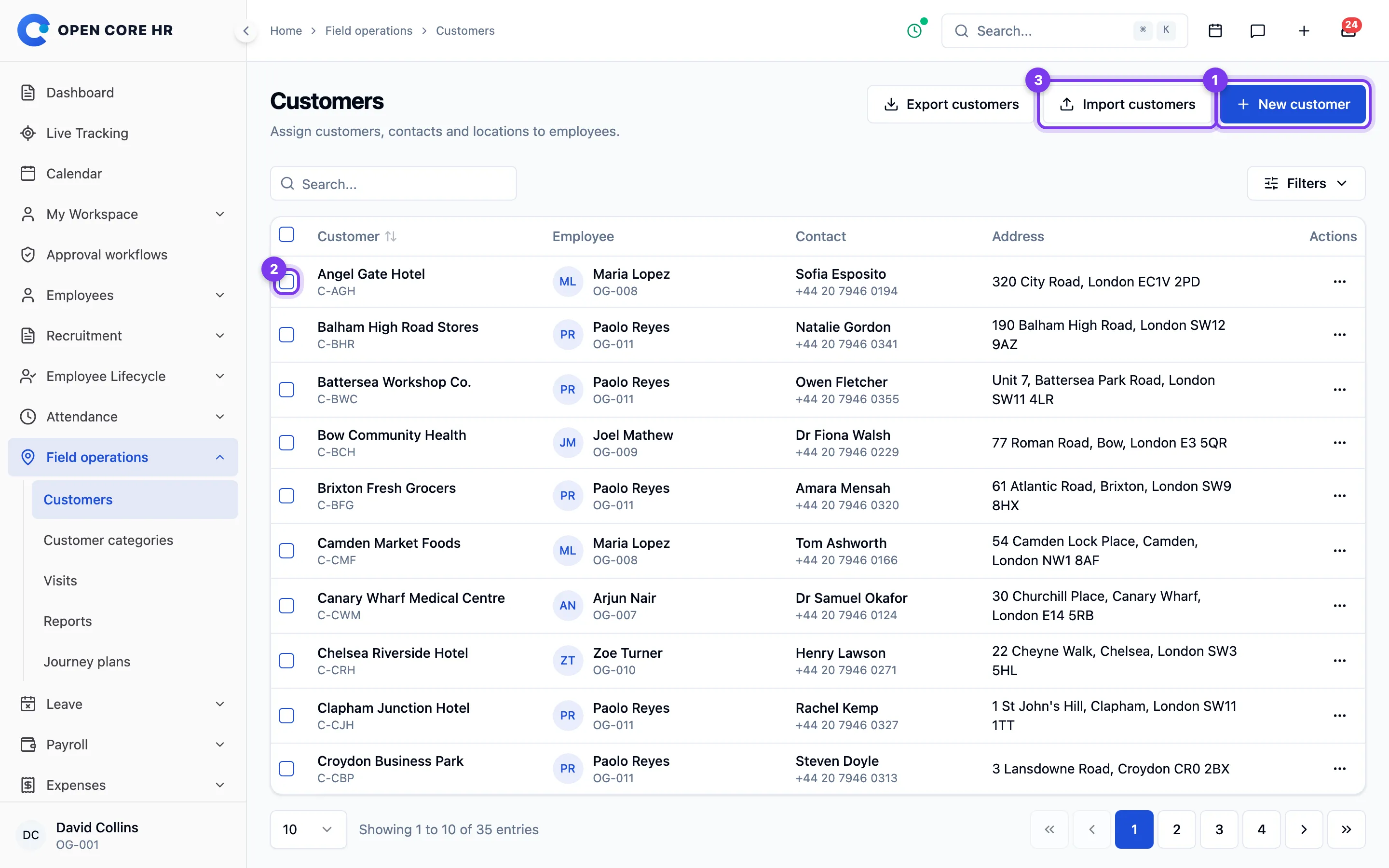
Create customers in Field Operations → Customers, assign the responsible employee, and maintain contact details and a location when visits require a location boundary. Customer categories help organize accounts. A manager's access is limited by their employee visibility permissions.
Open a customer to call, email or get directions, see the location on a map, review recent visits and open the full visit list for that customer. Managers who can see team or all customers also see the assignment history: who held the customer, when, and who made each change.
Changing a customer's employee requires Reassign customers to employees. Reassign one customer from its page, or select several rows in the list and choose Reassign customers. Customers with open journey plans or planned or active visits cannot move until that work is resolved; the request names the affected customers and moves none of them.
Use device location, enter coordinates, or search for a place when your administrator has configured the server-side Google Places key. Place search fills the address and coordinates; check them before saving. An unavailable search does not prevent manual entry.
To add customers in bulk, choose Import customers, download the template, and fill in unique customer codes, existing active category names and assigned employee codes. The file may contain up to 1,000 rows and must be under 2 MB. Preview import checks all rows without creating records; correct any errors and preview again. Confirm import creates the whole valid batch. Confirmation rechecks permissions and assignments, so changes made after the preview can require another review. A preview expires after 30 minutes. Retrying the same confirmation does not create duplicates. Imports create new customers; edit existing customers individually. Export customers requires Export customers permission and downloads the customers you are allowed to see that match the list's current search and filters. Values that a spreadsheet could treat as a formula are exported with a leading apostrophe; imports remove it again, so an exported file can be edited and imported without changing those values.
Users who manage field settings can import and export customer categories from Categories on the Customers page. Category files have name and status (active or inactive) columns, follow the same preview and confirmation steps, and create new categories only.
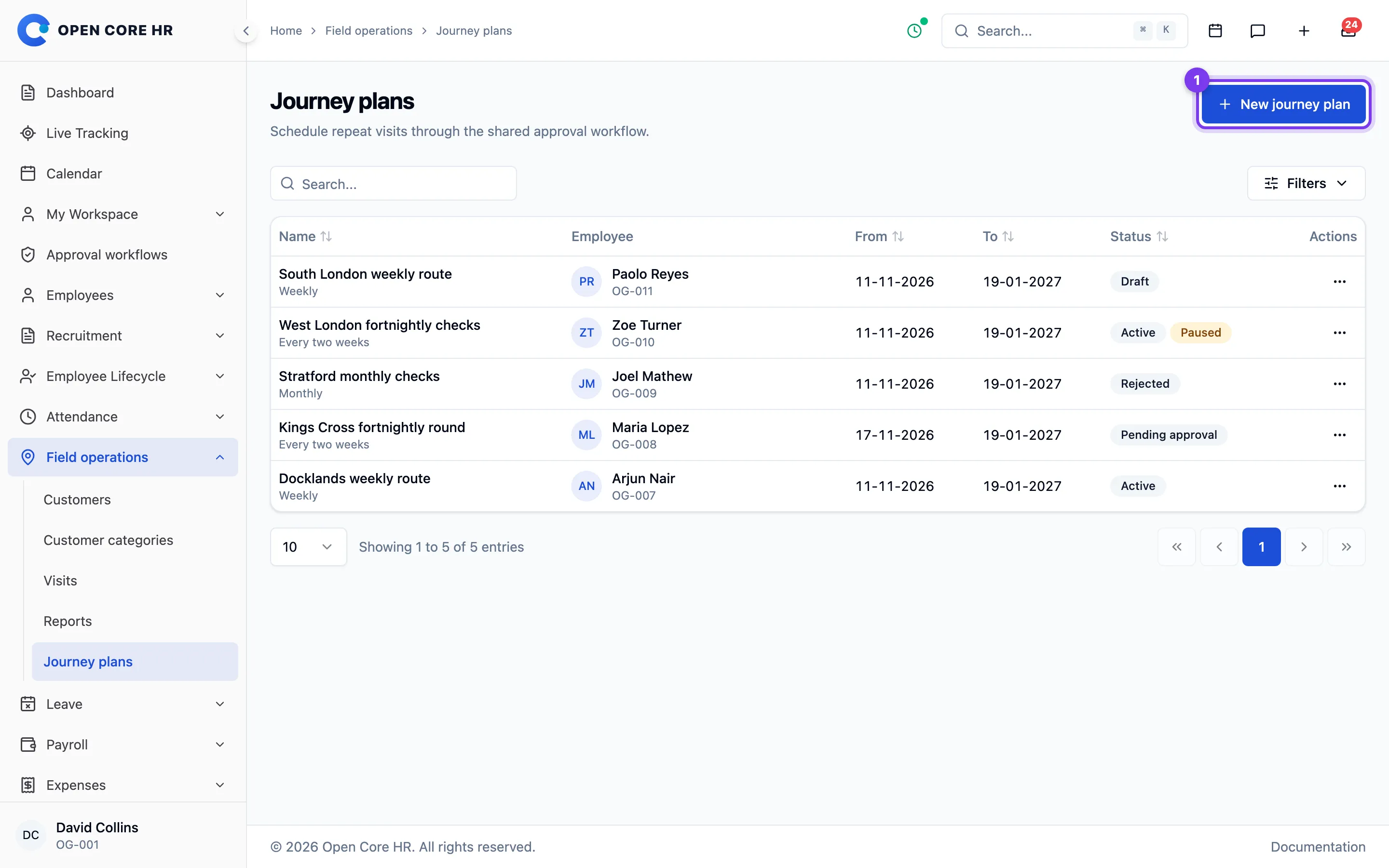
Create individual visits for an employee and date, or use Journey plans to schedule recurring visits. Choose weekly, fortnightly or monthly recurrence and place customers in the intended order for each scheduled day. Fortnightly schedules start with the week containing the plan's start date. A monthly date that does not exist in a month is skipped. Preview the itinerary and resolve scheduling issues before submission.
To repeat a day's route, use Copy day to… on the web or Copy day in the mobile editor and choose the other days. Copying replaces the customers already on those days with the source day's customers in the same order, and adds any day that was not yet scheduled. From a plan, choose View visits to open the visit list filtered to that plan. The visit list can also be filtered by customer.
Employees with permission can prepare and submit their own plans in the mobile Field work area. Managers can prepare plans for employees within their scope. Authorized reviewers use the shared approval inbox on the web or Approvals in the mobile app, and may narrow the approved date range by setting an approval period on the plan before approving. An active approved plan generates visits automatically through the scheduler, within that approved range.
Pause a plan when its future schedule must stop; editing a paused plan keeps it paused. You can revise any plan. While a revision is a draft or awaiting approval, the previously approved schedule keeps generating visits; editing a plan that is awaiting approval withdraws that request. When the revision is approved it replaces the earlier schedule and its planned future visits; if it is rejected, the earlier approved schedule stays in force. Existing visits preserve their history.
Visits that a manager has manually rescheduled or reassigned keep those adjustments when the plan is paused. They cannot be started while it is paused and become available again on resume. After pausing or resuming a plan, refresh downloaded visits before starting them offline. Visits already in progress can still be finished.
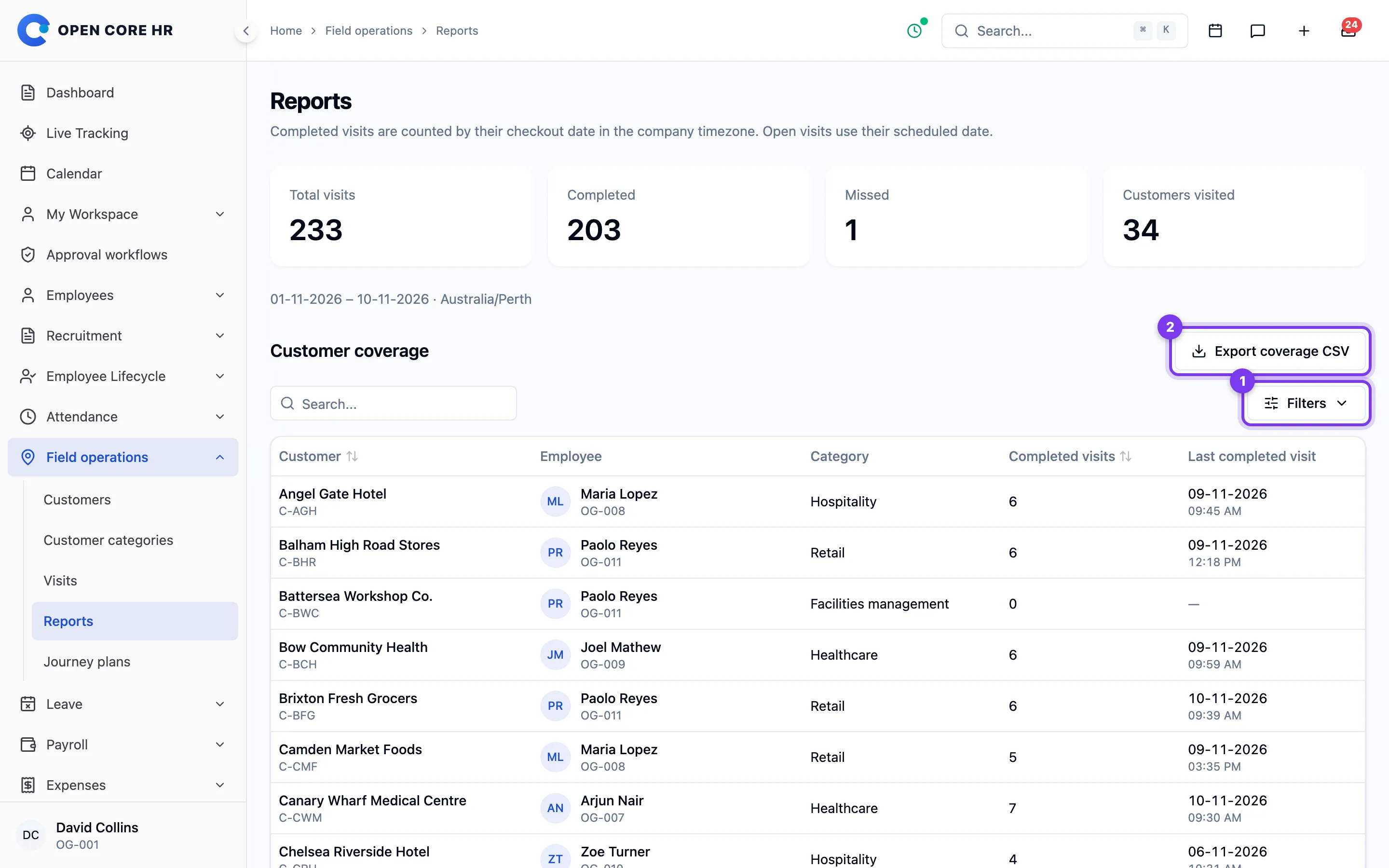
Use field reports to review visit completion and customer coverage within your authorized employee scope. Filter by employee, reporting team, category and visit coverage. Exporting report files requires Export field reports. In the employee summary, choose Daily breakdown for one employee's visits, distance travelled, stops and tracking gaps per day, or View visits to open their visits for the report period. Employees who can see only their own visits see only their own report. Completed work is counted by its actual checkout time. Reports describe recorded work; they do not create sales orders, collections or target achievement.
Visit requirements
Field visit settings, in Settings → Field visits, control check-in and checkout location separately. Each location boundary can be off, warn when outside, or enforce the boundary. Boundaries require customer coordinates. Configure position accuracy and age, unplanned visits, and whether employees must have active attendance to start a visit. A visit can still be finished after its attendance session ends.
Completion can require an outcome, notes and photos. Planned visits use the customer's current details and coordinates; those details and the visit requirements freeze when the visit starts. A downloaded offline start must be refreshed if the customer pin changes. Managers can review missed visits and visits left open beyond the configured stale limit. When exceptions are enabled, authorized managers can record or correct another employee's visit with a reason; employees can request a correction for review. The event history preserves the previous values.
Resolve planned and active visits before transferring a customer's owner. Managers can instead reassign a planned visit to another employee and one of that employee's customers. Previously approved journey schedules retain their original date bounds.
Location retention removes old visit coordinates after the configured period (90 days by default), while keeping business notes and recorded times. Retention and visit generation require the scheduler.
The server scheduler must run for recurring visit generation. Contact your administrator if an approved active plan is not creating visits.