
All guidesAdd-on modules
Policies
Publish and version company policies, deliver them to employees and track acknowledgments.
Policies is the standard library for company and HR policies. Categorize policies by subject, choose their audience, and optionally require acknowledgment or publication approval. You need permission to view policies; creating, editing, assigning and category management have separate permissions.
Open Policies → All Policies to find a policy by title, category or publication status. The list includes version records so administrators can review drafts and history.
Drafts remain private until published. Pending approval versions await their configured reviewers. Scheduled versions take effect on their effective date. Published versions are available to their audience until expiry or replacement; archived versions retain historical evidence.
Use Creating and versioning a policy to publish or replace content, Delivering policies for audience behavior, and Assignments and acknowledgments to follow up.
With the HR assistant add-on, employees can ask everyday questions on Ask HR and get answers from the policies assigned to them.
Generate the policies manual from Import & Export. The PDF contains current written policy content; individual attachments remain available from their policy records.
Creating and versioning a policy
Policies is included in every installation. Use it for company, HR, workplace, safety and IT policies. You need create/edit policy permissions and an active category.
Create and publish
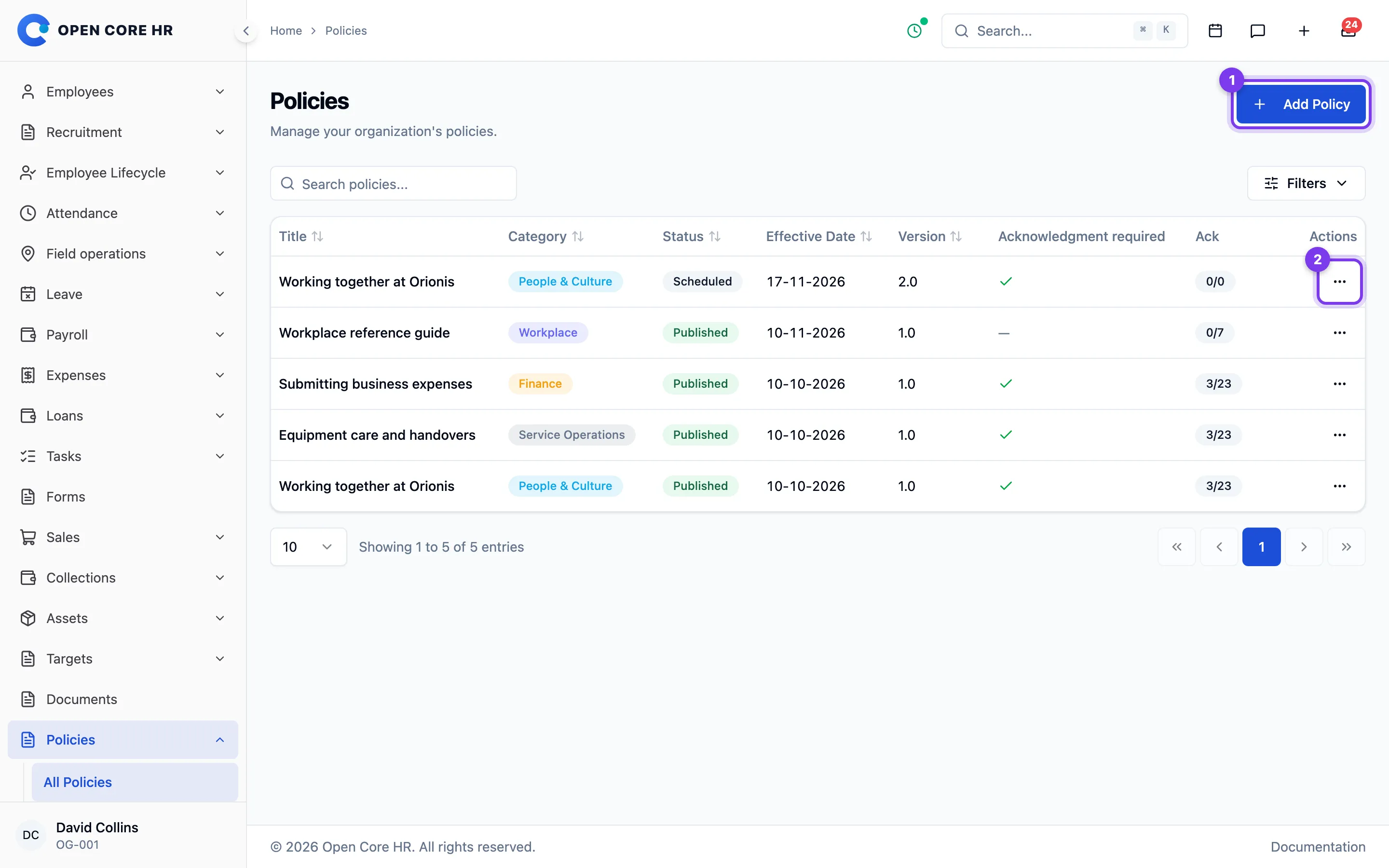
- Open Policies → All Policies → Add Policy.
- Enter a title and category; both are required. Add written content, a PDF/Word attachment, or both. Attachments can be up to 10 MB.
- Choose an audience: everyone, selected locations, selected departments, or selected employees. At least one member is required for a selected audience.
- Enable Requires acknowledgment only when employees must confirm reading this version. Set the number of days after assignment, or leave the deadline blank.
- Enable Require approval before publishing if this version needs review through the configured Policy Publish Approval workflow.
- Save the draft. Use Publish, or Submit for Approval when review is required.
Publishing delivers the version to active employees who match its audience. Matching new employees receive it automatically. Location and department audiences follow employee changes.
Dates and approval
The effective date controls when a published version becomes available. A future date schedules it; the existing version remains current until then. The review date is a reminder for administrators to reconsider the content. The expiry date is the last day a version is current.
A pending approval version cannot be edited. Rejected drafts can be corrected and resubmitted. Approval uses your configured workflow; a fresh installation starts with super admin approval.
Update a published policy
Open the published version's edit page and choose Create New Version. Edit the draft, check its audience and acknowledgment requirements, and publish it. When it takes effect, the previous version is archived and matching employees receive the replacement.
Published, scheduled and archived content cannot be edited. Employees who acknowledged an earlier version can still read that exact version. Their acknowledgment does not carry over to a replacement.
If publication fails, correct the reported content, audience or approval workflow problem and retry. Saving a draft never publishes it.
To withdraw a published policy or cancel a scheduled version, open its edit page and choose Archive Version. Acknowledged history remains available.
A draft can replace or remove its attachment. Removing it from a replacement draft leaves the original published version's file and acknowledgment evidence intact.
To cancel a scheduled replacement, archive that scheduled version. The current published version remains available. You can then create another version from the current policy; the canceled version stays in history and its version number is not reused.
Reviewing a policy
Open a policy from Policies → All Policies to read its content and review version, effective dates, publication status and employee assignment records. You need permission to view policies.
Check pending and overdue acknowledgments to decide whom to follow up with. Reference-only policies require no employee confirmation. Acknowledged records refer to the exact version employees read, including after replacement or expiry.
Use the edit page to change a draft or create a replacement for a published version. See Creating and versioning a policy. Publication automatically distributes to the configured audience; additional delivery does not expand that audience.
To create a Policies Manual PDF, open Import & Export, choose the policies manual export, and request it. Download the completed file from History within seven days. The manual covers current written content; download attachments separately from their policy when the full text is held in a file. See Import & Export.
Policy categories
Categories group policies by subject, such as Workplace, HR, Safety or IT & Security. Every policy version belongs to a category. You need category management permission to create or change them.
Open Policies → Categories and choose Add Category. Enter a unique name, add an optional description, and save. Use the category's actions to edit it or change whether it is active.
Only active categories can be selected for new or edited drafts. Deactivating a category does not withdraw its published policies. To withdraw a policy, archive its version instead.
A category with policy history cannot be deleted. Reuse its name where appropriate or deactivate it to prevent future selection. Use Creating and versioning a policy to publish content within a category.
Delivering policies to employees
Publication automatically delivers a policy to active employees in its configured audience. Choose everyone, selected locations, departments, or employees when creating or updating a draft. The audience applies to new joiners and employee moves as well as the initial publication.
For an additional delivery attempt, open a current published policy and choose Assign Policy. Send it to everyone in the audience or select active employees who belong to it. You can add an assignment note. Existing assignments are skipped, preserving their deadlines and acknowledgment evidence.
Reference policies appear as Available and create no acknowledgment task. Policies requiring acknowledgment appear as Pending, with any deadline measured from the assignment date. Employees acknowledge an exact published version.
An employee leaving an audience loses access to unacknowledged assignments. Previously acknowledged versions remain available as history. Drafts, scheduled versions, archived versions and expired policies cannot be newly assigned.
To change the audience or policy requirements, create and publish a new version. Selecting people in the delivery panel does not expand the policy's audience.
Policy assignments and acknowledgments
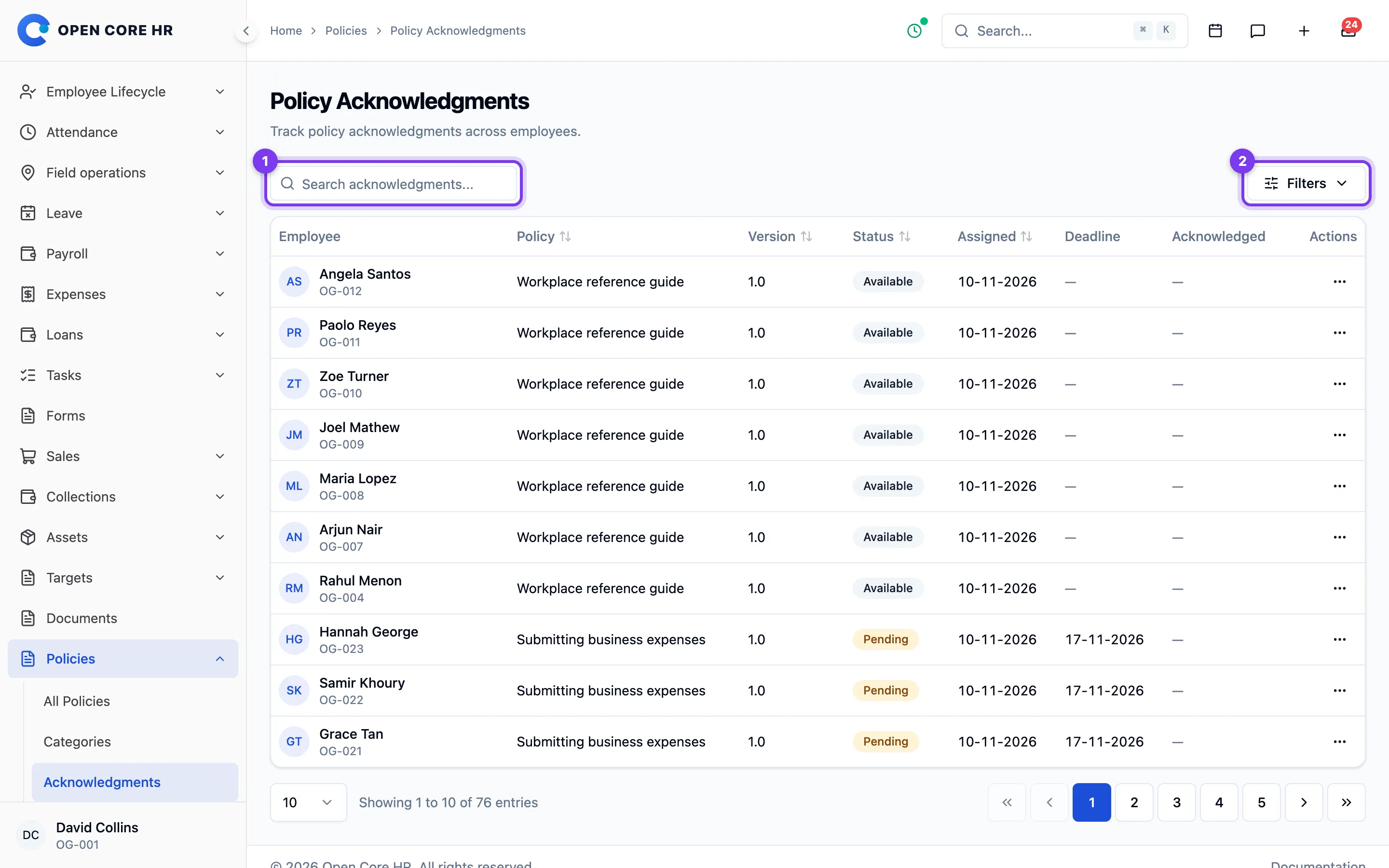
Open Policies → Acknowledgments to review delivery and acknowledgment records. Filter by policy or status and search by employee, policy title or category. You need permission to view policies.
- Available: a reference policy that requires no acknowledgment.
- Pending: the employee must acknowledge this version.
- Acknowledged: the employee confirmed reading the exact version recorded.
- Overdue: the acknowledgment deadline passed.
- Expired: an unacknowledged or reference assignment whose version was archived, replaced or expired.
Each record retains its version, assignment date, deadline, acknowledgment date and employee comments. Archived versions retain their evidence; acknowledgments are never transferred to replacement versions.
The application scheduler updates overdue assignments and sends in-app reminders for due acknowledgments, at most once every seven days. Reminders start three days before the deadline. Configure the server scheduler as described in the installation guide. Policies without a deadline do not receive deadline reminders.
Use the policy audience to control delivery. See Delivering policies.
Your policies (employees)
Open Policies in the module menu or the employee mobile app to read policies available to you. Policies is included in every installation. You can read and acknowledge policies in the mobile app without granting location or notification permissions; select Continue during permission setup to decide later.
Your current policies follow the audience your administrator selected: everyone, particular locations, departments, or named employees. Reference policies appear as Available. Policies requiring confirmation appear as Pending or Overdue.
Open a policy to read its content or download its attachment. Acknowledge it when confirmation is required. Acknowledged previous versions remain available so you can review exactly what you read.
If a policy you expect is missing, ask your administrator to check publication dates and your audience membership. A draft or future version is not available yet. Moving out of an audience removes unacknowledged policies from your current list.
Reading a policy


Open a policy from Policies in the module menu or the employee app. Read its written content and any attached PDF or Word document. Downloads require your signed-in account and permission to read that version.
Check the version and deadline before acknowledging. A reference policy needs no confirmation. For a current policy requiring acknowledgment, confirm after reading; see Acknowledging a policy.
You can also read previously acknowledged versions. They preserve the content and confirmation you originally gave, even after the policy changes or expires. A historical version cannot be acknowledged again.
If an attachment cannot be displayed, retry the download. If the file is still unreadable, ask your administrator for a readable copy before acknowledging it.
Acknowledging a policy
An acknowledgment records that you read a specific published version. It does not automatically acknowledge later changes.
- Open Policies in the module menu or the employee app and select a pending or overdue policy.
- Read the content and any attachment.
- Choose Acknowledge, add comments if needed, and confirm.
Your confirmation and its date are saved against that version. Repeating the request does not create a second acknowledgment. Reference policies need no acknowledgment and have no acknowledgment action.
You can acknowledge an overdue policy while it remains current and you remain in its audience. If it was replaced or expired, read the current version instead. Your earlier acknowledged versions remain available as history.