
All guidesAdministration
HR and administration
An overview of the HR and admin guide and the administrator dashboard.
Use the same module sidebar as employees. Your permissions add team and company pages, such as employee records, attendance reports, leave approvals and payroll. Related types and setup live inside their module; company-wide controls live in Settings. There is no separate administration or employee portal to switch to.
Use Approvals to review requests assigned to you. A management permission may cover your reporting team or the whole company; the application enforces that scope on records and actions.
See Finding your way around for search and personal pins, or choose the relevant feature guide for its workflow.
The admin dashboard
Use Dashboard to review work that needs attention and open the relevant records. The views available to you depend on your permissions:
- My Work shows your own attendance, leave and requests, plus any approvals assigned to you.
- My Team shows your direct reports. It does not include their reports or everyone in your department.
- HR Operations shows the company information you are allowed to access.
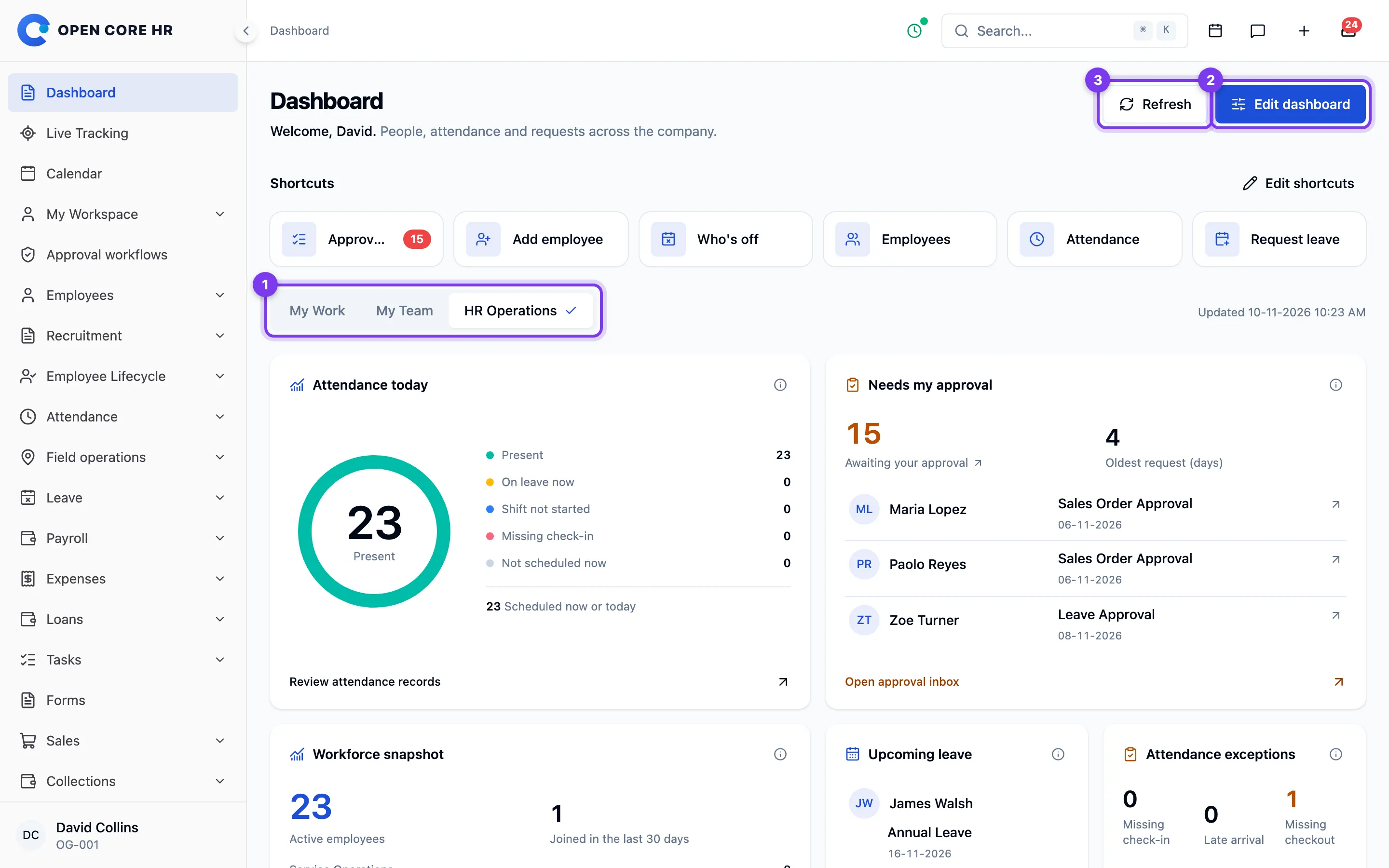
Someone with several responsibilities can switch views without signing out. Optional modules add their own widgets when enabled and available to you. The initial layout shows common daily widgets; additional widgets, including company leave requests and incomplete employee records, are available in Edit dashboard.
Choose what you see
- Open the view you want to change, then choose Edit dashboard.
- Show or hide optional widgets and use the move controls to change their order.
- Choose your default view if you want a different view when opening Dashboard.
- Save your changes. Your preferences follow your account across browsers.
Required notices cannot be hidden. Reset this view restores the current view's widgets and order; it does not change your other views. Changing the layout never changes your permissions. A widget disappears if you lose access or its module becomes unavailable.
Review requests and attendance
Needs my approval contains current workflow steps you can act on. Open the approval inbox to review and decide. Company leave requests and the optional expense backlog contain pending business requests; these may include requests assigned to other approvers. Their oldest-request figure measures elapsed days, not an approval deadline.
Missing check-in means an employee's shift has started without a recorded check-in. It excludes applicable holidays, days off and approved non-working leave. It is a current snapshot, not a finalized full-day absence. Employees whose shift has not started appear separately. Late arrival and missing checkout are exceptions and may overlap attendance totals. A checkout is missing only after the recorded shift has ended.
Working hours use recorded sessions and include elapsed time in open sessions. Company time settings determine the workday; overnight shifts may belong to the previous calendar date.
Use Refresh when you need an updated snapshot. If a widget fails to load, retry it; a failed load does not mean there are no records.