
All guidesSelf-service
Personal work
An overview of your personal workspace and the dashboard you see after signing in.
Open My Workspace in the sidebar for all your personal pages, including My Attendance, My Leaves, My Expenses, Payslips and Bank Details. Available pages depend on your permissions and the modules your company uses.
Your account menu at the bottom of the sidebar contains My Profile, Change Password and Logout. Read Finding your way around for navigation, global search and personal pins.
Requests follow your company's approval process. Opening a personal page never grants access to another employee's records. Contact your administrator if a page you need is missing.
Your dashboard
Open Dashboard and select My Work to review your attendance, leave balances and recent requests. Open a request to see its details. The attendance action opens today's attendance screen, where your normal check-in rules still apply.
Working hours include recorded work and elapsed time in open sessions. Leave balances use the current leave year. Holidays and announcements follow their location and access rules. Optional modules may add tasks or requested documents; follow a required document notice to provide what HR has requested.
Shortcuts
Shortcuts under the page title open the tasks your role uses most. Your administrator sets the starting list. Choose Edit shortcuts to pick up to six in your own order; the mobile app shows the first four. Use my profile's returns to the starting list.
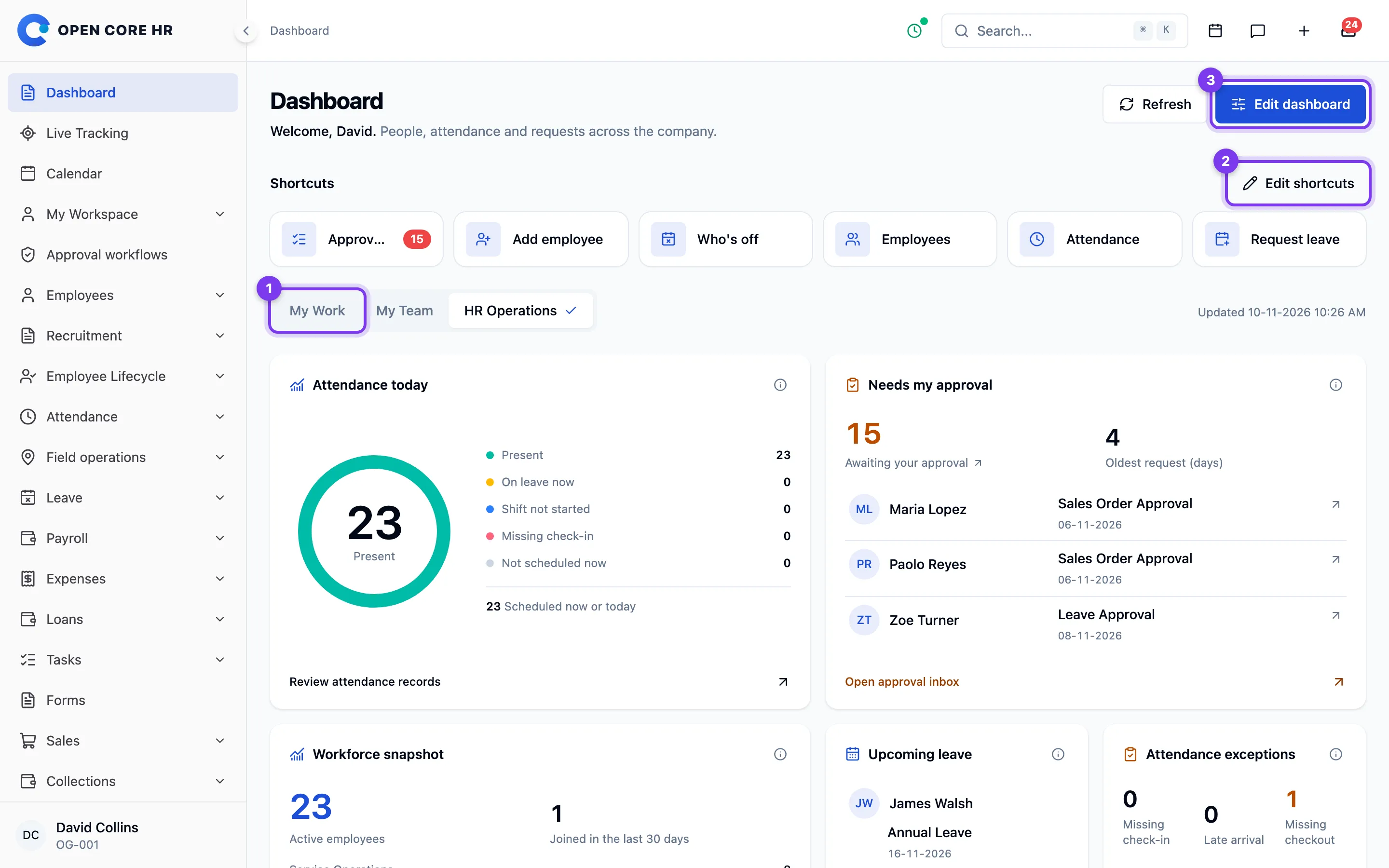
Personalize your dashboard
Choose Edit dashboard to show or hide optional widgets and move them into your preferred order. Save to keep your choices for your account, including when you use another browser. You can also choose the view that opens by default.
Reset this view restores the current view's widgets and order. Required notices remain visible. Access to a new view or widget must be granted by an administrator; personalization cannot grant access.
Choose Refresh to update the current information. Retry a failed widget instead of interpreting the failure as an empty balance or request list.
If you manage people or HR work, see Using team and HR dashboards for scope and attendance definitions.