
All guidesAdministration
Mail, storage and push notifications
Configure outgoing mail, push notifications, file storage and the media library.
Mail settings
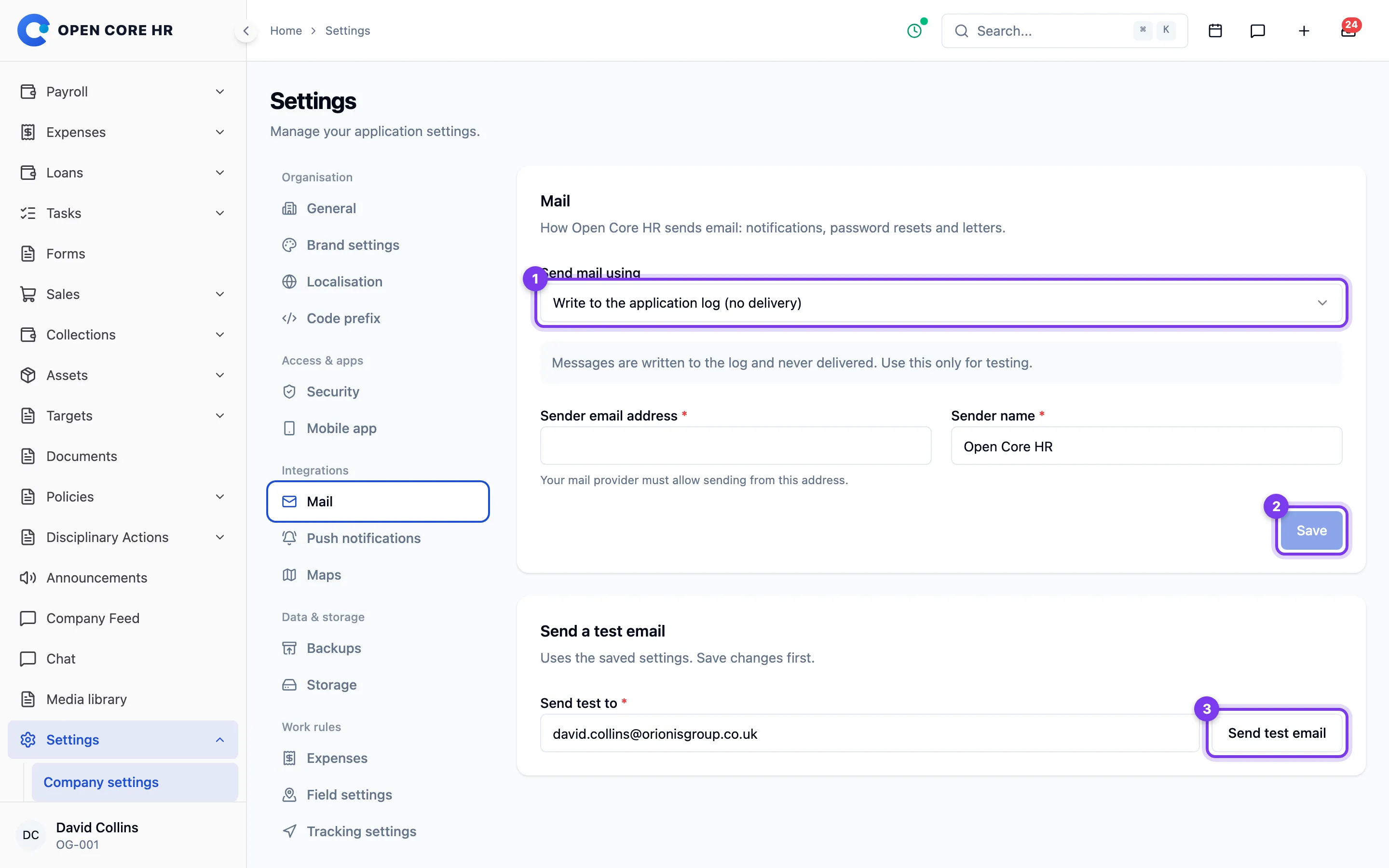
Open Core HR sends notifications, password-reset links and letters by email. Administrators with permission to manage settings configure this under Settings → Mail. You don't need to edit the server's .env file, and changes apply to the next email sent, including queued ones.
Connect a mail provider
- Under Send mail using, choose SMTP server.
- Choose your Mail provider. This fills in the provider's standard server, port and security, and a fixed username where the provider requires one. You can still change any field. Choose Other SMTP server for a provider that isn't listed.
- Enter the Username and Password supplied by your provider. Read the note under the provider; many providers require an app password or API key, not your normal sign-in password.
- Enter the Sender email address and Sender name that recipients will see. Your provider must allow sending from this address.
- Select Save.
The password is stored encrypted and is never shown again. To keep it, leave the password field blank when you save. To remove it, select Remove the saved password and save.
| Provider | Server | Port and security | Notes |
|---|---|---|---|
| Gmail / Google Workspace | smtp.gmail.com | 587, STARTTLS | Use an app password |
| Microsoft 365 | smtp.office365.com | 587, STARTTLS | Turn on Authenticated SMTP for the mailbox |
| Amazon SES | email-smtp.region.amazonaws.com | 587, STARTTLS | Use SES SMTP credentials, not AWS access keys |
| SendGrid, SparkPost, Resend | Filled in automatically | 587, STARTTLS | Fixed username; use an API key as the password |
| Zoho Mail, Yahoo Mail | Filled in automatically | 465, SSL/TLS | Zoho accounts outside the US use a regional server |
Mailgun, Postmark, Brevo, Mailjet, MailerSend and Outlook.com are also listed.
Send a test email
Save your changes first. In Send a test email, enter the address that should receive the test and select Send test email. If sending fails, the message shows the provider's reason, such as a rejected password or an unreachable server.
Other ways to send
- Write to the application log records messages in the server log without delivering them. Use it only for testing.
- Microsoft 365 (Graph) appears when the Microsoft 365 Connector module is enabled. It sends through the connector's configured sender mailbox. See Microsoft 365.
If the module behind a chosen option is turned off, Open Core HR falls back to SMTP and logs a warning. Select another option and save.
Push notifications
The mobile app's push notifications, such as incoming calls, approvals and new messages, are sent through Firebase Cloud Messaging. An administrator with permission to manage settings connects Firebase under Settings → Push notifications. Nothing needs to be added to the server's .env file.
- In the Firebase console, open your project, then Project settings → Service accounts.
- Select Generate new private key and download the JSON file.
- In Open Core HR, open Settings → Push notifications, choose the file and select Upload key.
- Select Test connection to confirm Firebase accepts the key.
The key is stored encrypted and can't be downloaded again. Keep the downloaded file somewhere safe or delete it. To change projects or rotate the key, upload a new file with Replace key. Remove key turns push notifications off until a new key is uploaded.
The mobile apps must be built with the same Firebase project. See the mobile app's build guide for its Firebase files.
Storage settings
Administrators with permission to manage settings can configure file storage under Settings → Storage. Available providers are local server storage, Amazon S3, Wasabi, Cloudflare R2 and S3-compatible storage.
- Add a connection and choose its provider.
- For cloud storage, enter the bucket, region, endpoint where required, and access credentials supplied by your provider. Use a private bucket and credentials limited to the required bucket operations.
- Save the connection and test it. The test writes, reads and removes a small temporary object.
- Activate the connection when the test succeeds. Review the displayed upload limits; individual forms may apply stricter limits.
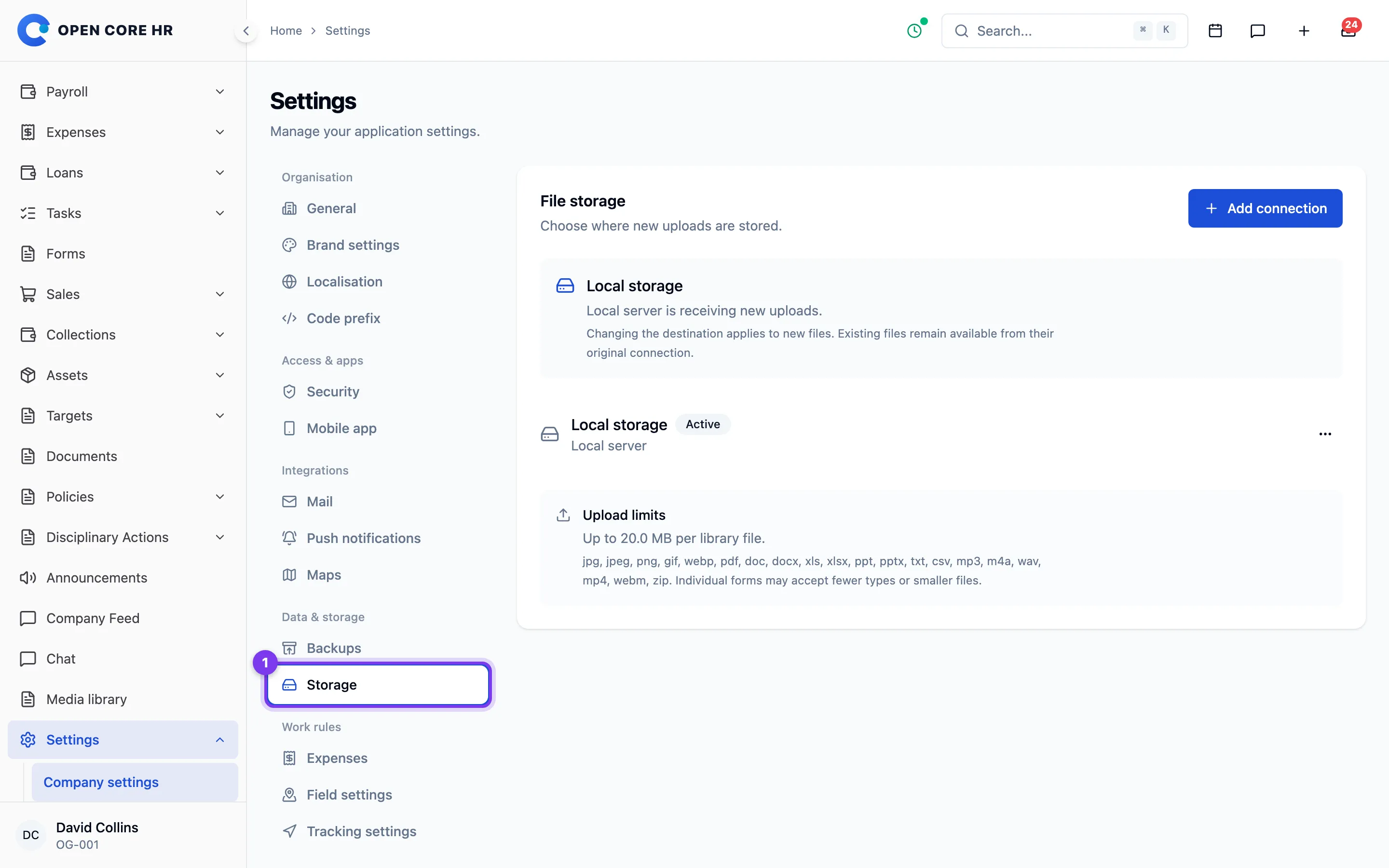
Activation changes where new files are stored. Existing files remain on their original connection and continue to download through the application. Keep the old bucket and credentials available. Changing a destination requires a new connection; replacing credentials for the same destination does not move its files.
Saved secrets are encrypted and are never displayed again. If credentials expire, update the connection's credentials and test it before retrying failed operations. Storage failures do not cause files to be saved publicly or to another provider.
Back up the database, application encryption key and every storage destination containing files. A database backup alone does not contain the files, and losing the encryption key prevents the application from reading saved credentials.
See Media library for uploading and reusing files.
Media library
Use Media library on the web to keep reusable files and choose them in forms. Upload files from your device, organize them into folders, or search by filename. Uploads are private to you unless an administrator explicitly shares them with the workspace.
In an attachment field, choose Choose from library to reuse an available file. The form's file-type and size restrictions still apply. Saving the form creates its own attachment copy: later changes to the library file do not alter a submitted HR record.
Employee documents, receipts, conversations and other confidential record attachments remain in their original feature. They are not exposed as general library files. Access to each attachment follows the permissions on its record.
You can rename, move or delete files you own. Sharing requires permission to manage settings and makes a file available to other authorized library users, so share only material intended for reuse across the workspace. A file that still has a direct record reference cannot be deleted.
If an upload fails, check the displayed file restriction and ask an administrator to test the active storage connection. A failed operation does not switch storage providers automatically.
The employee mobile application continues to provide self-service uploads and downloads; it does not have a media library screen.