
All guidesAdministration
Audit logs
Review the record of changes made across Open Core HR.
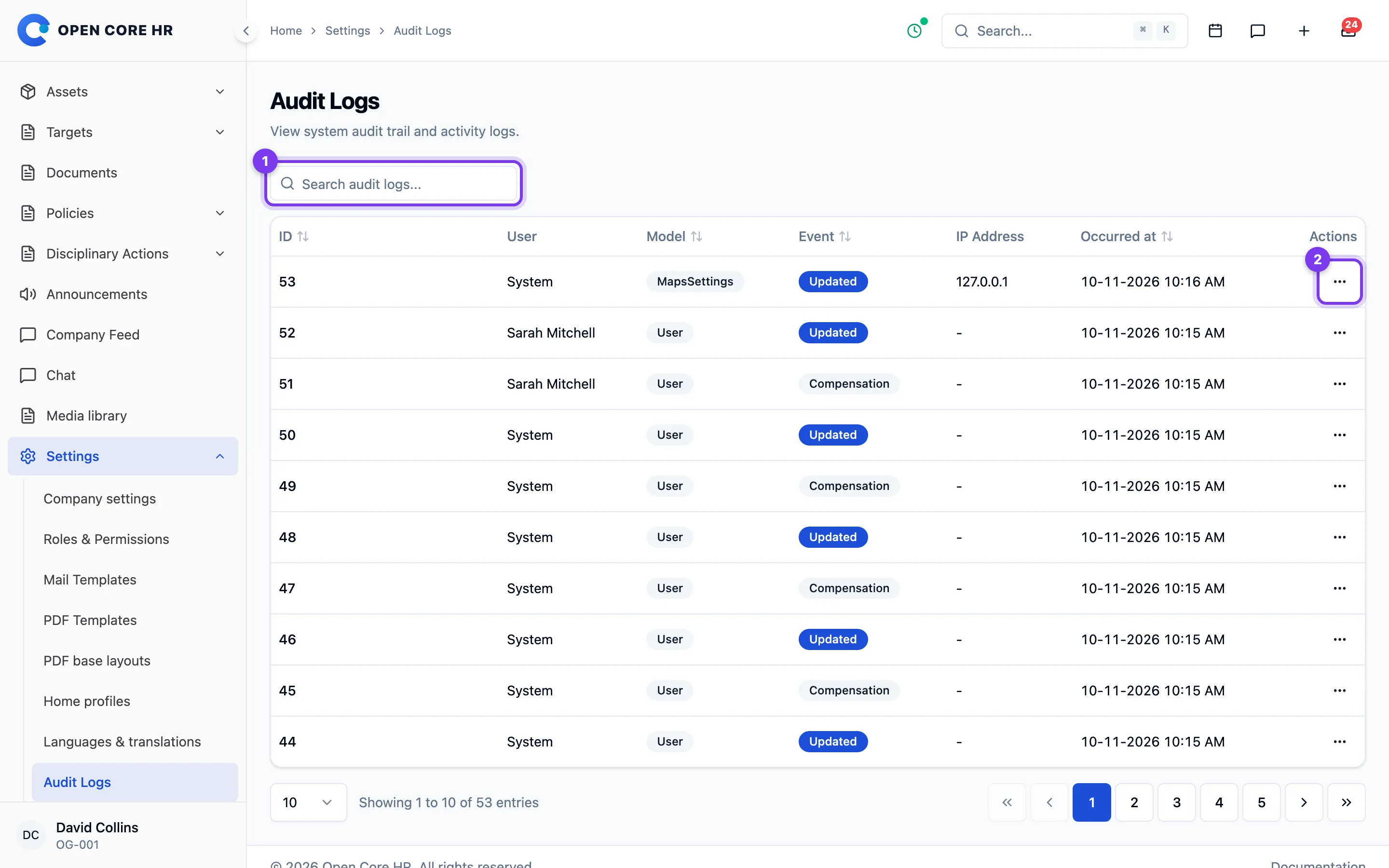
The Audit Logs screen is the system activity trail — a record of who changed what, and when. Open it from Audit Logs in the left menu, under the Settings heading.
- Audit Logs — Open Audit Logs from the menu.
Investigating a change
Search for the record or user, then open an entry to check who made the change, what changed, and when it happened. The actor may be System for an automated change.
Opening an entry
Click the view (eye) button on a row to open Audit Log Details. That page shows:
- Overview — the user (name and email), the Event, the Model and Record ID, plus the Timestamp, IP Address, User Agent, URL, and Tags when those were recorded.
- Changes — a table with Field, Old Value, and New Value columns. Fields that actually changed are highlighted (old value in red, new value in green). If the event didn't record any field changes, it says "No changes recorded for this event."
Use the back arrow at the top of the details page to return to the list.
Settings changes
Saving Settings → Field visits, Settings → Field tracking or Settings → Maps records one entry tagged settings, with the model FieldSettings, FieldTrackingSettings or MapsSettings. It lists only the fields that changed, with their old and new values, and the administrator who saved them. The Maps server key is shown as ******** so the entry shows when it was set, replaced or cleared without revealing it. The version field increases with every save.
Tips
- Audit entries are read-only — you can view them but not edit or remove them from here.
- Use the search box to narrow down to a person, a record type, or a date you're looking for.