
All guidesGetting started
Finding your way around
Learn the layout of the Open Core HR workspace and how to move between pages.
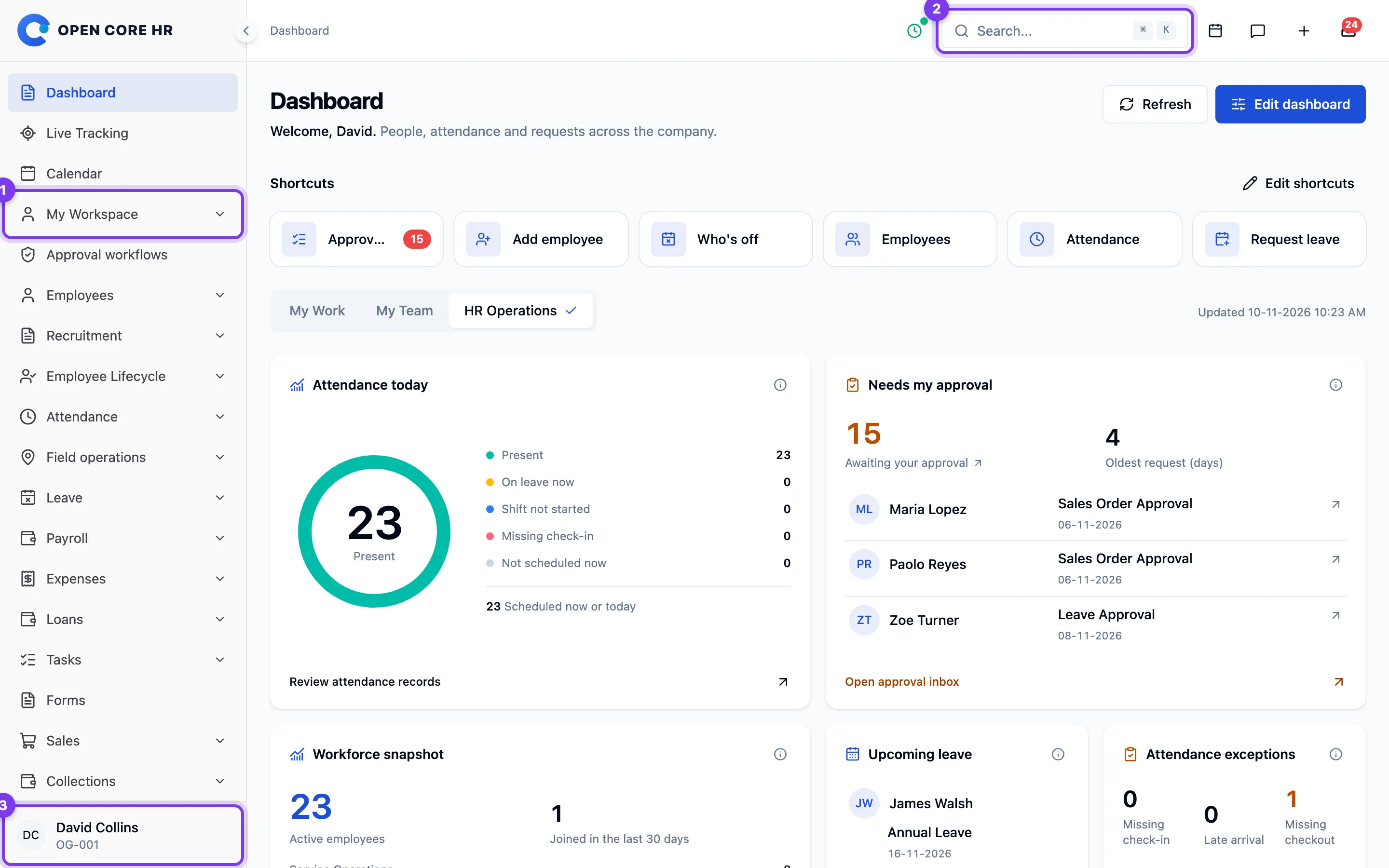
Everyone uses the same sidebar. My Workspace is one dropdown for all your personal pages: attendance, leave, expenses, payslips, assets, loans, documents, policies and more. Each enabled module adds its own personal pages automatically. Team and company work, reports and setup stay in their module menus.
Breadcrumbs on the left of the top bar show your current location. Use Search on the right (Ctrl+K or Cmd+K) to find an available page. Type at least two characters to also find people and, if you can view customers, customers by name or code; results include only the records your permissions allow. Missing pages may require a permission or an enabled module; contact your administrator if you need access.
Search and filter lists
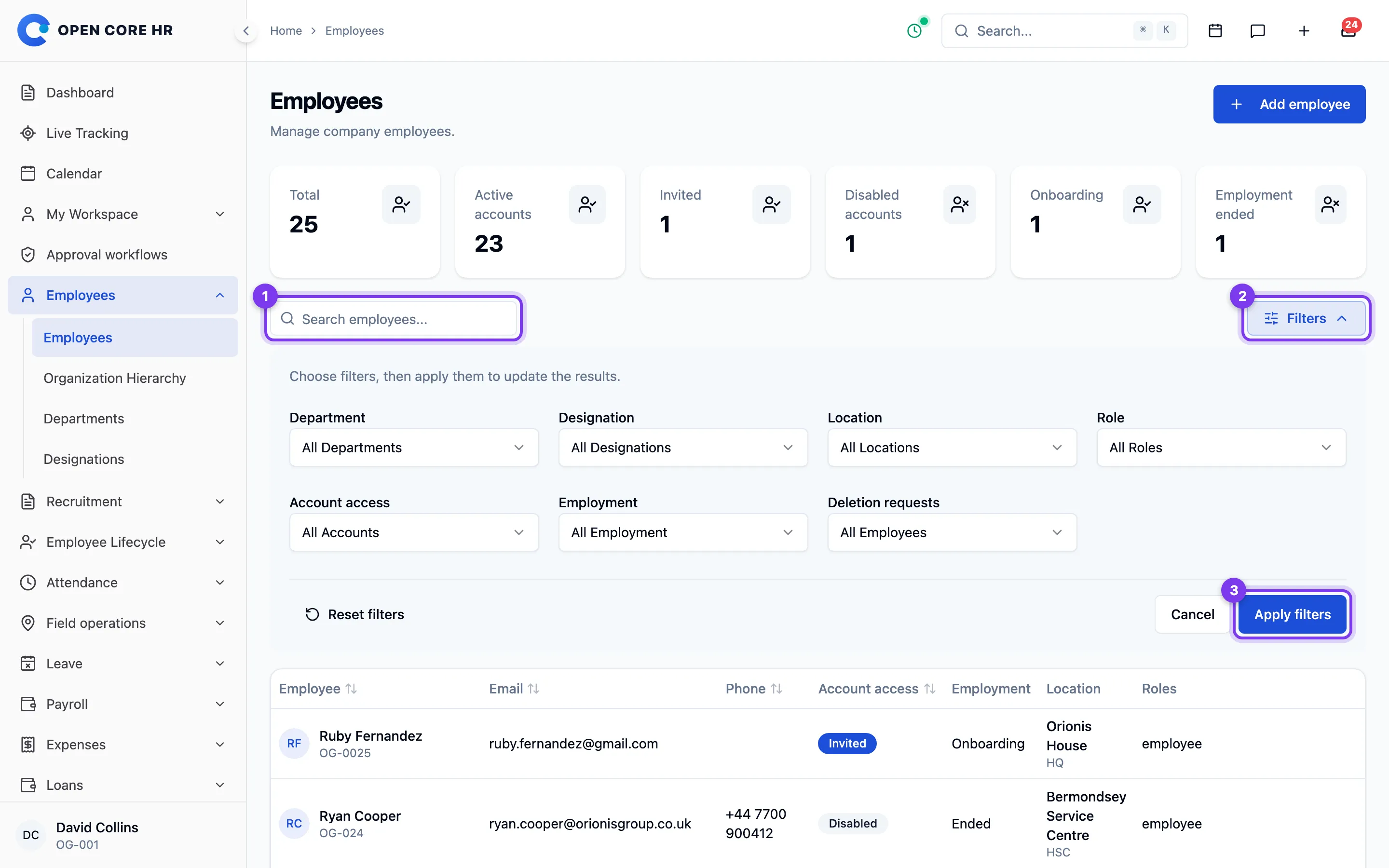
Use search to find records by the text supported by the current list. Open Filters to narrow the results, then choose Apply filters. The filter section expands within the page, so you can keep the results in view.
Changes in the filter section are drafts until you apply them. Cancel discards the draft; Reset filters restores the page's defaults in the draft and still requires Apply. Remove an applied filter individually, or use Clear filters to restore all defaults. Clearing filters keeps your search text.
Pin frequent pages
Hover over a module or page, or focus it with the keyboard, to reveal its star. On touch screens the star appears inside the row. Select it to add the item to Pinned, or select it again to remove it. Pins belong to your account and follow you across browsers and devices. A pin is hidden when its module is disabled or your permission is removed; pinning never grants access.
Account and alerts
Your account menu is at the bottom of the sidebar. Open it for My Profile, Change Password, or Logout. Bank Details is inside My Workspace. Notifications in the header contains decisions on requests and other alerts. Settings contains company-wide configuration for authorized administrators.
Open available communication modules from the sidebar. The Documentation link in the footer opens this public manual.
Use the top-bar shortcuts to open Chat or Email. On phones, open Shortcuts first. Quick create opens relevant forms across enabled modules, including employee records, leave and expense requests, tasks, loans, assets, policies, announcements, job postings, warnings, feed updates, and payroll drafts. Only actions allowed for your account appear. Payroll drafts require a configured pay group; Email requires a provisioned mailbox.
Open your account menu at the bottom of the sidebar to change Choose appearance or Language.