
All guidesField operations
Live tracking
Follow field employees on a live map and play back their routes.
Field tracking is a core capability that administrators enable in Settings → Field tracking. It records work-route samples during an authorized attendance session. Recording and viewing require separate permissions; managers and HR can only view the employee scope their permissions allow.
Tracking has no screen of its own in the mobile app. When your attendance policy records field routes, checking in turns on location sharing and checking out turns it off. The first time, the check-in sheet explains background location and asks for the phone's location permissions. Choose Allow all the time so your route stays complete when the app is closed. Tracking never starts or ends attendance for you.
While sharing is on, the Today workday card shows Sharing your location. Android also keeps a notification in the status bar, and iOS shows its blue location indicator. If sharing stops, the card shows Location sharing is off with the reason and a Turn on button. Sharing stops when a permission is removed, when it is stopped from the Android notification, or when it moves to another phone. Turn on asks for anything still missing and moves sharing to the phone you are using. Signing out stops sharing and detaches the phone.
Tracking can only be recorded from the mobile app; the web application can display tracking but cannot send location samples. The phone keeps saved samples when it is offline and uploads them when it reconnects. The sync icon on Today counts location points that are waiting or that the server refused. Open it to try again, or to discard refused points. Discarded points cannot be recovered from that phone. For support, Me → Help & about → Diagnostics lists the tracking state, queue, last location and sync time, recording limit and phone permissions, and can share them as a report.
Administrators choose a sampling profile, session limit and retention period. More frequent sampling can use more battery. Retention removes old stored tracking records and their daily summaries.
Distance, time and stops for a finished day are calculated once and stored; today's figures are calculated as samples arrive. When a phone uploads late samples for an earlier day, that day is recalculated by the scheduler within about an hour, or when someone next opens it. The scheduler must run for this.
Review tracking on the web
Open Live Tracking, directly below Dashboard in the sidebar.
- Live map shows on-duty employees with their latest received position and a status: recent, stale (no fresh fix), no location yet, or a location-permission problem reported by the phone. Use the filters to include off-duty employees, or show one status, department or employee. The list beside the map shows battery, app version and any customer visit in progress. Positions refresh every 30 seconds.
- Journey timeline shows one employee's day: distance, observed and stationary time, coverage gaps, customer visits, and a route map with stops longer than five minutes. Use Play route to replay the day. Attendance check-in and checkout, breaks, customer arrivals and departures, and phone events appear in time order beside the map.
- Export CSV downloads the day's route segments. Administrators who manage tracking can open Raw points to inspect each received sample, including its accuracy and movement.
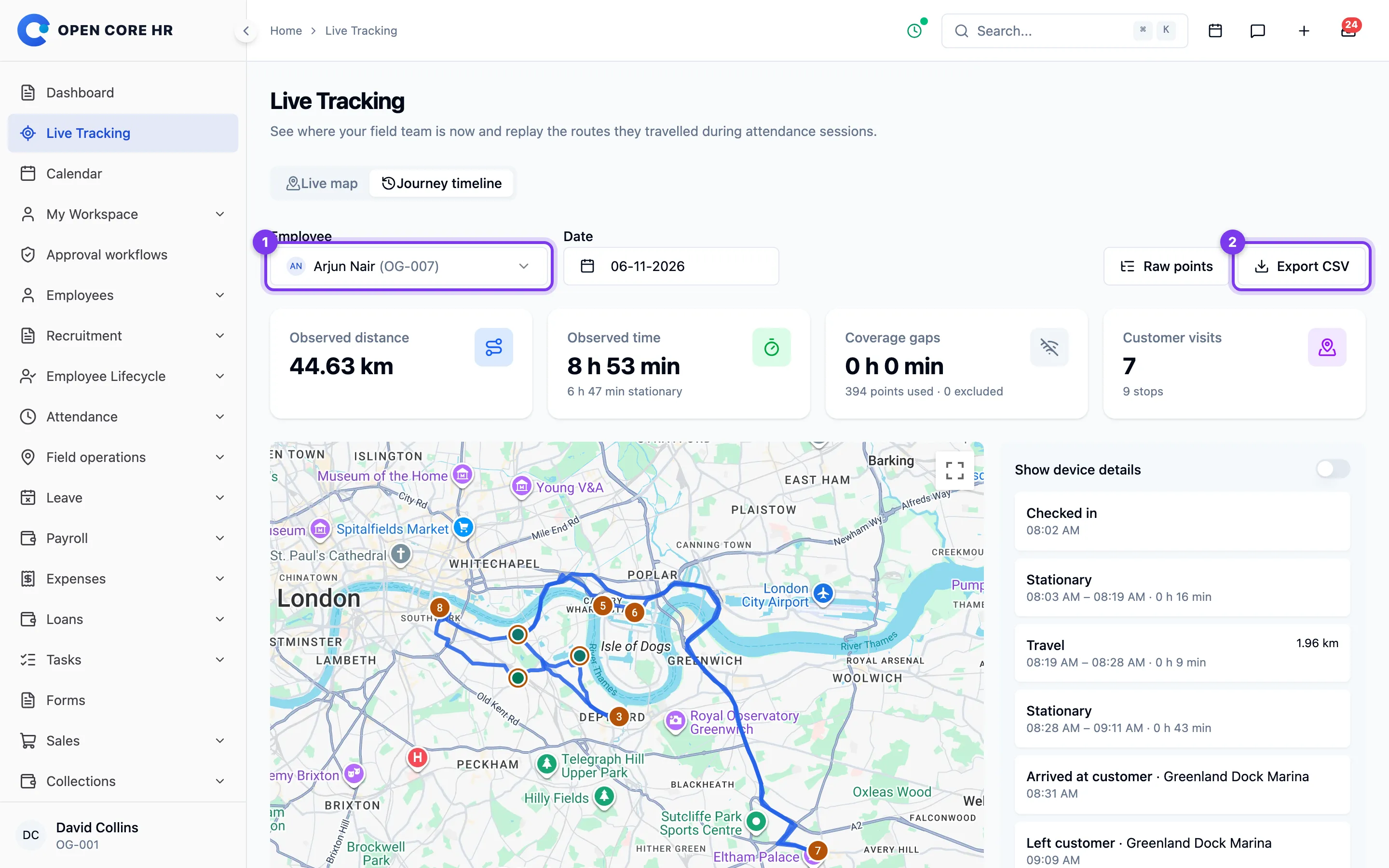
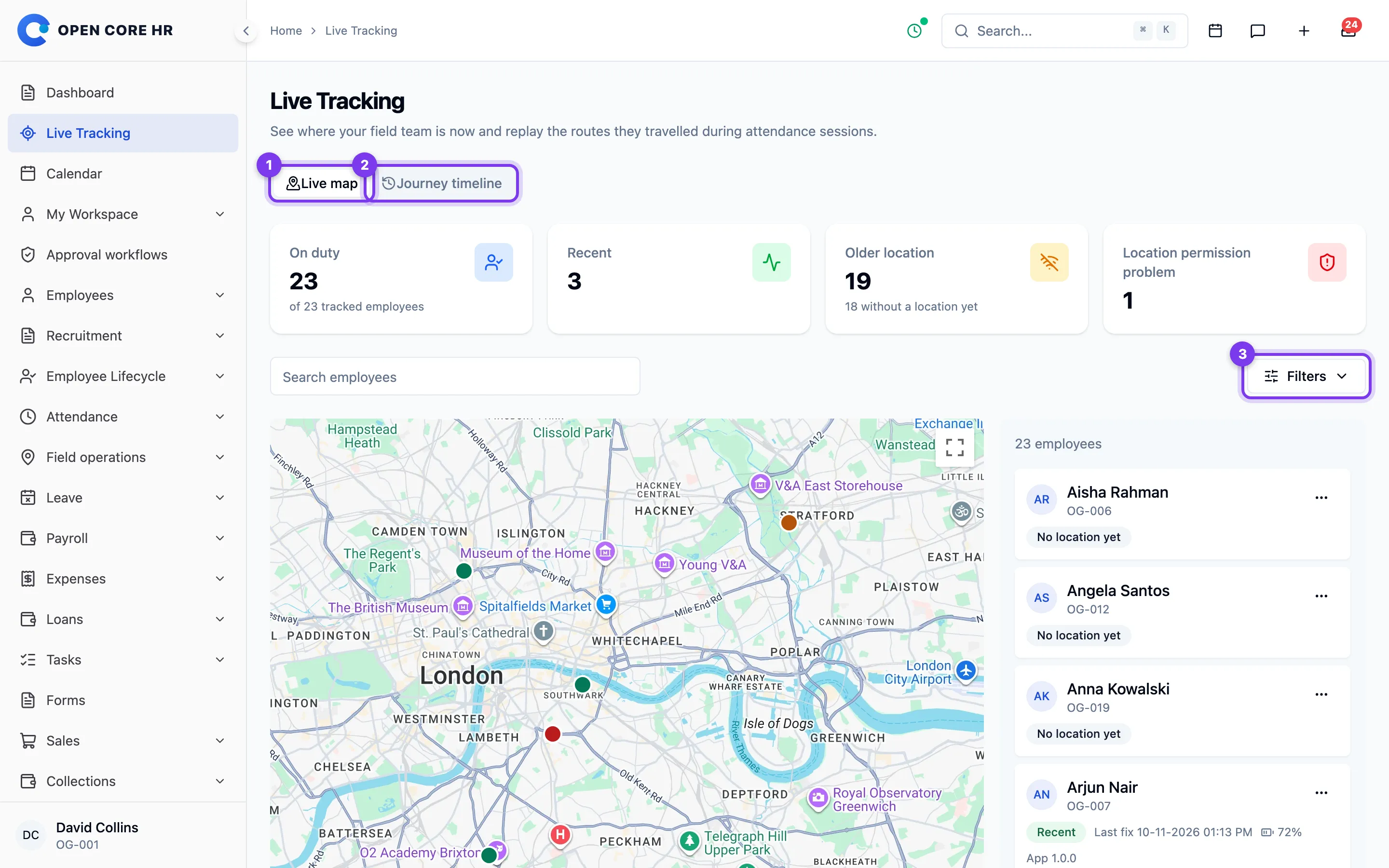
The live map shows the latest evidence received, which may be delayed when a device is offline or its operating system restricts background work; it does not prove a person's current location. Gaps mean the phone sent no usable samples for that period. Maps need a browser key in Settings → Maps; without one, the lists, timeline and export still work.