
All guidesSelf-service
Your calendar
Use the Core calendar to view, create, edit and respond to events.
Open Calendar to see personal events, invitations and schedules shared by HR modules. Calendar is included in Core and works without Microsoft 365 or Outlook Email.
Choose Month, Week or Agenda on the web, then select a date to review its events. On mobile, use the calendar format control for month, two-week or week views, with the selected day’s agenda below. Open an event for its details, participant responses and available actions. Private personal events are visible to their organizer and invited employees. Approved leave, holidays, interviews and task deadlines follow the permissions of their source records.
Use Open source record to change a module event. Cancelling an interview, completing a task or withdrawing approved leave updates its calendar entry. Calendar does not replace those modules' workflows or notifications.
Outlook appointments appear only when your organization enables Outlook Calendar Sync and you opt in. Imported appointments are private and edited in Outlook.
Creating an event
- Open Calendar and choose New Event.
- Enter a subject, start and end, and an optional location or description. For an all-day event, select the first and last included dates.
- Add attendees. Employees with matching HR email addresses can see and respond in Core. External email addresses receive invitations only when the organizer publishes the event through Outlook Calendar Sync.
- Choose recurrence and a reminder if needed, then save.
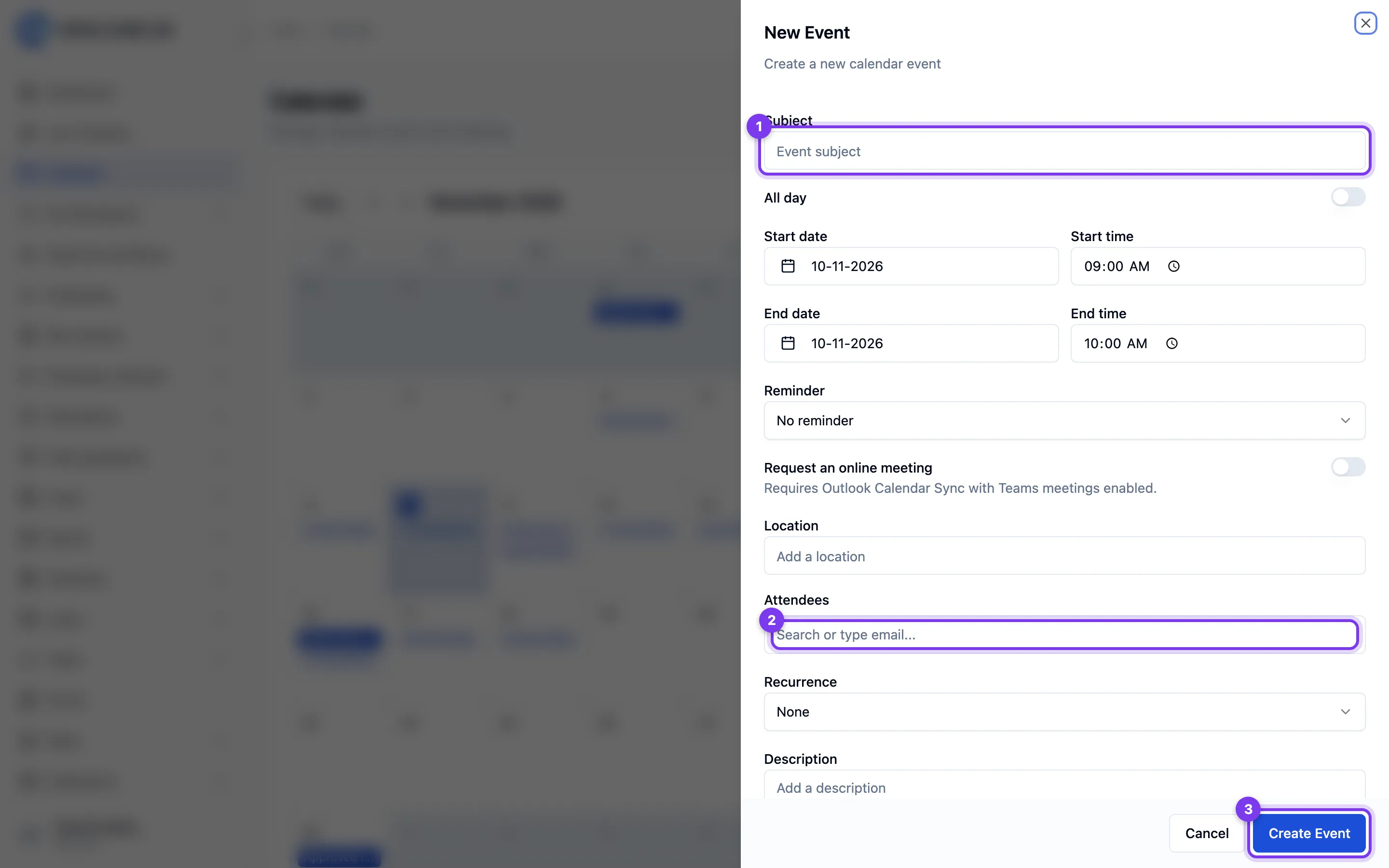
Timed events are stored as instants and displayed in your device timezone. Recurring events preserve the event's timezone across daylight-saving changes. The mobile app uses the organization's timezone for the recurrence rule. All-day dates remain calendar dates.
Reminders appear in your Open Core HR notifications; they are not email or SMS reminders. A declined attendee is not reminded. The scheduler must be running.
Requesting an online meeting takes effect when Outlook Calendar Sync publishes the event and the administrator has enabled Teams meetings. The join link appears after successful sync. Existing links remain when sync is turned off.
Editing and cancelling events
Open a personal event you organized and choose Edit or Cancel event. An invited employee can respond but cannot change the organizer's event.
For a recurring event, the normal edit or cancel action changes that occurrence. The web event details also offer Edit series and Cancel series. Series changes can remove exceptions that no longer belong to the revised recurrence rule.
Module events are changed through Open source record. Imported Outlook events are read-only here; edit them in Outlook.
Cancellation removes the event from participants' Core calendars. If it was published to Outlook, the next successful sync cancels that exported copy. If sync is off, no remote change occurs until you enable it again. A conflicting Outlook change requires your review.
Responding to invitations
Open an event you were invited to and choose Accept, Tentative or Decline. Your Core response is visible to the organizer and the other invited employees. For a recurring event, it applies to the selected occurrence.
Core responses and Outlook invitation responses are separate. Respond to an Outlook invitation in Outlook; this version does not forward Core RSVP actions to Microsoft. Imported appointments cannot be responded to here.
Availability and privacy
Use the calendar to review events you can access. A private event is shared only with its organizer and invited employees; adding it does not publish it to the entire company.
The shared API provides busy-only availability for scheduling clients. Looking up another employee requires employee-view permission and returns busy periods without event titles, descriptions or attendees. The standard month calendar currently shows your events rather than a separate scheduling assistant.