
All guidesAdministration
Expense administration
Review expense claims, record reimbursements and set up expense categories and approvals.
Open Expenses → Expense Claims to review expense claims. Expense claims are included in core HR and require the appropriate expense-viewing permission.
The list includes every category. Travel, meals, supplies, and claims containing several categories appear together.
Review claims
- Open Expense Claims. The initial filter shows submitted claims awaiting approval.
- Change the status filter to see other states or all claims.
- Search by employee or claim, or narrow by category and expense date.
- Open a claim to review its items and receipts.
- Approve or reject the whole claim from Inbox → To do when you are its authorized reviewer.
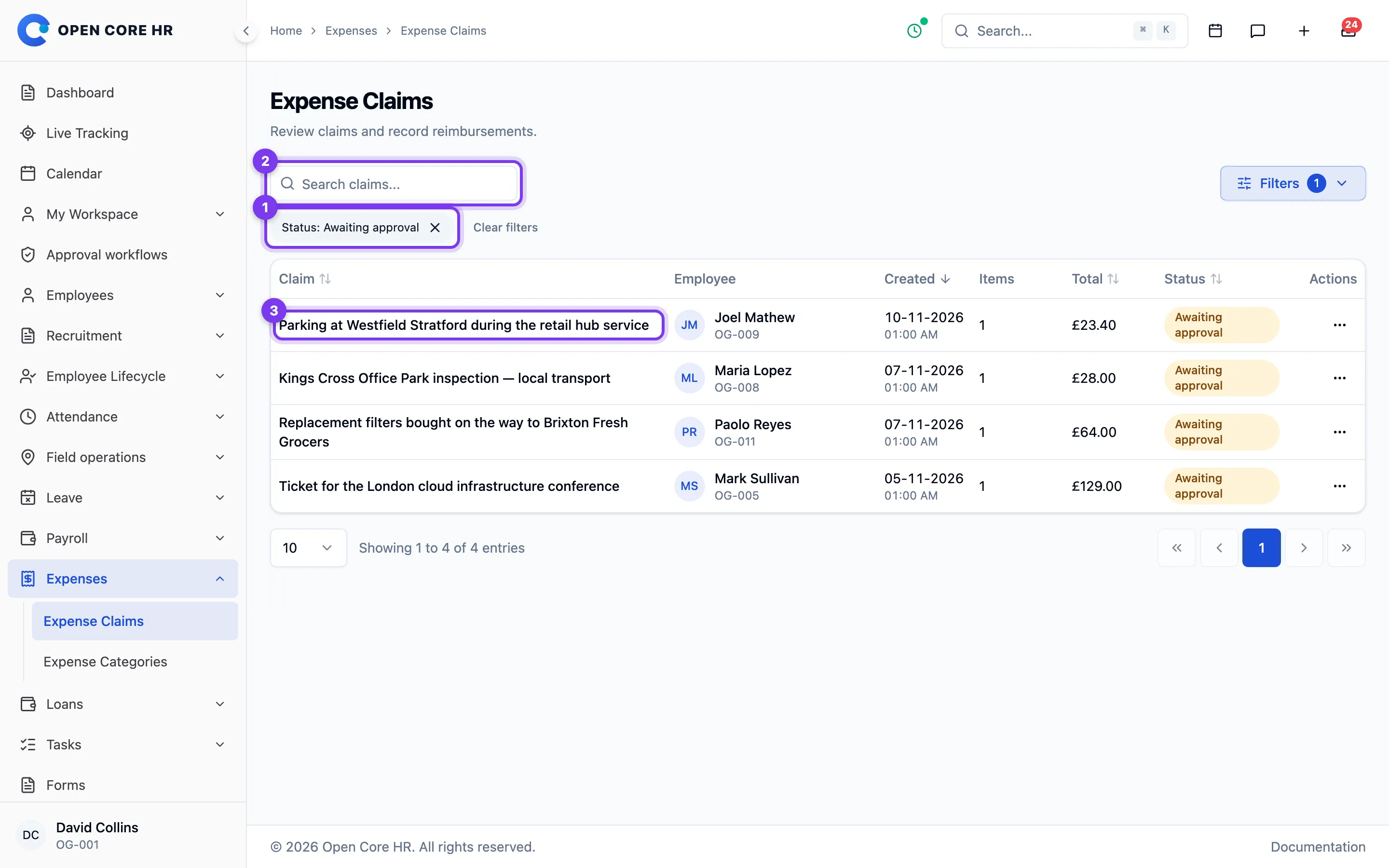
Date filters match the dates of expense items. A claim may contain items from different days. The list displays the total for the complete claim.
Statuses are Draft, Submitted, Returned for correction, Approved, Rejected, and Cancelled. A returned claim is waiting for the employee to correct and resubmit it. An approved claim also shows whether reimbursement has been recorded.
See Claim details and Recording reimbursement.
Expense claim details
Open a claim from Expenses → Expense Claims. This feature is included in core HR and requires expense permissions.
The detail shows the employee, claim title and notes, total amount, status, receipt items, and approval history. Each item has its own date, category, description, amount, and receipts. Receipts are private and require access to the claim; use the claim's receipt download to get all of them in one archive.
With the Receipt scanning add-on, each item can show Receipt checks: notices where the claimed amount or date differs from the receipt, a receipt could not be read, or the same receipt appears on another claim. A notice is a prompt to look, not a decision; the employee does not see these notices.
Approve, return or reject
Claims are reviewed in Inbox → To do, not from this page.
- Review all items and receipts here.
- Open Inbox → To do and find the claim.
- Choose Approve, Return for correction or Reject, add remarks, and confirm.
Return a claim when the employee can fix it, for example a missing receipt or a wrong category. A reason is required; the employee sees it, corrects the claim and resubmits it, and the new submission starts the approval workflow again. Reject a claim that should not be paid; the employee must then copy it to a new draft to claim again.
The decision applies to the complete claim. Amounts cannot be reduced by the reviewer, and items cannot be held or approved separately. With multiple approval steps, the claim stays Submitted until the final step is complete.
An employee cannot approve their own claim. A claim that has been withdrawn or already decided cannot be reviewed again.
Record reimbursement
For an approved claim, authorized users can choose Mark Reimbursed, choose the payment method, enter the reimbursement date and an optional payment reference, and confirm. A reimbursement recorded in error can be reversed. See Recording reimbursement.
Recording expense reimbursement
Record reimbursement after the employee has been paid outside Open Core HR. This feature is included in core HR and requires expense permissions and reimbursement permission.
- Open Expenses → Expense Claims and select an approved claim.
- Choose Mark Reimbursed.
- Choose the payment method: bank transfer, cash, payroll, cheque or other.
- Enter the date reimbursement was made, today or earlier.
- Optionally enter a payment reference.
- Confirm.
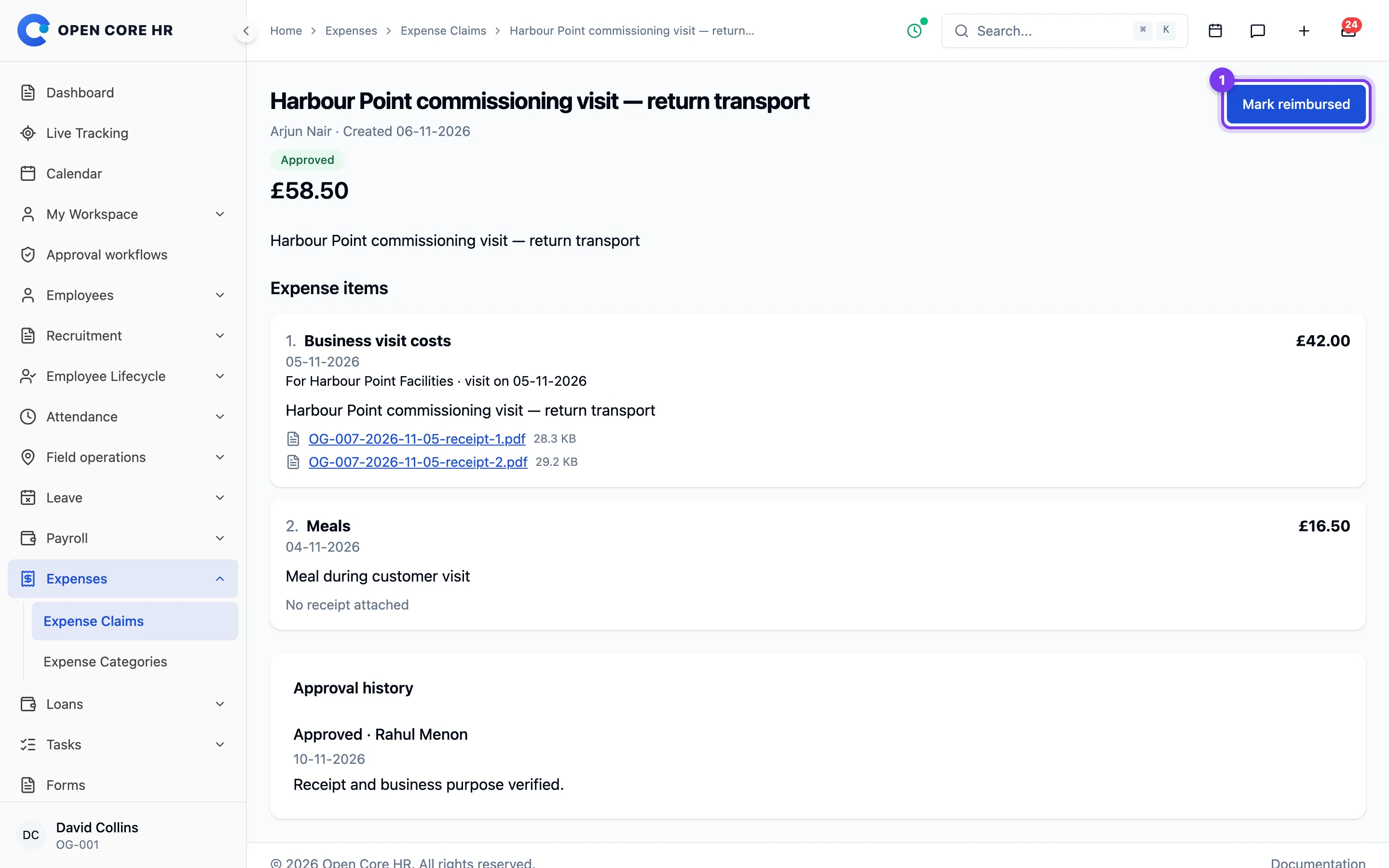
The claim keeps its approval history and records the reimbursement date, method, reference, and the user who recorded it. Employees can see that reimbursement has been recorded.
Only approved claims can be reimbursed, and the same claim cannot be marked reimbursed twice. This action records the full claim amount; it does not initiate a bank transfer or record partial payments.
If Payroll has reserved the claim, record the employee's payment in Payroll. The claim becomes reimbursed when the employee's full net pay is recorded; a partial payroll payment leaves it reserved. Reversing that payment reopens its reimbursement status. To pay a reserved draft item separately, first cancel the unfinalized payroll run. Do not enter the expense again as a manual payroll adjustment.
Reverse a reimbursement
Reverse a reimbursement that was recorded against the wrong claim or was not actually paid.
- Open the reimbursed claim and choose Reverse reimbursement.
- Enter the reason and confirm.
The claim becomes approved and unpaid again, so it can be reimbursed later or picked up by Payroll. The reversed payment, its method and reference, the reason, and who reversed it stay in the claim's history and the audit log. Reimbursements recorded by Payroll cannot be reversed here; reverse the payment in Payroll instead.
Expense categories
Expense categories organize claims and define simple receipt and amount rules. This feature is included in core HR and requires expense permissions.
Open Settings → Master Data → Expense Categories. The initial categories include Travel, Meals, Accommodation, Office Supplies, Communication, and Other. Edit them to match your organization.
Create or edit a category
- Choose Add Category, or edit an existing category.
- Enter the name and optional notes. Leave Code blank to generate it when saving, or supply a custom code of up to 50 characters. The saved code is read-only.
- Choose whether a receipt is required.
- Optionally set a maximum amount per item. Leave it empty for no category limit.
- Set the category to active or inactive, then save.
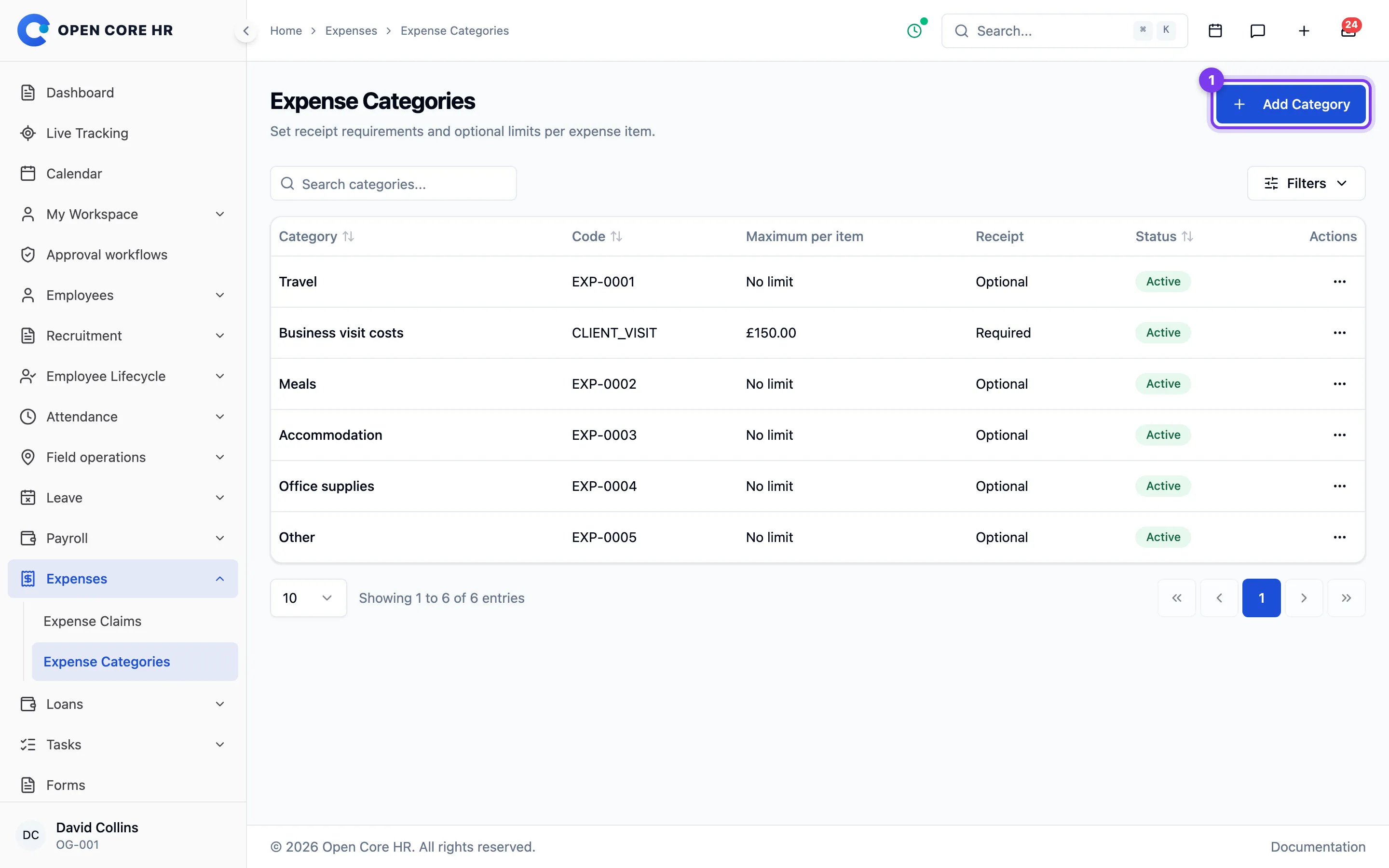
Amounts use your organization's currency. A limit applies to each expense item, not to the employee's daily or monthly spending. There are no designation, attendance, distance, or travel-class rules.
Deactivate categories you no longer use. Existing claims keep their category and receipts. Categories referenced by claims cannot be deleted.
Approval routing is configured in Expense approvals, separately from categories.
Expense approvals
Expense claims use the shared approval workflow. This feature is included in core HR and requires expense permissions.
Open the central Approval Workflows settings and select Expense Approval. The default workflow has one reporting-manager step. Configure the appropriate approver for your organization; additional steps can be added when needed.
What approval means
An employee submits a complete claim with one or more dated items. Approvers review the receipts and approve or reject the whole claim. Individual items do not have separate approval, hold, or adjusted-amount states.
A claim remains Submitted until all required approval steps are complete. An employee cannot approve their own claim. The approval history records decisions and reviewer notes.
Rejected claims remain unchanged. The employee can copy a rejected claim into a new draft, correct it, and submit the new claim.
Approval does not record a payment. After reimbursement is made outside Open Core HR, an authorized user records it using Mark Reimbursed.
Receipt requirements and optional per-item limits are managed in Expense categories.