
All guidesSelf-service
Compensatory offs
Request, edit and track compensatory offs earned for extra work.
The My Compensatory Offs screen lists the comp-offs you've earned for extra hours worked, along with their status. Open it from My Workspace > Compensatory Off.
Checking available days
Check the approval status, available days, and expiry date before using a comp-off. A used or expired comp-off is no longer available.
Steps
Filter the list
- Use the Status dropdown above the table (All Statuses, Pending, Approved, Rejected).
- Use the From Date and To Date pickers to limit by worked date.
- Type in the Search compensatory offs... box to search the table.
- Click Clear to reset the filters.
Open or edit a comp-off
- Click the view (eye) button in the Actions column to see a comp-off's details.
- For a Pending comp-off, an edit (pencil) button also appears. See Editing a compensatory-off request.
Request a new comp-off
Use the Request Comp Off button at the top right. See Requesting a compensatory off.
Your compensatory-off balance
Your available compensatory offs (comp-offs you've earned that are approved and not yet used or expired) show up in a couple of places in the web application.
On the Leave Balance screen
- Go to My Workspace > Leave Balance.
- If you have any available comp-offs, an Available Compensatory Offs section appears near the bottom, with a badge showing your total comp-off days available and a table listing each one's Worked Date, Days, and Expiry Date.
On the My Compensatory Offs screen
- Go to My Workspace > Compensatory Off.
- The cards at the top include an Available count, alongside Total Earned, Used, Expired, and Pending.
When applying for leave
If your organisation has a compensatory-off leave type, picking it on the Apply for Leave form shows how many comp-off days you have available, and the request draws from your oldest comp-offs first.
Requesting a compensatory off
If you worked extra hours, you can request a compensatory off so the time can be taken later. Open the My Compensatory Offs screen from My Workspace > Compensatory Off.
Steps
- On the My Compensatory Offs screen, click Request Comp Off.
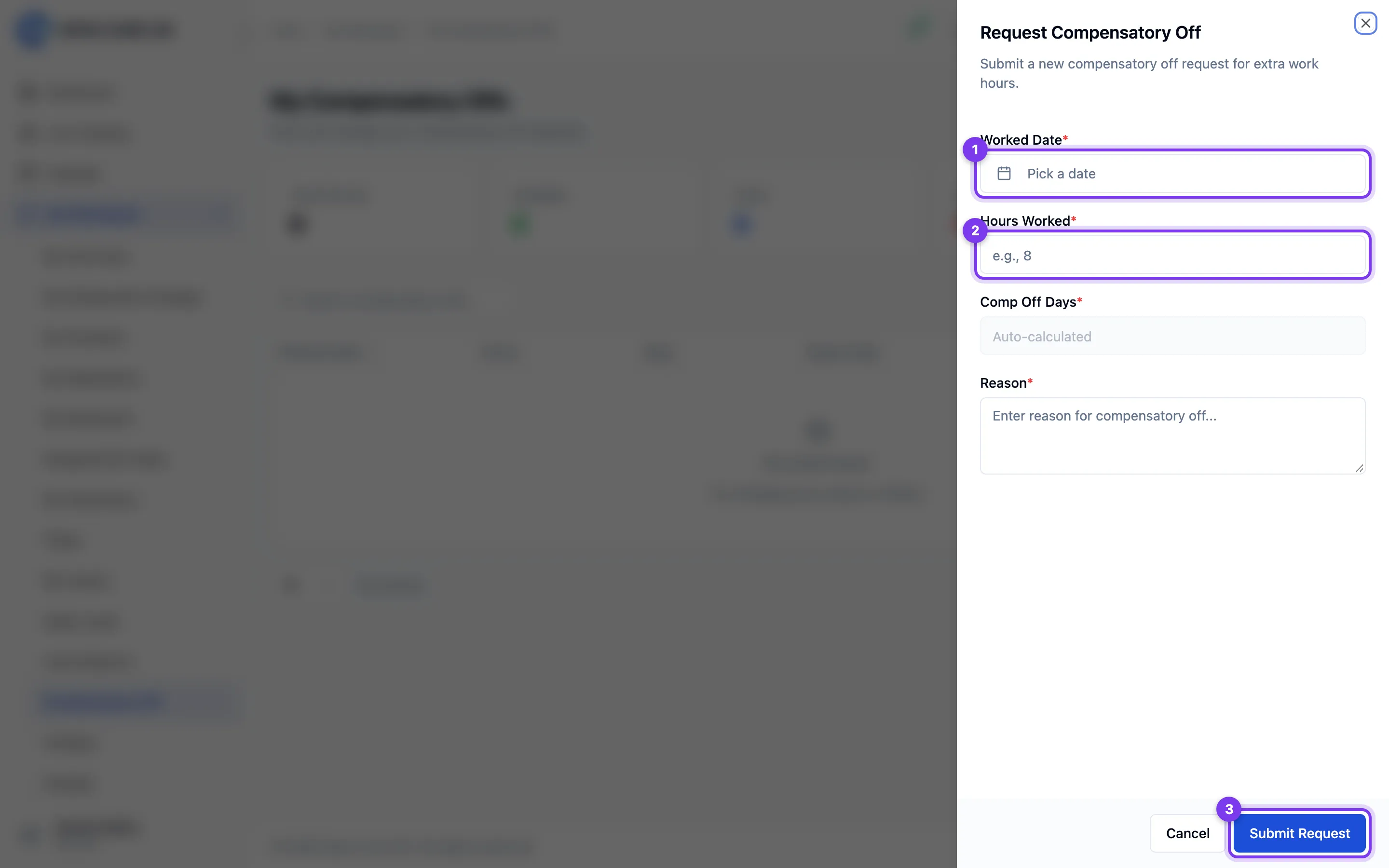
- In the Request Compensatory Off panel that slides in, fill in:
- Worked Date — the date you put in the extra hours (must be today or earlier).
- Hours Worked — the number of hours.
- Comp Off Days — this fills in automatically based on the hours you entered (every 4 hours counts as half a day). You can't edit it directly.
- Reason — why you're requesting the comp-off.
- Click Submit Request.
- Confirm in the Submit Compensatory Off Request? dialog by clicking Yes, Submit.
- A confirmation appears and the new request shows in the list with a Pending status, waiting for approval.
Troubleshooting
- "A compensatory off request already exists for this date." — You already have a pending or approved comp-off for that worked date. Edit the existing one instead.
- If the Submit Request button does nothing, check that all four fields are filled in.
Editing a compensatory-off request
You can change a compensatory-off request while it's still Pending. Once it's approved or rejected, it can't be edited.
Steps
- Go to My Workspace > Compensatory Off.
- Find the Pending request and click the edit (pencil) button in the Actions column. (You can also open it with the view button and use the Edit button in the details window.)
- In the Edit Compensatory Off panel, update the Worked Date, Hours Worked, or Reason. The Comp Off Days value recalculates automatically from the hours.
- Click Update Request.
- A confirmation appears and the list refreshes with your changes.
Troubleshooting
- If you don't see an edit button for a request, it's no longer pending and can't be changed.
- If Update Request does nothing, check that all four fields are filled in.