
All guidesInstallation
Licences and activation
Link an installation to your licence so it can install add-ons and receive updates.
Open Core HR works without activation. Activation unlocks the add-ons you own, one-click add-on installs, Core updates and the add-on store inside the product. It never sends employee or business data to CZ App Studio.
Before you start
- Sign in to the product as the super administrator of the main organization.
- Set
APP_URLin.envto the exact address people use, for examplehttps://hr.example.com. Activation is tied to that host name. - The server must be able to reach
https://czappstudio.comover HTTPS (port 443). If a firewall or proxy blocks outgoing traffic, allow that address. - Have your CZ App Studio account details ready. The licence must be in that account.
Activate
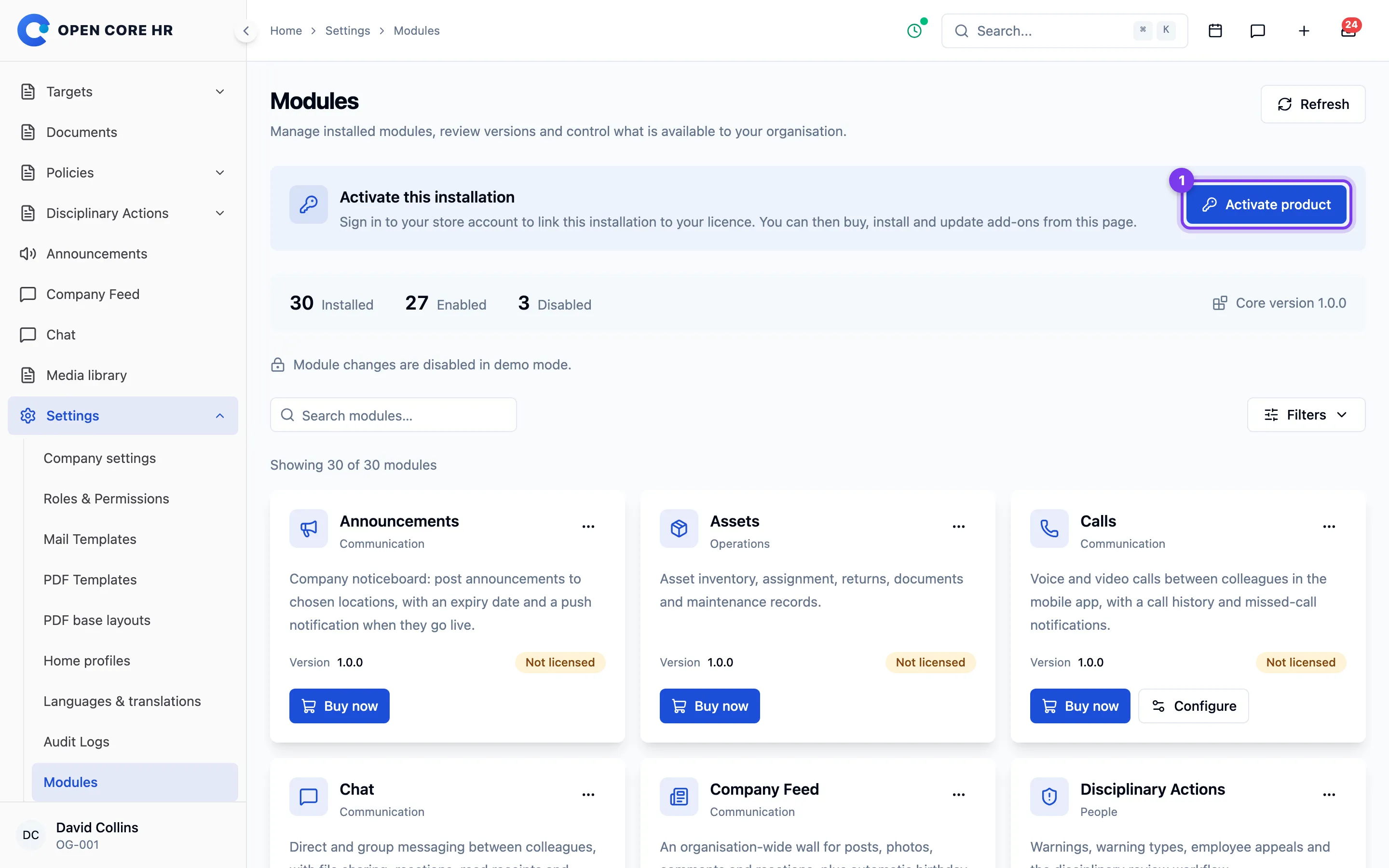
- In the product, open Settings → Modules and choose Activate product.
- The CZ App Studio website opens. Sign in if asked.
- Check the product, address and code, choose the licence to use, tick the confirmation and choose Approve activation.
- You return to the Modules page, which now shows Activated with your address.
If the browser cannot return to the product (for example the server is reachable only inside your network), the product shows a 10-character code instead. Open Activate your product, enter the code, approve, then choose Check again in the product.
Activation requests expire after 10 minutes. Start again if the code has expired.
Local and production slots
Each core licence has two activation slots:
| Slot | Used when APP_URL is |
Typical use |
|---|---|---|
| Local development | localhost, 127.0.0.1 |
A trial or development copy on your own computer |
| Production | A real domain name | The installation your staff use |
Each slot holds one installation at a time. Add-ons follow the core licence they are assigned to.
Moving to a new server or domain
- Back up the old installation (see Backups and updates).
- On your licence page, choose Deactivate for the production slot.
- On the new installation, choose Activate product again.
On the old installation you can also choose ⋯ → Remove activation from this server. That forgets the activation locally; the slot is released only when you deactivate it in your account.
Add-ons and your licence
Add-ons you buy are attached to a core licence automatically when you buy them with Buy now from the product, or when you own exactly one core licence. Otherwise, open the add-on's licence in your account and choose the core licence to attach it to. Then choose Check for updates in the product; the add-on shows Install.
How the licence is checked
The product checks in with CZ App Studio once a day and when you choose Check for updates. Each check returns a receipt signed by CZ App Studio; the product only trusts a receipt whose signature, installation and address match. If the website cannot be reached, the last valid receipt keeps working.
Each check sends the installation's address, product and add-on versions, and basic server facts (PHP, database and web server versions, PHP extensions, memory and disk limits, time zone, organization and user counts). This helps support and compatibility. No employee, attendance, payroll or other business records are sent.
Messages and what to do
| Message | Fix |
|---|---|
| This server cannot reach czappstudio.com | Allow outgoing HTTPS to czappstudio.com in the firewall or proxy, then retry. |
| The return address must be on the server being activated | APP_URL does not match the address in the browser. Correct APP_URL, run php artisan config:clear, and start again. |
| No slot is available | Deactivate the old installation in your account, or choose another licence. |
| The store no longer recognises this installation | The activation was deactivated or revoked. Choose ⋯ → Remove activation from this server, then activate again. |
| The store refused this request | The server address changed since activation. Remove the activation and activate again. |
| The licence receipt could not be verified | APP_URL does not match the activated address, or the files were modified. Correct APP_URL; reinstall Core from your download if needed. |
Repeated failed licence requests from one address are recorded and may be blocked.